
Plan your week, learning centers, and observations
Plan each room's week and its learning centers, publish to families, print what licensing asks for, and log observations — from the web or your phone.
Curriculum lives under Organization → Curriculum. The page is a set of tabs: Week Planner (where you'll spend most of your time), Activities, Observations, Coverage, Reports (see Progress reports from your observations), and Standards. If your organization made lesson plans in an older version of NestliCare, a Legacy Plans tab keeps them available.
Plan a week
The Week Planner is one room's week: the rows are your day's rhythm (Arrival, Circle Time, Lunch, Nap...), the columns are Monday to Friday.
- Pick the room and use the arrows to pick the week.
- Click any cell to add what's happening there — choose an activity From library or Write your own (a title, plus an optional description of what it looks like).
- Click Save. The week stays a Draft until you publish it.
- Click Publish to families when it's ready — published weeks appear in the parent app.
Copy last week starts a new week from the previous one, which is usually faster than starting blank. Editing a published week updates what families see as soon as you save.
Learning centers
Below the week grid is the Learning centers section — the interest areas of your classroom (Blocks, Dramatic Play, Art, Sensory, and so on). Plan what each center offers each day the same way: click a cell, add the activity or the materials you're setting out.
Center plans save, publish, and print together with the rest of the week, and their materials are included in the supply list.
Admins can edit the list of centers with the small gear next to the Center column header — rename them, reorder them, add your own, or remove them all if your program doesn't plan by centers (the section disappears).
Your day rhythm
The rows of the planner are your organization's daily rhythm. This is your classroom's daily routine or daily schedule. To change its times, admins click the gear next to Time of day: rename parts of the day, reorder them, and set approximate start times (that's what licensing asks for — a room that naps late should say so).
Changing the rhythm or the centers list updates every week that is still a draft, including the one on your screen. Published weeks keep the layout they went out with. If you remove a row or a center that a draft week already has something planned in, that row stays on that week so nothing you planned disappears.
Print and post
The Print menu on the Week Planner turns the plan into the paper your program actually posts:
- Weekly plan — the wall copy, including the learning centers, with a reviewer signature line.
- Day sheet — one day laid out for a substitute: what happens, what to get out, and what's in the centers today.
- Center cards — one card per learning center for the week. Cut them apart and post one at each center.
- Our Day poster — the daily rhythm in large type for the wall.
- Supply list — every material across every room's plan for the week, as one shopping list.
- Evidence binder (admins) — the last 90 days of plans, sign-offs, standards addressed, and observations as a single PDF for a licensing visit.
Review sign-off
Admins can Mark reviewed on a week — the digital version of initialing the posted plan, which QRIS programs ask for. If the activities change after a review, the sign-off is cleared and has to be given again, so a reviewer's name is never on a plan they didn't read.
Plan from your phone
You don't need a computer to plan. In the NestliCare app, go to the Dashboard tab — the Today's Plan section shows what's planned for today, and Plan Week (or Full Week) opens the planner:
- Pick the day with the Mon–Fri chips.
- Tap any part of the day, or any learning center, to add activities — write your own or pick from your library.
- Changes save as they're made — there's no Save button to forget.
- Tap Publish to families when the week is ready.
Admins also get Edit day rhythm and Edit learning centers in the ⋯ menu, so the whole setup works from a phone. Planning on mobile needs the September 2026 app update or later; earlier versions show the week read-only.
Observations, coverage, and standards
Every planned activity has an Observe button (on the web grid's cell editor and on the phone). Use it after running the activity to record a milestone for several children at once — the milestone pre-selects from the activity's tagged standards, so it's usually just picking children and a progress level.
On the web, when Quick log is on for your daycare, the same dialog opens with Draft from a note: say or type who showed what ("Ella took turns on the slide, Noah stacked six blocks by himself") and NestliCare drafts one observation per child, matched only against the milestones this activity is tagged with. Change the level or the note, remove any card, then save; each saved observation is linked to the planned activity, so it counts in Coverage. Nothing is recorded until you save, and a note that matches none of the activity's milestones simply drafts nothing. Drafting from a note is available to daycares in the United States and Canada, except Quebec.
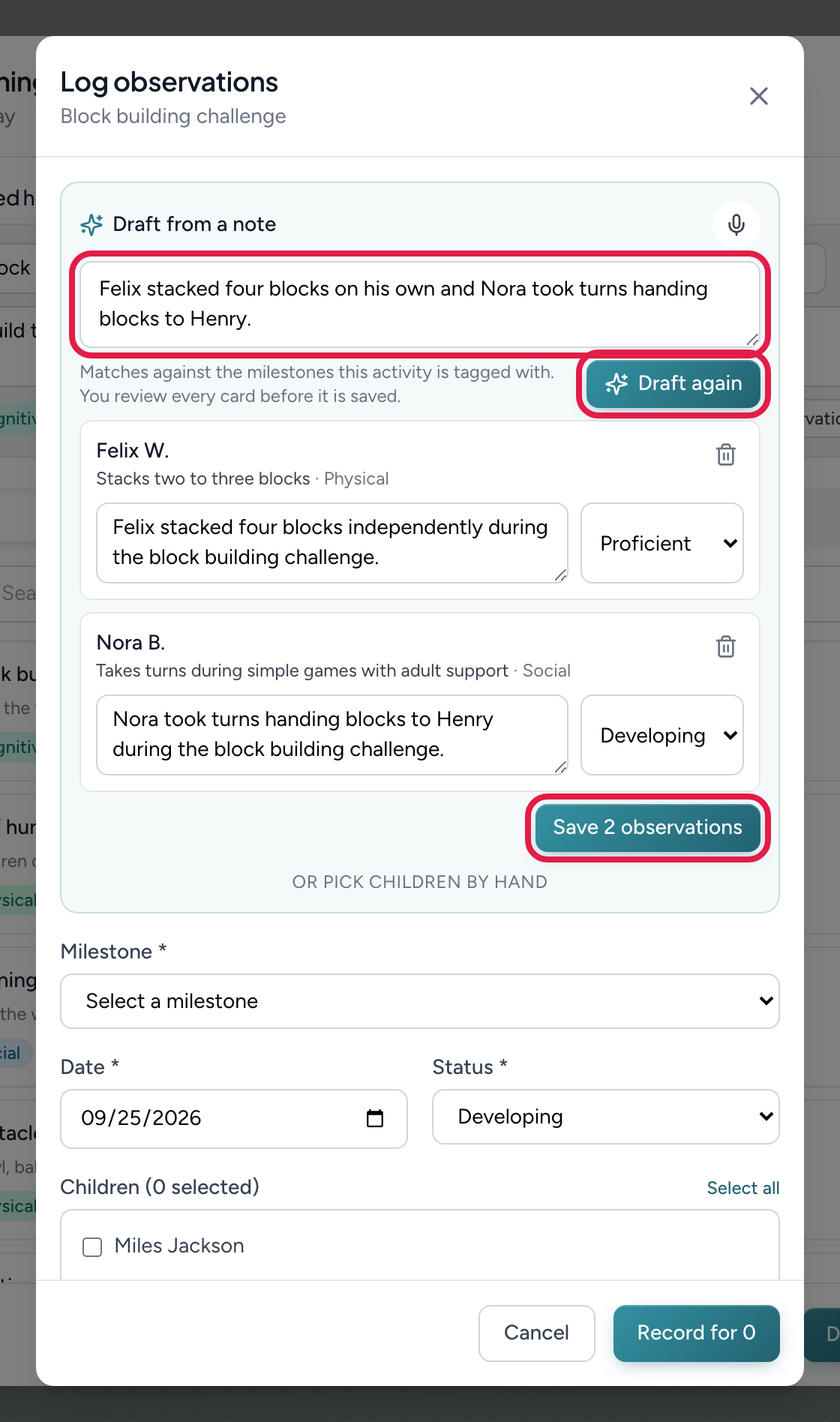
- 1Say or type who showed what
- 2Draft observations — one card per child, matched to this activity's milestones
- 3Save — each card becomes an observation linked to this activity
- The Observations tab lists everything recorded.
- The Coverage tab shows which developmental domains each child has been observed in — and flags planned domains with nothing recorded, which is the gap worth acting on.
On the phone, admins find the same three things under Admin → Curriculum: Week plans (the planner behind a room picker), Observations (every observation by room, with the level, note and parent sharing editable; teachers reach the same list from the eye button on their week plan), and Coverage (the same grid, last 30 or 90 days, with the gaps highlighted). Observations can also come straight out of a Quick log note when a child shows a skill — see Quick log.
- The Standards tab holds your state's early learning standards; tag them on library activities so plans and the evidence binder show what you're covering.
Add your own milestones or learning goals
Your curriculum framework's learning goals go in as your own milestones:
- Open Curriculum → Standards and click Add milestone.
- Type the milestone, and fill in its domain (for example Language) and age range.
- Save. It appears in the Your milestones folder at the top of the Standards tab.
Hover one of your own milestones to edit or delete it. The built-in frameworks are read-only, so their milestones can't be edited or deleted. A milestone that already has observations recorded against it can't be deleted.
How teachers pick them. Teachers don't choose from the whole list when they observe. Tag the milestone on an activity in the Activities library, then place that activity in the week. When a teacher taps Observe on it, only that activity's milestones are offered. The domain comes from the milestone itself, so teachers never pick a domain separately.
The activity library
The Activities tab is your reusable library. Give an activity a title, description, materials, domains, and standards once, and placing it into any week copies all of that in — editing the library later never rewrites weeks that already went out.
What families see
Publishing a week shares it to the parent app: each day's activities appear with their part of the day, and center activities appear under the Learning Centers block. Drafts are never visible to families.
Troubleshooting
Families can't see this week's plan. The week is still a draft — open it and click Publish to families.
There's no Learning centers section. Your organization's centers list is empty. An admin can add centers with the gear next to the Center column (web) or ⋯ → Edit learning centers (app).
I can't edit the plan on my phone. Update the app — versions before the September 2026 update show the week read-only. Editing the day rhythm or centers list from the phone also needs an admin account.