
See your child's day
Open the parent app to see activities, meals, naps, diapers, and photos as teachers post them.
The daily feed is the heart of the parent app. Every meal, nap, diaper, photo, and note your child's teachers log shows up here — usually within a few seconds.
Short version first: this narrated video walks through a morning in the feed.
New to the app? This 90-second tour shows every tab.
Open the feed
- Open the NestliCare app.
- You land on the Home tab (the 🏠 icon in the bottom nav).
- Your children appear as circular story-style avatars at the top. The feed of today's activities is underneath.
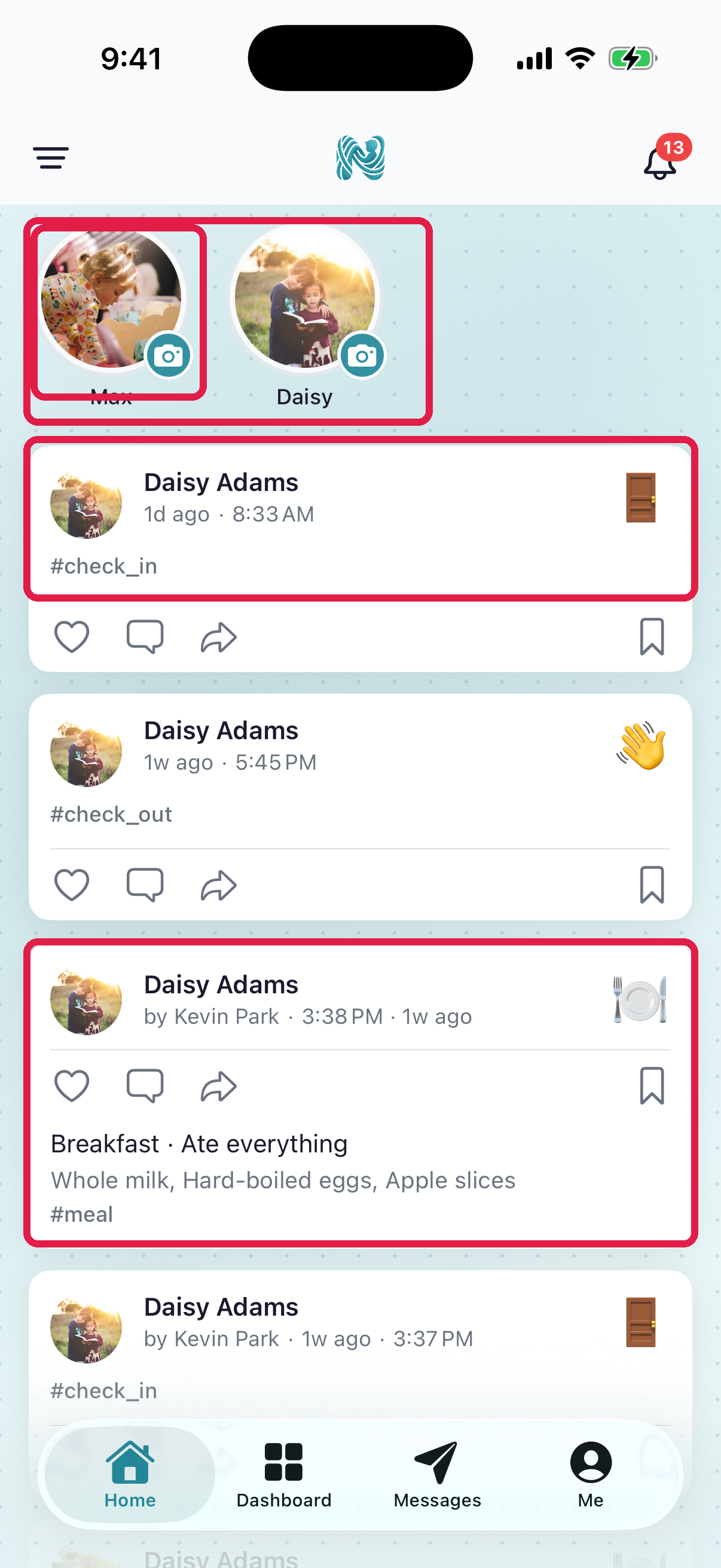
- 1Story row — each child's avatar. Ring color reflects their attendance status (checked in / not yet)
- 2Tap an avatar to see their story view (attendance + recent photos)
- 3Activity feed — newest at top. Meals, naps, diapers, photos, notes, announcements, incidents
- 4Tap any card to see the full detail, including the teacher who logged it
On a computer, without the app
The app is the best way to follow your child's day, but it is not the only way. You can sign in at nestlicare.com with the same email and password and see your children, invoices and payments, messages, documents, and the center calendar in a browser.
Two things to expect if you do:
- The browser view is built for the things you might rather do on a bigger screen — paying an invoice, filling in a form — and it is not a copy of the app.
Photos and daily activities are worth having the app for, since that is where the notifications arrive.
Switch between children
At the top of Home, each child has a circular avatar in a story-style row. Tap an avatar to open their story view. The feed on the Home tab itself shows activities across all your children together — it's one combined timeline.
What you'll see in the feed
- Meals and snacks — what they ate, how much (a little, most, all), who fed them
- Naps — start time, end time, duration
- Diaper changes — wet, dry, BM, with optional photos for skin issues
- Photos — a moment a teacher captured, with a short caption
- Teacher notes — "had a rough morning but bounced back after outdoor time"
- Announcements — room-wide or center-wide messages (picnic Friday, weather closure)
- Incidents — if there was an injury or behavior note, this appears here with details
Save a post to find it later
Tap the bookmark icon under a post to save it. Saved posts appear in a Saved Items section further down the Home tab, so you don't have to scroll back through the feed. On iPhone, the section shows three saved posts; tap View All for the rest. Tap the bookmark again to unsave a post.
A few things to know:
- Saved Items only appears once you've saved something.
- Saves are kept on that phone. They don't carry over to another phone, a reinstall, or the browser.
- The list is built from your recent feed, so a post saved a long time ago can drop off it. Download photos you want to keep.
- The bookmark keeps a list only in the parent app. On staff and admin accounts it doesn't save posts anywhere.
Naps in progress
While your child is napping, the Home tab shows that they're sleeping. The nap appears in the feed with its times once they wake up.
Like and comment
Tap the heart on a post to like it, or comment to reply to the teacher.
Yesterday's day, last week's day
Scroll back. The feed goes back indefinitely — useful for when your pediatrician asks what your kid ate on a specific day.
To filter by category (e.g., show only photos), tap the filter icon in the Home header. A "Showing: [filter]" pill appears with a Clear button so you remember to turn it back off.
Check-in times and weekly hours
On the Dashboard tab, tap History next to Today's Attendance (on the web: My Family → My Attendance). You'll see every drop-off and pick-up, and the day's hours next to each one. Hours this week at the top adds them up for each of your children, which helps if your daycare bills extra hours past a weekly limit. Weeks run Monday to Sunday. Switch to Today, This Month, or a custom range to total those instead.
Push notifications
If you want to know the moment something gets logged (a photo, a feeding, an announcement):
- Open the Me tab.
- Under Settings, tap Notifications.
- Turn on what you want. The switches are Messages, Check-in / Check-out, Incidents, Announcements and Newsletters, Progress reports, Billing, Daily Activities, Room Moves, Likes and Comments.
Daily Activities is off at first. Turn it on to get a push for each meal, nap and photo. Everything still shows in your feed either way.
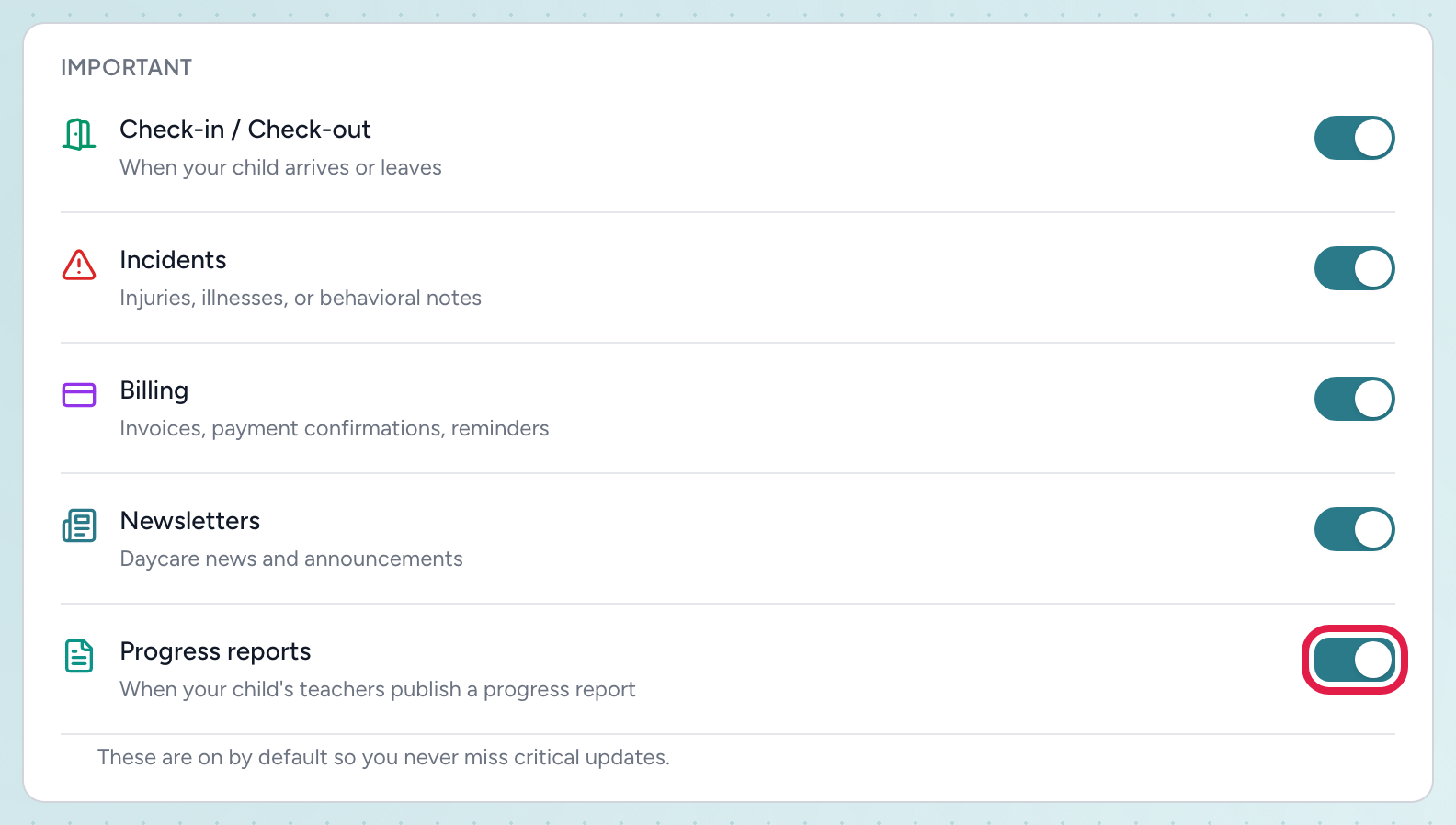
- 1Progress reports — on by default; turn it off here if you would rather check the app yourself
In the app it is under Me → Notifications, in the Important group:
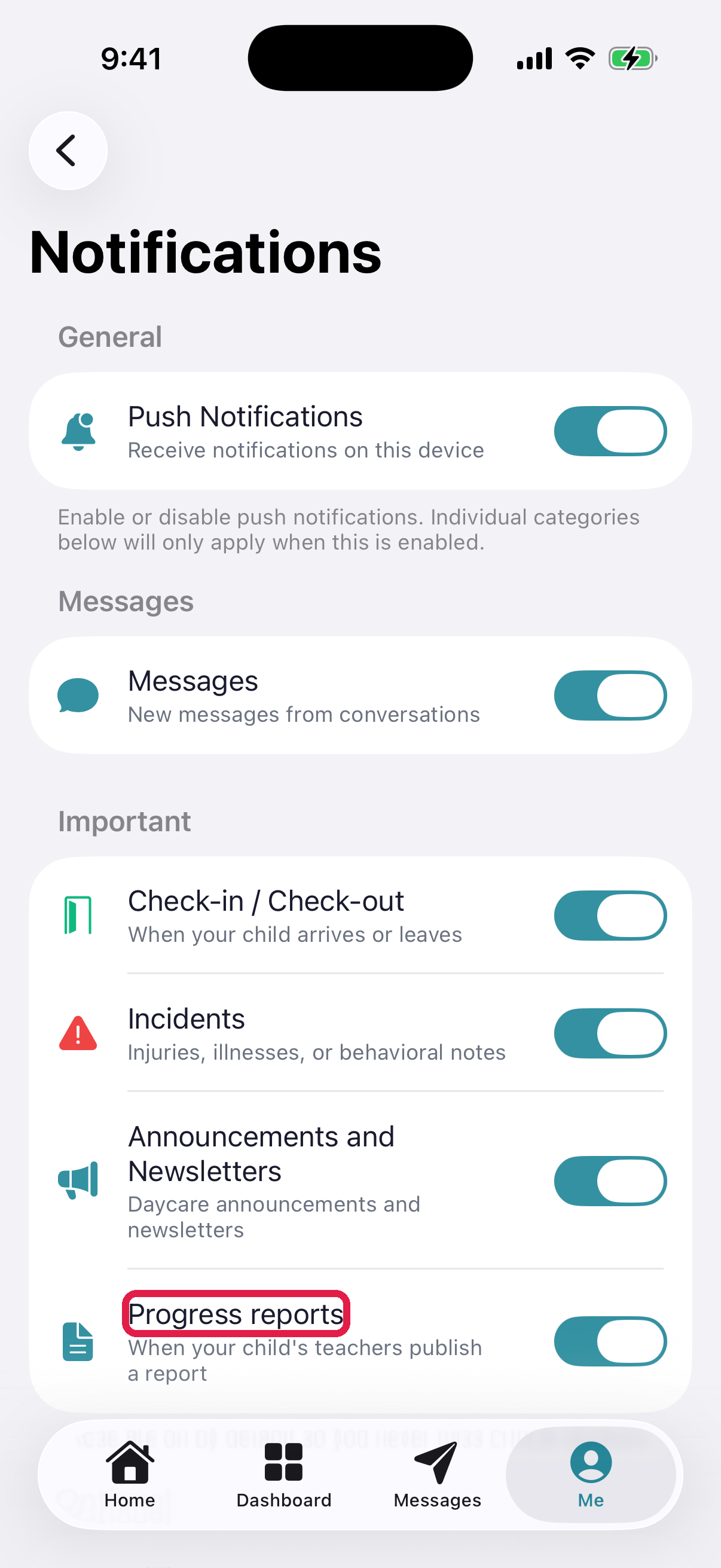
- 1Progress reports — on by default
Troubleshooting
Feed is empty. Nothing has been logged yet today. Pull down to refresh.
An entry I saw earlier is gone. A teacher deleted it (usually a mistake correction — the next entry is likely the corrected version).
Photo won't load. Tap it and wait. If it's still blank, switch to wifi. Photos need a good connection the first time they load.
Wrong child shown. The Home feed shows activities across all your children together. If the card you're looking at is for the wrong kid, check the child-name label on the card. To see just one child's day, tap their story avatar at the top of Home.