
Archive a family when they leave
Archive a family to remove them from active lists while keeping their records. You can restore them later.
When a family leaves, you archive them. That takes them out of your active lists while keeping their records, and you can restore them later if they come back.
Archive a family
- Go to Families & Children → Families.
- On the family's card, open the ⋯ (More actions) menu and choose Archive family.
- Read the confirmation, then click Archive Family.
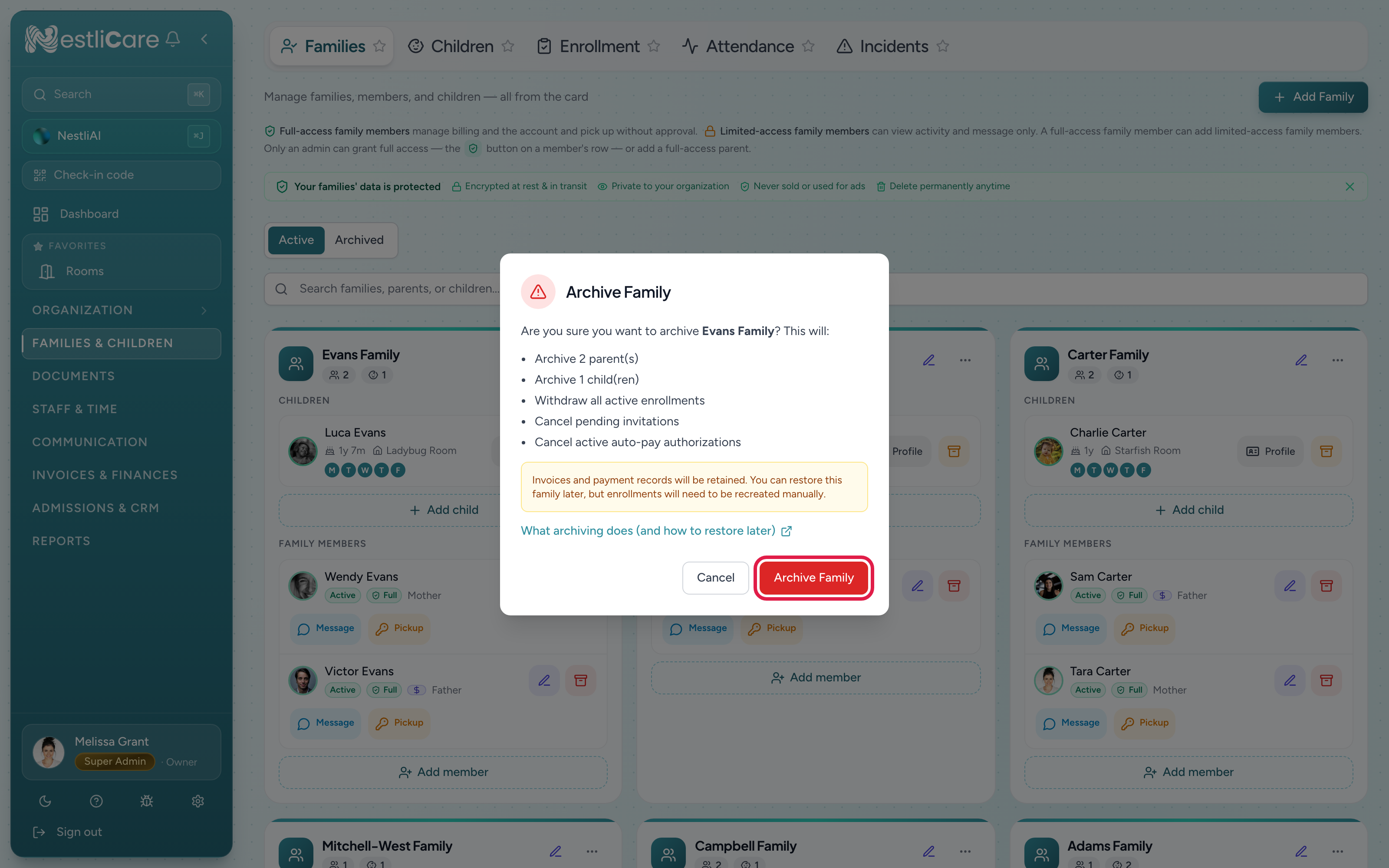
The confirmation spells out exactly what archiving does for that family:
- Archives the parents and children
- Withdraws all active enrollments
- Cancels pending invitations
- Cancels active auto-pay authorizations
It also withdraws the children from any add-on programs they were enrolled in.
Invoices and payment records are kept. You can restore the family later, though their enrollments have to be recreated.
Find and restore an archived family
The Families page has Active and Archived tabs. Switch to Archived to find a family you've archived, and restore them from there if they re-enroll. After restoring, set up their room enrollment again (archiving withdrew it).
Archive a single child
Each child card also has its own Archive child control with a similar confirmation, for when one child leaves but the family stays (an older sibling ages out, say).
Bring a single child back
A child archived on their own does not appear on the Families page's Archived tab, because the family is still active. Go to Families & Children → Children, switch the Active / Archived toggle at the top to Archived, find the child, and click Restore. They return to the active lists and their profile; set up their room enrollment again in the Enrollment section of the child's Details tab, since archiving withdrew it. If the whole family was archived, restore the family first (below) and the children come back with it.
Delete a family created by mistake
Archive the family first. Then, on the Archived tab, open the family card's ⋯ menu and choose Delete permanently. You type the family name to confirm. This can't be undone.
Troubleshooting
I archived the wrong family. Switch to the Archived tab, find them, and restore. Their records come back.
A parent could still see the app after I archived. The screen may stay open, but archiving cuts off their access right away: the next thing the app tries to load from your daycare is refused.