
Invite parents to the app
Add a parent to a family, send their invitation, and follow each one through to a working account and a payment method on file.
Parents cannot create their own NestliCare account. You add each parent or guardian to their family, and NestliCare emails them an invitation to set a password and open the app. A family can have up to 10 adults: two parents, a grandparent, a nanny. Every family member has the same full access in the app: the child's day, messages, invoices and payment history, payments, and adding other family members.
New families can watch this 90-second tour of the parent app. The link to this page is a handy thing to send with your invite.
Add and invite a parent
- Go to Families & Children → Families and find the family.
- In the family card's Family Members section, click Add member.
- Fill in the Add Parent form:
- First Name and Last Name (required)
- Email (required). This is their login, and where the invitation goes when you send it.
- Phone (optional)
- Relationship: Mother, Father, Guardian, or Grandparent
- Click Add Parent.
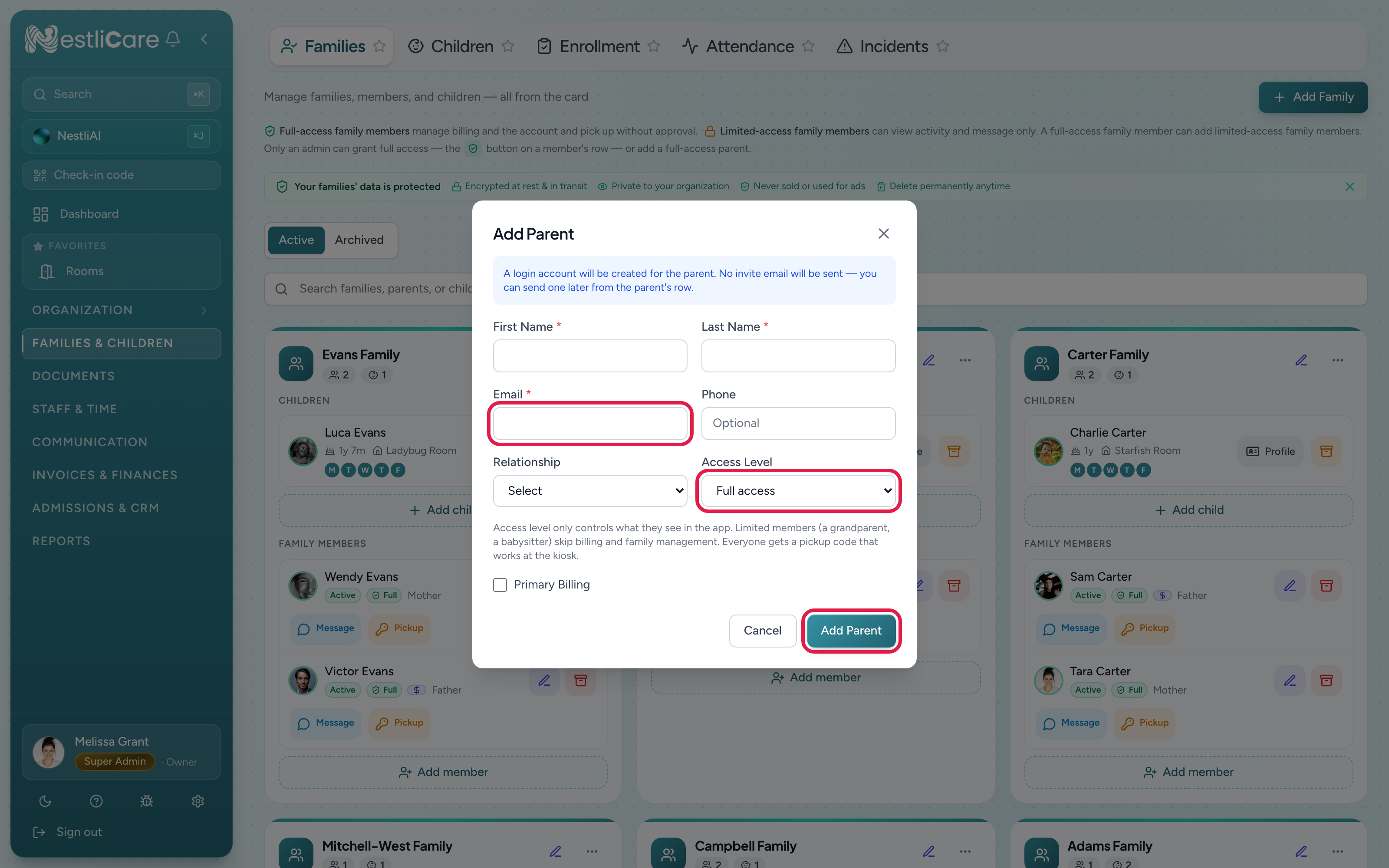
This creates the account without sending anything. No invitation email goes out until you choose to send one, which is what you want when you are entering a roster and do not want a wave of emails at once. Sending the invite is then one click on their row whenever you are ready.
Every family member gets their own pickup code either way.
Follow each parent through to done
Every family member carries one status pill showing where they have got to, and next to it, one button for the single next thing to do. You never have to work out what a family still needs.
| Pill | What it means | The action next to it |
|---|---|---|
| Not invited | Added, but no invitation sent | Invite |
| Invited | Invitation sent, not accepted yet | Resend |
| Invited (amber) | The invitation link has expired | Renew invite |
| Active | They have an account and are using the app | Invite to pay, then Suggest auto-pay, then nothing |
Once a parent is active, the action slot moves on to money: first asking them to set up a payment method, then, once online payments are working for them, offering auto-pay. After you ask for payment setup, the slot reads Payment sent with the date until they add a method. When there is nothing left to ask, the slot goes quiet. Silence means that parent is fully set up.
A line under the badges spells out anything worth knowing, for example when the last nudge went out. A healthy, finished member gets no line at all.
Before you send, see what they will get
Every send opens a preview first. You see the actual email, and you choose:
- Send email, which sends it and records the nudge, so you can always see when you last chased someone.
- Download printout, which gives you a sheet to hand over or put in a bag.
The invite printout is personal to that parent and carries two QR codes: one to get the app, and one that signs them in. It shows the date the link stops working. The payment-setup and auto-pay sheets are generic, so you can photocopy them for a whole room without leaking anyone's credentials.
Do every family at once
When you are onboarding a new intake, use the Onboarding actions bar above your family cards. It covers all your families, or only the ones matching your search if you've searched.
- Send app invites to N parents sends every outstanding invitation.
- Print invite sheets gives you one PDF, one page per parent, sorted by family.
- Ask N parents to set up payment asks everyone who is active but has no payment method.
- Suggest auto-pay to N parents offers auto-pay to everyone it applies to.
Two checkboxes stop you nagging people: skip anyone invited in the last 7 days, and skip anyone already asked to set up payment. Both are on by default when they apply.
Families who pay by check
If a family is never going to pay online, open their payment-setup action, choose This family pays offline, then click Mark offline to confirm. Payment reminders stop for everyone in that family, and the action slot moves on. It is a record that you asked and got an answer, not a dead end you have to keep re-reading.
Members a parent added
Parents can add family members (typically a grandparent or nanny) from their own app, and the invitation goes out from there. They appear on your family card right away. You can Message or Call them and reveal their Pickup code. See Share a pickup code with family.
On your phone
Both the iOS and Android apps show the same pills, the same single next action, and the same preview before sending. iOS can share the printout PDFs directly. Printing itself is easier from the web.
Remove a parent's access
Open the member's row and choose Remove from family, then confirm. Their app access ends immediately. The family's messages and history stay intact.
Troubleshooting
The invitation never arrived. Ask them to check spam, then use Resend. If it still does not arrive, their mail provider may be blocking it, so try a different address. In the meantime, hand them the printout.
A parent says their link says it has expired. The pill turns amber and the button reads Renew invite. One click issues a fresh link. Sending an invite again also extends the existing one rather than breaking anything already printed.
"Email already in use." That address already has a NestliCare account (they work for you, or their child attends another daycare on NestliCare). That is fine: send them an invitation instead of adding them directly. They sign in with their existing password to accept, and your daycare is added to the same login. See A parent already has a NestliCare account.
I sent a payment request and the pill still says to send one. Payment setup keeps showing "sent" with the date until they actually add a method, because it is a material step. Auto-pay is only advisory and completes after one ask.
A parent removed their card and the pill went backwards. It shows as sent rather than as a fresh nag, because the record of your earlier ask does not disappear. You will not accidentally chase them twice.
A parent asks to remove the other parent's access. Custody questions are your center's call. We will remove access on your instruction; follow your own policy.
Related: Add a family manually, Get the mobile apps, Add your payment method.