
Add or change your payment method
Add a new card or bank account, remove an old one, and turn auto-pay on or off.
Keep your saved card or bank account up to date, so tuition gets paid on time.
See your payment method
- Open the Me tab.
- Under Payment, look at Payment Method and Auto-Pay.
- Tap Payment Method to open the Payments screen. That's where you add, remove and set up auto-pay.
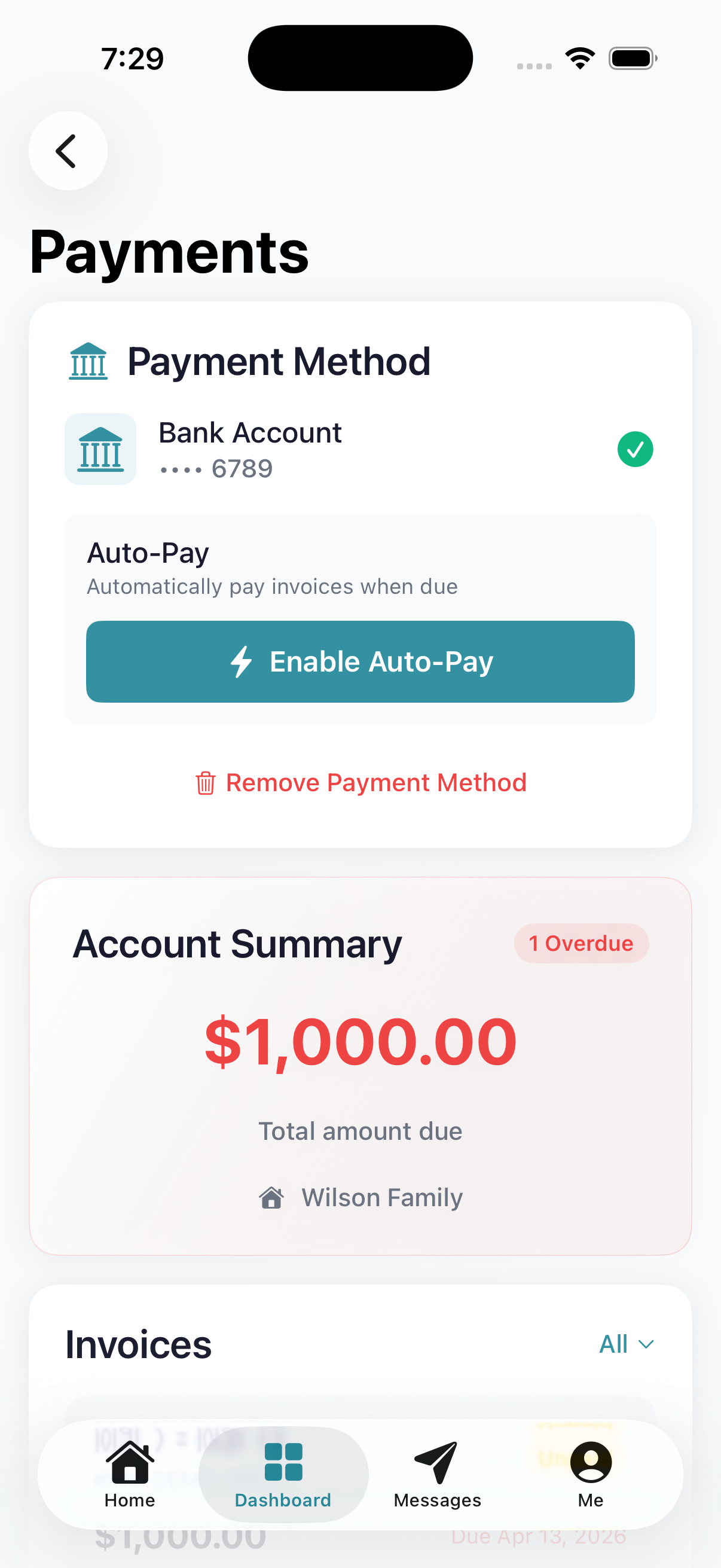
- 1Payment Method. Shows your card or bank, or 'Not linked'
- 2Auto-Pay. Shows On or Off
- 3Add Payment Method when nothing is saved yet
Add a card or bank account
- On the Payments screen, tap Add Payment Method. (Some daycares show Connect Bank Account instead.)
- A secure sheet opens. Enter your card, or your bank details.
- Save.
Nothing is charged when you add it. You can also start from the Set Up Payment Method prompt on the Dashboard tab.
Bank account check: your bank may get a small test deposit. When it lands (usually 1 to 2 days), open the Payments screen and tap Finish Verifying. We email you a link too.
Card or bank account?
- Card: paid right away.
- US bank account: takes a few business days to clear, and the fee is lower.
The fee is usually 2.9% + $0.50 on a card, and 1% (up to $6) on a bank account. Your daycare decides whether you pay the fee or they do. You always see the exact fee before you pay.
Remove a payment method
- Open Me → Payment Method.
- Tap Remove Payment Method.
- Tap Remove to confirm.
Is auto-pay on? Then cancel auto-pay first. The remove button shows after that.
Turn on auto-pay
- Save a payment method first.
- On the Payments screen, tap Enable Auto-Pay.
- The Set Up Automatic Payments screen opens. Under Charge Timing, pick when to charge each invoice:
- Same day (the invoice is charged the day your daycare sends it)
- 1 day after
- 3 days after
- 1 week after
- Read the authorization. Turn on I have read and agree to the authorization above.
- Tap Enable Auto-Pay.
You'll see Auto-Pay Enabled! The Auto-Pay row on the Me tab now says On.
While you wait for the charge
Each invoice shows Auto-pay scheduled for and the date, near Pay Now. You're not late, even if the due date has passed.
You can still tap Pay Now to pay early. Auto-pay then skips that invoice.
Cancel auto-pay
- Open the Payments screen.
- Tap Cancel Auto-Pay, then Cancel Auto-Pay again to confirm.
You'll pay future invoices yourself. Unpaid invoices stay unpaid until you pay them.
Other auto-pay messages
- Auto-Pay Paused: your daycare paused it. Your setup is saved. It starts again when they turn it back on.
- "Auto-pay is not available right now. Your daycare has turned off automatic payments.": your daycare doesn't use auto-pay right now. Pay each invoice with Pay Now.
Troubleshooting
"This card was declined." Your bank blocked it. Call your bank, or try another card. We can't override a decline.
Auto-pay didn't charge an invoice. Check that your card hasn't expired. Auto-pay tries each invoice twice. If both tries fail, it stops, and you and your daycare get a notice (Auto-pay attempts stopped). Update your payment method, then pay that invoice with Pay Now.
It says "Verifying your bank." That's normal. A small deposit goes to your bank. When it lands (usually 1 to 2 days), tap Finish Verifying. We email you a link too.
I saved a method on my phone but the web page still asks me to add one. Refresh the page, or sign out and back in.
I can't see Remove Payment Method. Auto-pay is on. Cancel auto-pay first.
I don't see Payment Method at all. Your daycare may not take online payments.