
Add a family manually
Create a family record directly, with parents and children in one step. For walk-ins, transfers, or anyone who didn't come through the lead pipeline.
Most new families come through leads or enrollment packets. Sometimes you just need to add one manually: a transfer from another daycare, a walk-in, or someone who signed up offline.
Add the family
- Go to Families & Children → Families.
- Click Add Family in the top right.
- Fill in the New family form.
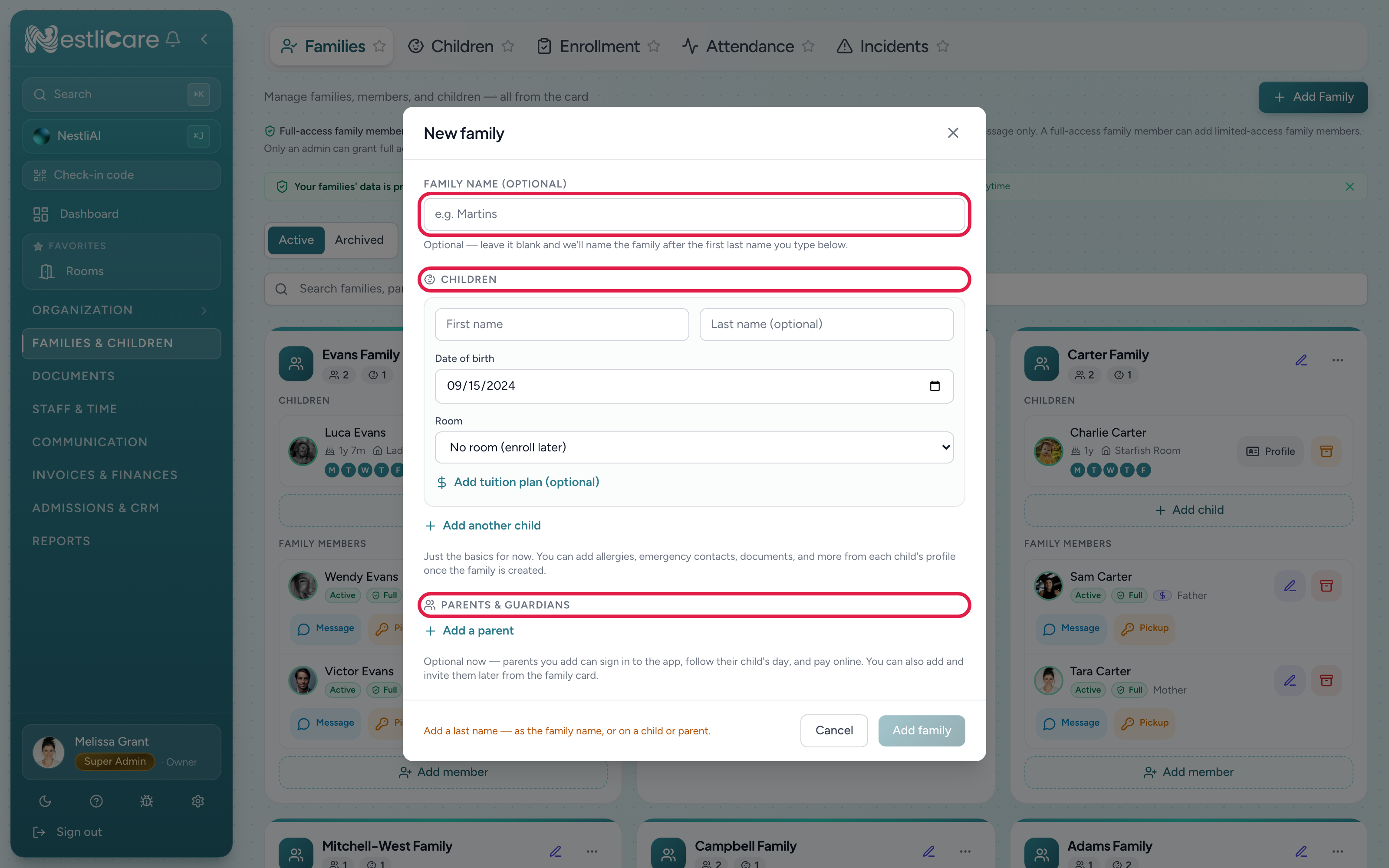
The form creates the whole household in one step:
- Family name is optional. Leave it blank and the family is named after the first last name you type.
- Children takes each child's name and date of birth, and a Room. If you have one room, the child joins it. With several rooms, pick one or leave No room (enroll later). Once a room is picked, you can choose an Enrollment type, tick the Days they attend (optional), and add a tuition plan. Days matter: attendance and the "not here yet" check use them. Click Add another child for siblings.
- Parents & Guardians: click Add a parent and enter their first name and email (last name and phone are optional), plus their relationship to the child. Click Add another parent for a second parent or guardian.
Allergies, emergency contacts and documents can wait. Add them from the child's profile once the family exists.
Click Add family to save. If a parent has an email, a Family created dialog asks whether to invite them now. Nothing is sent unless you choose to. Click Send invite (or Send invites for two parents) and they get a link that opens the app and signs them in, or click Later to invite them from the family card when you're ready.
After the family exists
Everything else about a household happens on its family card in the Families list:
- Add more members or children with the add buttons under each section of the card.
- Invite a parent to the app from their row on the card. Parents can't create their own accounts; the invitation is how they get access.
- Enroll a child in a room if you chose "enroll later". See Add a child to a family.
- Attach billing so invoices can be generated. See Create a billing plan.
Troubleshooting
Created a family I didn't mean to. Open the family card's ⋯ menu and choose Archive family. Archiving removes the family from active lists without destroying the record. To remove it for good, find it on the Archived list afterwards, open its ⋯ menu, and choose Delete permanently (you type the family name to confirm). See Archive a family.
Add family is greyed out. Hover over it for the reason. Usually no last name has been typed anywhere: add one as the family name, or on a child or parent. A parent row you started also needs a first name and email.
Two siblings from the same household showed up as separate families. There is no merge button. Archive the newer or smaller record and add its children to the family you're keeping.