
Report and review incidents
Log an incident (a bump, bite, fall, or allergic reaction), record medical care, report it to state licensing, collect the parent's signature, and print or download the report as a PDF.
When something happens to a child, an incident report is your record of what, when, and what you did about it. Teachers usually file them from the mobile app in the moment; admins can file and review them on the web.
File an incident report
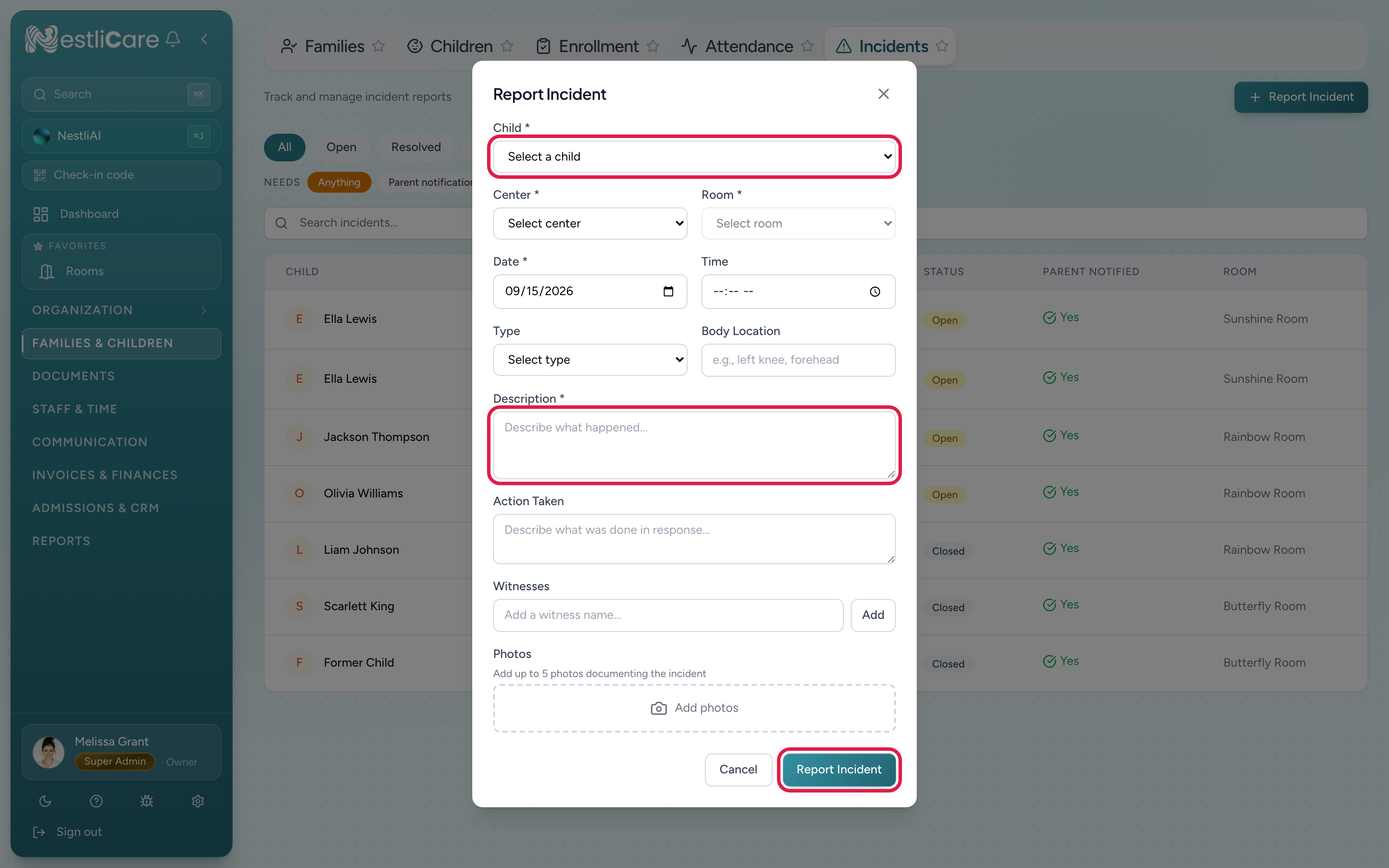
- Go to Families & Children → Incidents and click Report Incident.
- Fill in the Report Incident form:
- Child (required)
- Center and Room (required): where it happened.
- Date (required) and Time.
- Type: Fall, Bite, Scratch, Bump/Bruise, Allergic Reaction, Illness, Behavioral, or Other.
- Body Location: like
left kneeorforehead. - Description (required): what happened.
- Action Taken: what you did in response.
- Witnesses: type a name and click Add; add as many as you need.
- Photos: attach photos if you have them.
- Medical care: First aid only, Seen by a doctor or clinic, Emergency room, or Hospitalized. Tick 911 / EMS called if an ambulance came. For anything beyond first aid, add Where treated, Treated by, and Diagnosis or instructions.
- Click Report Incident.
The family is notified automatically as soon as you file. They read the report in their app and, in states that require it, sign it there (see Parent signatures).
You can add or correct the medical care later with Edit medical care on the report. Parents often call back with what the doctor said.
Report to state licensing
Most states want to hear from you when an injury needs care beyond first aid, usually within 24 hours or by the next business day. When a report records a doctor visit, the emergency room, a hospital stay, or a 911 call, the report shows a Report to card with your state's licensing agency, the deadline, how to report, and a link to the rule.
- Report the incident to your state the way the card describes (phone, online form, or email).
- Click Mark as reported and add the date, how you reported it, and any reference number you were given.
Reports still waiting show State report due or Overdue in the list, and Needs state report filters to them. Parents never see this card or your licensing record.
The deadlines come from each state's licensing rules as we last checked them. Rules change, so treat the card as a reminder and check your state's requirements.
Parent signatures
Some states want the parent's signature on the incident report itself, not just a note that they were told. Texas, for example, requires the parent to sign within 48 hours (26 TAC §746.707). NestliCare can ask for it in the parent's app.
When a signature is asked for. Go to Settings → Operations → Incident reports and choose a Parent signature option:
- Required where your state requires it (Texas): the default. Texas centers ask for a signature on every report; other states don't.
- Always required: every report asks for a signature within 48 hours, wherever you are.
- Never ask for a signature: parents acknowledge reports with a tap, as before.
What the parent does. The parent opens the report in their app, taps Review and sign, draws their signature, types their full name, and agrees to sign electronically. That signature counts as their acknowledgement.
What you see. The report shows a Parent signature section. Once the parent signs, you see their drawn signature, name, and the time they signed. Until then it says Awaiting parent signature with the due time, in red once it's overdue. Needs parent signature in the list filters to reports still waiting.
Reminders. NestliCare reminds the parent automatically, one day after the incident and again six hours before the deadline, through their incident notifications. To nudge them yourself, click Send reminder on the report. You can send one an hour.
None of the states we checked requires the parent to sign in person, and Texas and Oklahoma explicitly accept electronic records and signatures. Each signature is stored with the parent's typed name, the time, and their agreement to sign electronically.
Review incidents on the web
Go to Families & Children → Incidents. You'll see a table of reports with Child, Date / Time, Type, Status, Parent Notified, and Room. The tabs across the top filter by status: All, Open, Resolved, Closed. Use them to see what still needs follow-up.
Click a row to open the report. The Print and PDF buttons at the top of the panel are covered in Print or download a report. For a whole date range, use the Incidents report instead: see Review incidents over a period.
The Needs filters above the table (admins only) narrow the list to reports still waiting on something: Parent notification, Action taken, Needs state report, and Needs parent signature.
Click any row to open the full report in a side panel: description, action taken, witnesses, photos, the Change Status buttons and Notify Parent. A parent opening or acknowledging a report doesn't change its status. You move it to Resolved or Closed yourself when follow-up is done.
The same reports also appear on the child's own record. Open the child from Families & Children → Children, go to Documents, and the Incident reports section at the top lists every report filed for that child. Tap one to open it.
Print or download a report
Open the report (from the Incidents page or the child's Documents tab) and use the buttons at the top of the panel:
- PDF downloads the report as a PDF, ready to file, email, or hand to a licensing inspector. It holds every field on the report: child and date of birth, center, room, date and time, what happened, action taken, witnesses, medical care, when the parent was notified and acknowledged, the parent's signature, and the photos. It also includes your state licensing record and a blank Director review line for your own file.
- Print opens a quick printable copy in your browser, with signature lines for staff and parent to sign by hand.
In the mobile app, open the report and tap the share button (iOS) or Share PDF (Android) to save the same PDF to Files, print it, or email it.
Parents can download their own copy from the report in their app. The parent copy leaves out your licensing record and the director review line. NestliCare never emails the PDF to anyone on its own.
For a range of dates, for example a licensing visit or a monthly safety review, use Reports → Incidents and click Export CSV or Print. See Review incidents over a period.
Edit or delete a report
Admins can fix a report after it's filed. Open it and use the buttons near the top of the panel:
- Edit report lets you correct the child, room, date and time, type, body location, description, action taken and witnesses. If you move it to a different child, that child's family is notified and the report is removed from the first family's app.
- Delete removes the report for staff and for the family. Add an optional reason (for example, "Filed on the wrong child"). We keep a copy on record in case your licensing agency ever asks for it.
Once a parent has signed a report, it can't be edited. You can delete it and file a new one.
Find a report in the app
On your phone, incident reports live in two places:
- A child's reports. Open the child's profile, tap Documents, and look at the Incident reports section at the top. Tap a report to read it in full.
- All reports. On the Dashboard tab, tap the Incident tile. It opens the full list, with a + to file a new report.
Review incidents in the mobile app
From app version 6.0, the same list is in the app: Admin tab → Incidents, under Families & Children. Filter by Open, Resolved or Closed, search by child, type or description, and tap a report to read it, move it to Resolved or Closed, or notify the parent. A child's own reports also appear on their profile under Documents → Incident reports. On an older build, incident review is web-only; teachers can still file from the app.
Keeping records clean
- Be specific and factual in the Description and Action Taken. These are the fields parents and regulators read.
- Add Body Location and Photos for anything physical. They make the record clear later.
- Move a report to Resolved or Closed once follow-up is done, so your Open list only shows what still needs attention.