
Review incidents over a period
See every incident report in a date range, with counts by type and status, medical care, state reporting, and which parents still need to be notified.
The Incidents report rolls up every incident in a date range: counts by status and type, and one row per report. Use it for a weekly safety review, a licensing visit, or an annual summary. To file, edit, or follow up on a single report, use Families & Children → Incidents instead; see Report and review incidents.
Run it
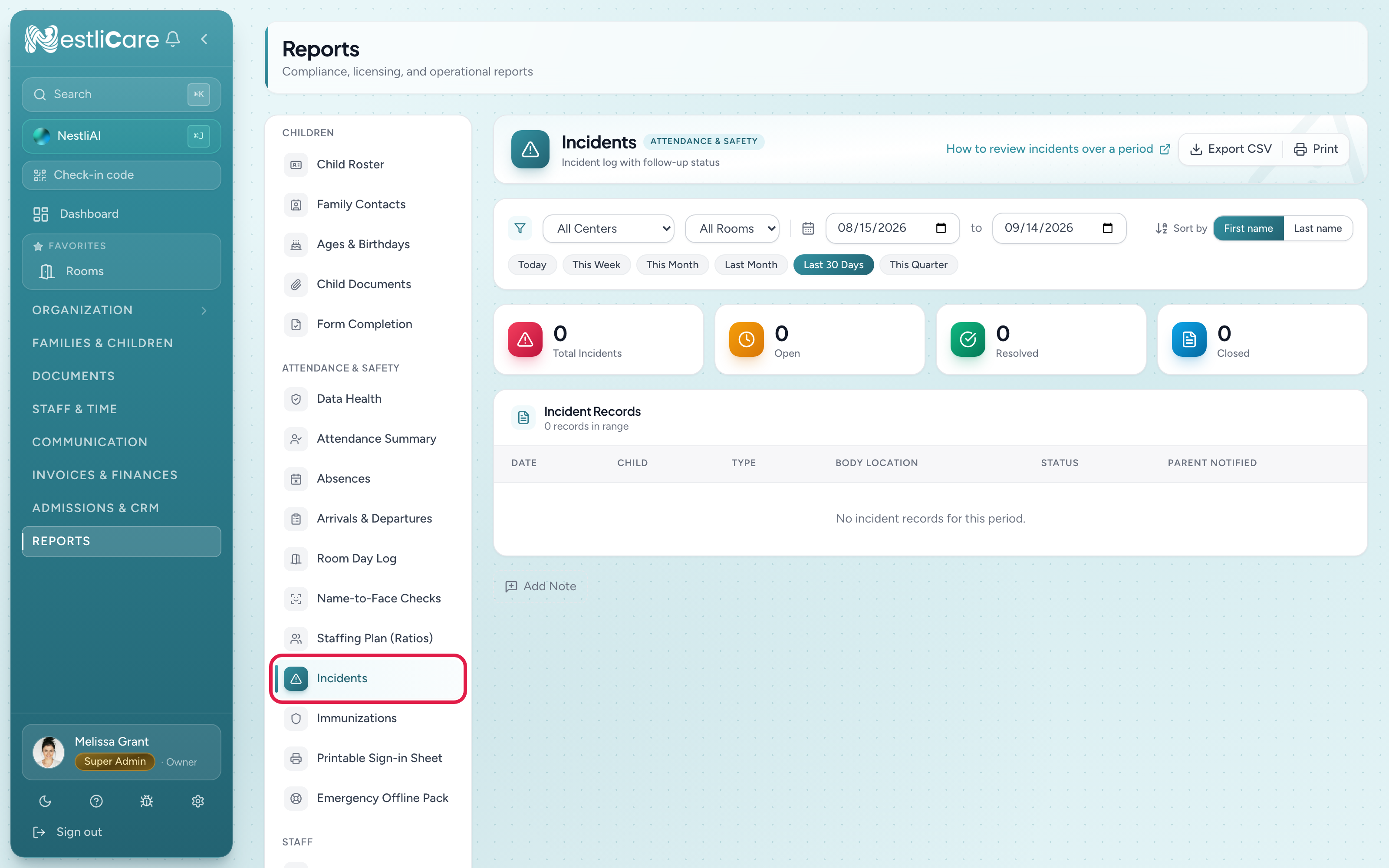
- Go to Reports and pick Incidents under Attendance & Safety.
- Pick a center (or all centers) and a date range.
What you see
- Total Incidents, Open, Resolved, Closed: how many reports are in each status. You set the status on each report yourself; a parent opening or signing a report doesn't change it.
- Incidents by Type: a chart of falls, bites, scratches and so on.
- Incident Records: one row per report, with date, child, type, body location, status, whether the parent was notified, medical care, and whether it was reported to state licensing.
Parents are notified automatically when a report is filed. If a row says a parent wasn't notified, open the report from Families & Children → Incidents and click Notify Parent.
Parent signatures are covered in Report and review incidents.
Common use cases
Weekly safety review
- Set the range to the past 7 days.
- Check Incidents by Type. Is one kind spiking (five bites in a toddler room this week)?
- Open each report that's still Open and move it along.
Spotting patterns
Run it for the past month and look at the chart:
- Injuries concentrated in one room: check the environment, equipment and supervision.
- Bites spiking in a young-toddler room: often a transition period; bring it up at the next staff meeting.
- Allergic reactions: check the meal records for those children and their allergy details.
Licensing renewal
Many states want an incident summary at renewal:
- Set the range to the 12 months before renewal.
- Export CSV, or Print and choose "Save as PDF".
- Add it to your licensing file.
Export and print
- Export CSV downloads a spreadsheet of the report's rows.
- Print prints the page as you see it.
You can add notes for a period at the bottom: "April spike tied to the new toddler room transition."
Troubleshooting
Report shows 0 incidents but I know there was one. Check the date range. It uses the date the incident happened, not the date it was filed.
The same incident appears twice. Two staff may have filed the same event. Open the extra one from Families & Children → Incidents and Delete it with a reason like "duplicate".
I can't filter by room. This report filters by center only. The table shows the child on each row.
I need the photos or the full write-up. Open the report from Families & Children → Incidents, where you can also download it as a PDF.