
Reports overview
Every report NestliCare offers, grouped by category, plus the shared filters, export, and notes that work the same on all of them.
Reports live under Reports in the sidebar. The left rail lists every report, grouped by category; pick one and it renders on the right. Reports are admin-only; teachers don't see them.
Facing a licensing visit? This short video shows the reports that help most.
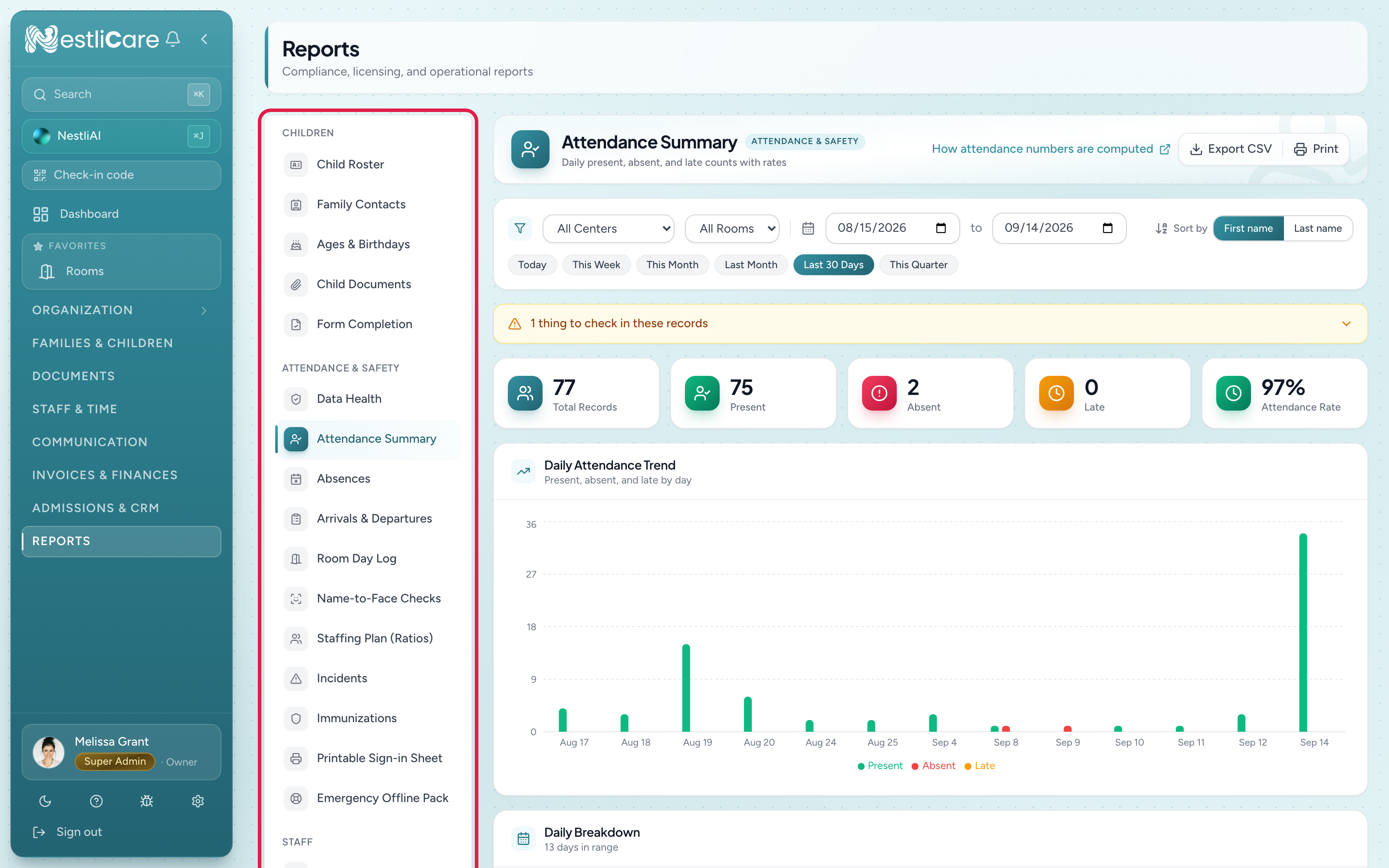
The reports, by category
Children
- Child Roster, Family Contacts, Ages & Birthdays, Child Documents, Form Completion: roster-style lists of your children and their records.
Attendance & Safety (what regulators and licensing ask about)
- Data Health: records with something missing (check-outs, clock-outs, parent notifications) so you can fix gaps before an inspection. See Use the Data Health dashboard.
- Attendance Summary: who was present, by day. See Run an attendance report.
- Absences: who was out, when, and why.
- Arrivals & Departures: every check-in and check-out, timestamped.
- Room Day Log: who was in each room on one day, and the ratio through the day. See Room Day Log.
- Name-to-Face Checks: every headcount staff ran, and days a room had children but no check. See Name-to-Face Checks report.
- Staffing Plan (Ratios): how many staff each room needs for its full roster. It's a planning number, not a live ratio check. See Check staff-to-child ratios.
- Incidents: incident reports over a period. See Review incidents over a period.
- Immunizations: immunization status across your roster.
- Printable Sign-in Sheet: a blank paper sign-in sheet for backup.
- Emergency Offline Pack: a printable binder of contacts, health info and pickup codes for outages. Owners only. See Emergency Offline Pack.
- Subsidy Attendance & Enrolment: monthly per-child attendance for provincial funding portals. Canada only.
Staff
- Staff List and Staff Documents: your team and their documents and certifications.
Billing (money)
- Invoices: invoices over a period.
- Payments: payments received and credits applied.
- Outstanding Balances: unpaid balances by how overdue they are.
- Billing Ledger: the full transaction log.
Operations (running the day to day)
- Enrollment: a snapshot of who's enrolled. See See the current enrollment snapshot.
- Time in Care: hours children were on-site.
- Staff Hours: hours worked by staff, for payroll reconciliation. See Run a staff hours report.
- Meals Served by Day: meals served, day by day.
- Meals (CACFP): a quick count of logged meals for US food-program sites. It is not your claim; see Run the CACFP meals report. US only.
Filters and date range
Above the report is a shared bar. Depending on the report you can filter by center and room, and set a date range with presets: Today, This Week, This Month, Last Month, Last 30 Days, This Quarter. Snapshot reports (like Enrollment and Staffing Plan (Ratios)) show the current state and don't need a date range. Billing reports are scoped to your whole organization rather than a single center.
Sort children by last name
On the right of the filter bar, Sort by switches every report between First name and Last name. With Last name on, each list of children is sorted alphabetically by last name (then first name) and names are shown as Last, First, which is the order most licensing binders and sign-in sheets use. Reports that list one row per event, like Arrivals & Departures or Incidents, group by child and keep their usual order within each child. Ranked lists such as "Absences by child" keep their ranking and only change the name spelling.
The choice applies to the on-screen tables, Export CSV, and Print, and NestliCare remembers it on that browser. The CSV also carries separate first-name and last-name columns, so you can re-sort in a spreadsheet either way.
Export and print
Reports have Export CSV and Print in the top right. Export CSV downloads a spreadsheet of the report's rows with your current filters. For a PDF, use Print and choose "Save as PDF". The Emergency Offline Pack has its own Print and Download PDF buttons.
Notes and data quality
Reports show an amber note when records need attention (for example "2 things to check in these records"). It only flags what a licensor would ask about or what changes the numbers on the page: missing check-outs, missing clock-outs, shifts over 12 hours, incidents with no parent notification or no action taken, rooms over capacity, and, for CACFP programs, meals with no food items. Hygiene details like a missing absence reason are not flagged. Each note carries Fix chips that open the page where the records live, already narrowed to the same dates and center: a missing check-out opens that day on the attendance board showing only children without a check-out, a missing clock-out opens that pay period on Timesheets, an incident gap opens the incidents list filtered to what still needs doing, a meal with no food items opens the meal records with the "No food items logged" filter on, and an over-capacity room opens that room's settings. On most reports you can Add Note to record context for a period ("fire drill Tuesday inflated the incident count"). Use Data Health to find and fix the underlying records.
Which report do I use?
| You want to | Use |
|---|---|
| Prep for a licensing visit | Data Health, then Attendance Summary, Room Day Log, Name-to-Face Checks and Incidents |
| Show you were in ratio on a past day | Room Day Log |
| Check ratios right now | Room Overview on your dashboard, not a report |
| Plan staffing for full rosters | Staffing Plan (Ratios) |
| A paper backup sign-in sheet | Printable Sign-in Sheet |
| Reconcile payroll hours | Staff Hours |
| See who owes you money | Outstanding Balances |
| File the US food-program (CACFP) claim | Organization → Meals → CACFP (Claim Summary), not a report. See Set up CACFP claiming |
Troubleshooting
The Reports item is missing from the sidebar. Reports may be turned off in Settings → Features. Turn the reports feature on to get it back.
Export is greyed out. The report is still loading, or it couldn't load. Wait a moment or refresh the page.
I don't see Meals (CACFP) or Subsidy Attendance & Enrolment. These only show in the countries they apply to: CACFP in the US, the subsidy report in Canada.
A number looks off from what I saw live. Reports aggregate your data; if you changed something moments ago, open the underlying page (like Attendance) for the live view.