
Run a staff hours report
Get total hours, break time, and overtime flags for every staff member across a date range — for payroll reconciliation and labor forecasting.
The staff hours report aggregates clock-ins and clock-outs into per-person totals. Use it for:
- Payroll reconciliation — verify hours match approved timesheets before running payroll
- Overtime spotting — flag anyone over 40 hours so you can plan (pay it, schedule less, hire more)
- Labor cost forecasting — multiply hours × rates to project monthly labor cost
Run it
- Go to Reports and pick Staff Hours under Operations.
- Pick center (or "All centers") and a date range.
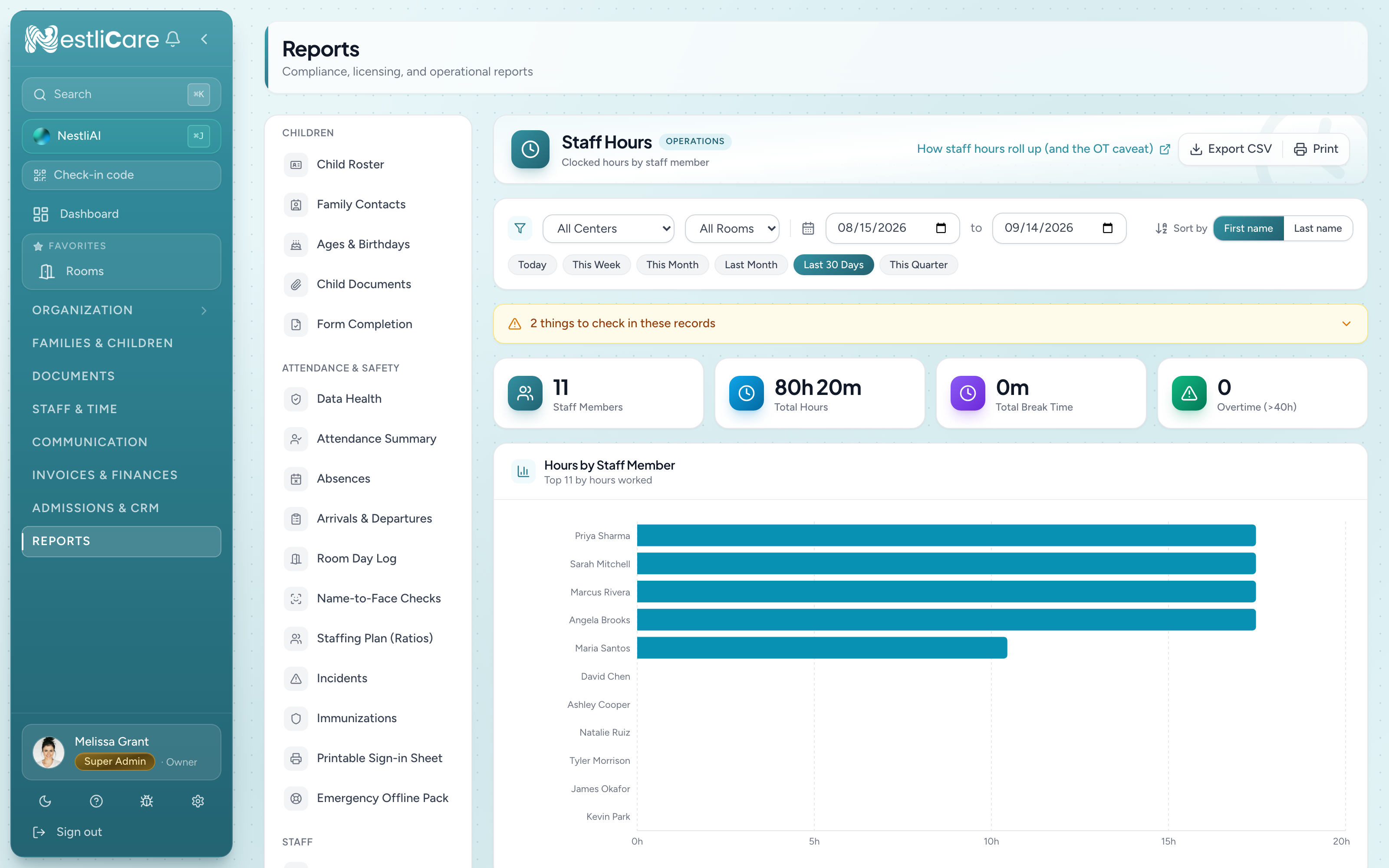
What the numbers mean
- Total Hours — sum of all clock-in/clock-out pairs in the range
- Break Time — minutes tracked as breaks within shifts
- Days Worked — distinct calendar days with at least one time entry
- Status — "Overtime" flag if Total Hours > 40, "Normal" otherwise
Overtime is flagged at 40 hours per the date range you filtered by, not per week. If you filter to two weeks, anyone over 40 total shows up — that's 20 hours/week average, not OT by US federal law. For weekly OT analysis, filter one week at a time.
Common use cases
Pre-payroll check
Before running payroll:
- Filter to the pay period.
- Export CSV.
- Sanity-check totals against what you're about to approve.
- If anyone's missing, go to their timesheet and see if there are unreviewed entries.
Identifying clock-out problems
Someone showing zero hours for a day they definitely worked means their clock-out is missing. Check the Data Health report — the "Open time entries" section lists every unclosed shift.
Labor cost model
- Export CSV.
- Add a Rate column with each person's hourly rate from your pay records.
- Multiply Hours × Rate per staff.
- Sum for total labor cost for the period.
What the report doesn't include
- Pay rates — not in this report. If you run payroll in NestliCare, see Staff & Time → Payroll.
- PTO / leave — tracked separately; this report is worked hours only.
- Historical trends — shows a single date range at a time. For quarter-over-quarter, export multiple and combine.
Export and print
- Export CSV — a spreadsheet of the report's rows, one per staff member.
- Print — chart + table.
Annotations at the bottom: "3 staff on paid training Dec 14 — hours included but not billable."
Troubleshooting
Staff member's hours look way off. Probable causes:
- Missing clock-out — shows as low hours. Check Data Health → Open time entries.
- Clock-in to wrong center (multi-site orgs) — their hours went to the other center's report.
- Auto-closed entries — a shift still open at midnight (the center's time) is closed automatically at 11:59 PM that day. If someone forgot to clock out at 3 PM, they get credited until 11:59 PM, so check and fix those entries on Timesheets.
Break time column shows 0 for everyone. Your timesheet config doesn't track breaks, or teachers aren't clocking out for breaks. Either is OK — just means break math isn't happening.
Overtime count looks inflated. Check your date range. If you filtered a 3-week period, lots of staff will exceed 40 even at normal hours.
Someone worked but doesn't appear in the report. They have no time entries in the range for that center. Check their timesheet, and check they clocked in at the right center.
The Overtime status isn't in my CSV. The Overtime/Normal status is worked out on screen, so the CSV doesn't carry it. Re-apply "over 40 hours" in your spreadsheet.