
Run payroll and export it
Turn on Payroll, run a pay period from finalized timesheets, approve it, and export a CSV to import into your payroll provider.
NestliCare works out each person's pay from their finalized timesheets and pay rate. You then export a CSV and import it into the payroll provider you already use. Only owners and super admins can run payroll.
Before you start
- Turn Payroll on. It is off by default. The owner turns it on in Settings → Features → Payroll. That also turns on Timesheets, which payroll needs. Once it's on, Payroll appears under Staff & Time.
- Set pay rates. Each person needs a pay type and rate. See Set a pay rate.
- Finalize the timesheets for the period. See Finalize timesheets.
Check your payroll settings
Staff & Time → Payroll opens on its Settings tab. Here you set:
- Pay Frequency: weekly, biweekly or monthly.
- Organization State: decides which withholding forms staff are asked to fill in.
- PTO Hours per Day: how many hours one paid leave day is worth.
- Overtime Multiplier: for example 1.5 for time-and-a-half. Hours past 40 in a week count as overtime.
- Auto-generate Payroll Runs: creates draft runs for you on schedule.
- Require Tax Documents Before Payroll: leaves out anyone missing a W-4 or I-9.
Click Save Payroll Settings. The Staff Pay Rates bar shows how many people have a rate set. Staff Readiness lists who is missing tax documents.
Run a pay period
- Switch to the Payroll Runs tab and click Run Payroll.
- Configure: enter Period Start, Period End, Pay Date and Frequency. You can pick one center, or leave it blank for all.
- Select Staff: everyone is included by default. Untick anyone to leave out.
- Review Hours: check regular and overtime hours for each person.
- Confirm: check the totals, then click Generate Payroll Run.
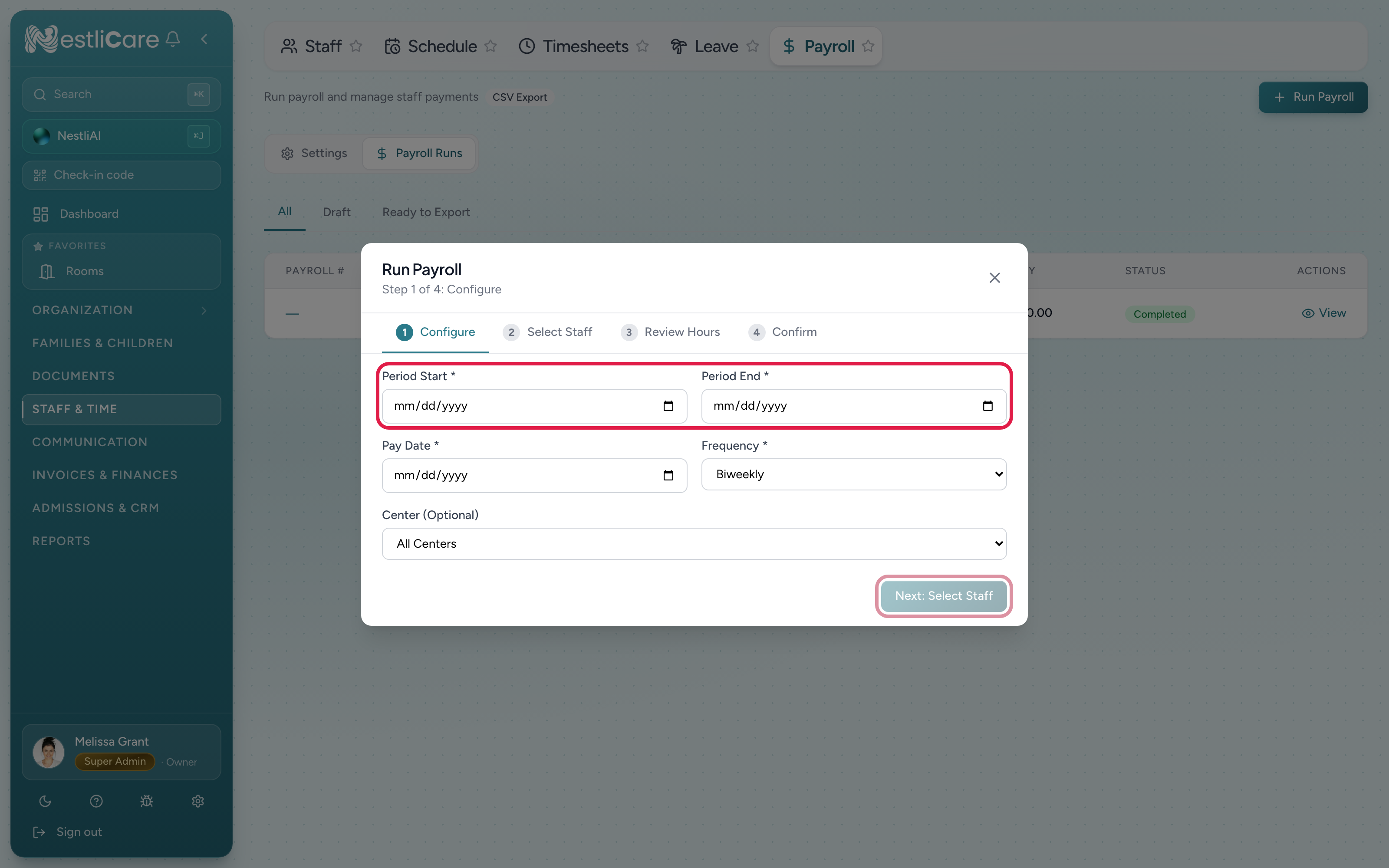
- 1Period Start and Period End. The dates this run covers
- 2Next walks through Select Staff, Review Hours, and Confirm, where you see the totals before you generate the run
The new run is a Draft. You can still change it.
Fix things before you approve
On a draft run, click Edit Payroll. Each person's line then shows:
- Add Adjustment, to add or take away an amount, such as a bonus or a correction.
- Add Deduction, to record a deduction for that person.
Copy Deductions copies deductions from your most recent completed run. Click Done Editing when you're finished.
When it looks right, click Approve. An approved run can't be edited.
To start over, click Void on the run, then run the period again.
Export the CSV
- Open the approved run and click Export CSV. You can also use the export icon on the run's row in the list.
- In your payroll provider, find its hours or payroll import option and upload the file.
- Check the imported numbers, then run payroll there as normal.
What's in the CSV
One row per person, with these columns:
- Who: Employee ID, First Name, Last Name, Email, Employment Type
- Rate: Pay Type, Hourly Rate, Annual Salary
- Hours: Regular Hours, OT Hours, PTO Hours
- Pay: Regular Pay, OT Pay, PTO Pay, Gross Pay, Adjustments
- Withholding and deductions: Federal WH, State WH, Social Security, Medicare, Pre-Tax Deductions, Post-Tax Deductions, Total Deductions
- Net Pay
- Payment: Payment Status, Payment Method, Payment Reference
The pay period dates are not in the file. Note them when you import.
Troubleshooting
There's no Payroll tab under Staff & Time. Payroll is off. The owner turns it on in Settings → Features → Payroll.
Someone is missing from the run. Check they have a pay rate. If Require Tax Documents Before Payroll is on, check Staff Readiness for a missing W-4 or I-9.
My provider says "unknown employee." The Employee ID doesn't match theirs. Set Employee ID on the person's staff record (Staff & Time → Staff, pencil Edit) to match, or match the person by hand during import.
Overtime looks wrong. Overtime is hours past 40 in a week, paid at your Overtime Multiplier. Check the multiplier on the Settings tab, and check the week's timesheets for a punch left open too long.
I approved a run with a mistake. Approved runs can't be edited. Void it and run the period again.
A center admin can't open Payroll. That's expected. Payroll is for owners and super admins only.
Related: Finalize timesheets, Set a pay rate, Approve staff leave requests.