
Approve staff leave requests
Review, approve, deny or cancel staff time off, pick the right paid or unpaid reason, and get notified the moment someone asks.
Staff request time off, and you approve, deny or cancel it, under Staff & Time → Leave.
You are told when someone asks
When a staff member submits their own request, the admins who could approve it get a push notification and a row in the bell. That is owners, center admins pinned to that request's center, and center admins who are not pinned to any center.
The notification follows your Leave updates preference, so you can turn it off in your notification settings if you would rather work from the list.
Leave that an admin files on someone's behalf is approved on the spot and notifies nobody.
Review requests
The list shows the staff name, the leave type, start and end dates, number of days, and status. Filter with the All, Pending, Approved, Denied tabs. Cancelled requests show under All. Pending requests are also flagged on your dashboard's Needs Attention list.
If you are a center admin pinned to one center, you see that center's requests. Owners see the whole organization.
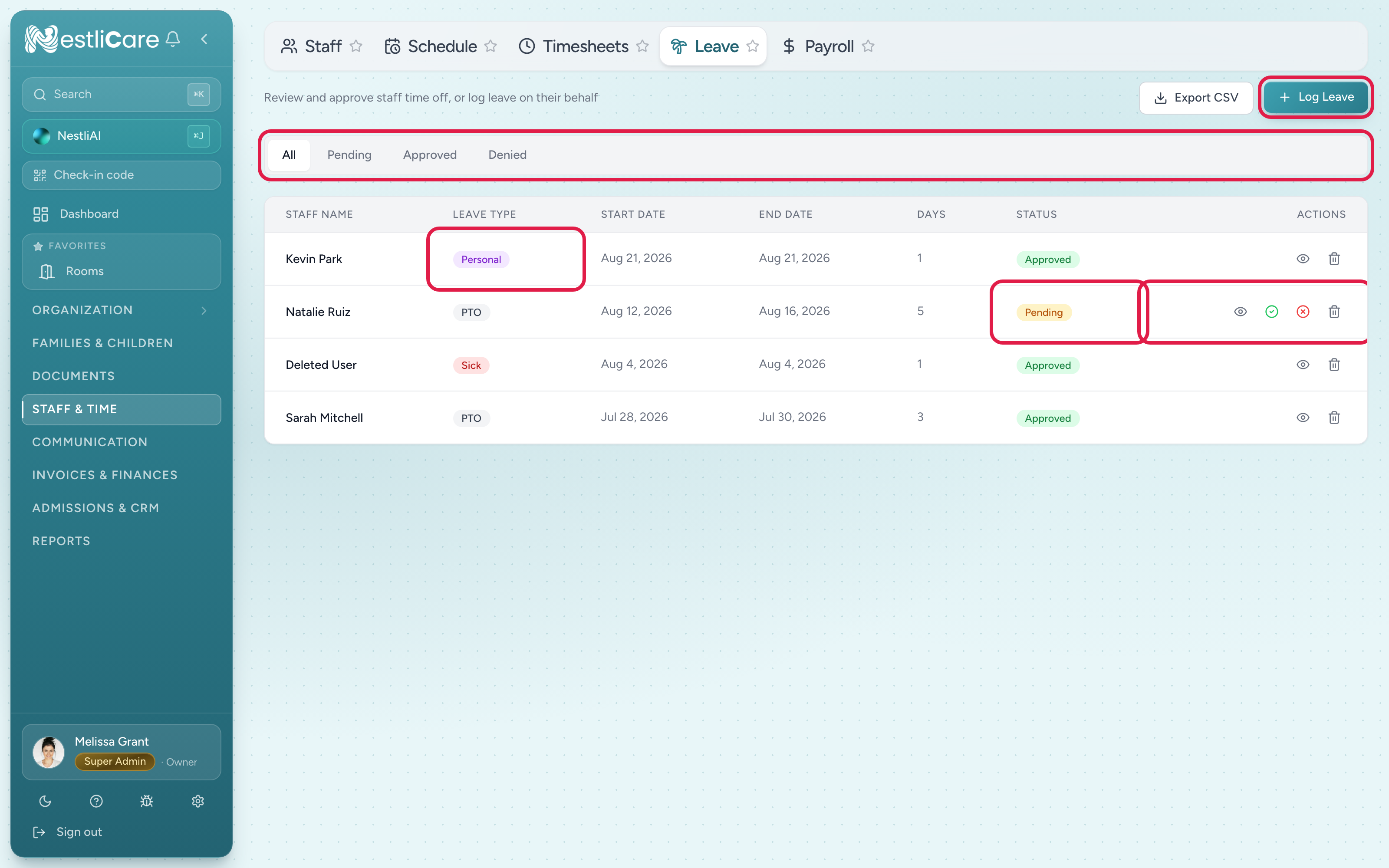
- 1Filter by status. Pending is the one you act on.
- 2The leave type, which is the reason the staff member picked.
- 3Status. Only a pending row offers approve and deny.
- 4View, approve (green check), deny (red X). Pending and approved rows also have a bin icon to cancel.
- 5Log Leave records time off on someone's behalf. Export CSV takes the list away with you.
Approve or deny
On a Pending request, the Actions column shows four icons:
- The eye opens the request.
- The green check approves it.
- The red X denies it.
- The bin cancels it (see below).
Approved requests keep the eye and a bin icon to cancel them. Denied requests keep only the eye.
Cancel leave
The bin icon (Cancel this leave) on a pending or approved request cancels it. If it was already approved, the staff member is told it was cancelled. The request is not deleted. It stays on record as Cancelled.
Paid and unpaid reasons
Leave has two parts: whether it is paid, and why the person is out. The reasons on offer change with the paid setting, because some reasons only make sense one way.
Paid: Personal, Sick, Vacation, Holiday, Parental, Bereavement, Jury duty.
Unpaid: Personal, Sick, Parental, Bereavement, Jury duty, Medical, Other.
Vacation and Holiday are paid by definition, so they are not offered as unpaid. A day off without pay and without a named reason is Personal or Other.
Add a request for someone
Click Log Leave to enter leave on a staff member's behalf, which is what you want when someone tells you in person. It is approved immediately.
Export CSV downloads the requests in the status tab you are on, with dates, hours, and whether each one is paid. Hand it to whoever runs payroll.
You can also log leave from Staff & Time → Schedule with the Staff Leave button, while you are looking at the week it affects.
How leave reaches the rest of the system
- Schedule. Anyone on approved leave shows as on leave on the roster for those days, so you can see the gap before you fill the shift.
- Timesheets. Approved paid leave carries into the timesheet for the period, which is how it reaches payroll.
- Days and hours. Requests are counted in days. A payroll run turns paid days into hours using PTO Hours per Day in Staff & Time → Payroll → Settings.
Troubleshooting
I was not notified about a request. Check that Leave updates is on in your notification preferences. Also check the request's center: a center admin pinned to one center is only told about their own center's requests.
A reason I expected is missing. Check the paid setting first. Vacation and Holiday only appear on paid leave; Medical and Other only on unpaid.
A request shows the wrong reason on someone's phone. Their app version predates the newer reasons and falls back to "Personal". The web dashboard shows the real value.
I approved leave by mistake. Click the bin icon on the request to cancel it. The staff member is told.
I approved leave and then scheduled them anyway. The roster marks them on leave, but it will not stop you. Check the week before you assign the shift.
Related: Staff scheduling, Finalize timesheets, Request leave (what staff see), Configure notification defaults.