
Request time off
How to send a leave request from the mobile app, what happens next, and how to cancel one. The iPhone and Android flows differ, so both are covered.
Leave lives on the Dashboard tab, at the bottom, in the Manage section. There are two rows there: Request Leave and Leave Requests.
On iPhone
Sending a request
- Dashboard tab → scroll to Manage → tap Request Leave.
- Pick a Type: Personal, Sick, Parental, Bereavement, Jury duty, Vacation, or Holiday.
- Set Start Date and End Date by tapping each date and using the picker.
- If your start and end dates are the same day, a Duration control appears so you can ask for Full day, Morning, or Afternoon. It is hidden for multi-day requests, which are always full days.
- Check the Total Days figure — a half day counts as 0.5.
- Add a Reason if you want to. It is optional.
- Tap Submit in the top right.
You will see Leave Request Submitted, confirming it has gone for review. Submit stays greyed out until the request adds up to at least half a day.
Seeing your requests
Dashboard → Manage → Leave Requests. The row shows an amber badge with the number of requests still waiting for an answer.
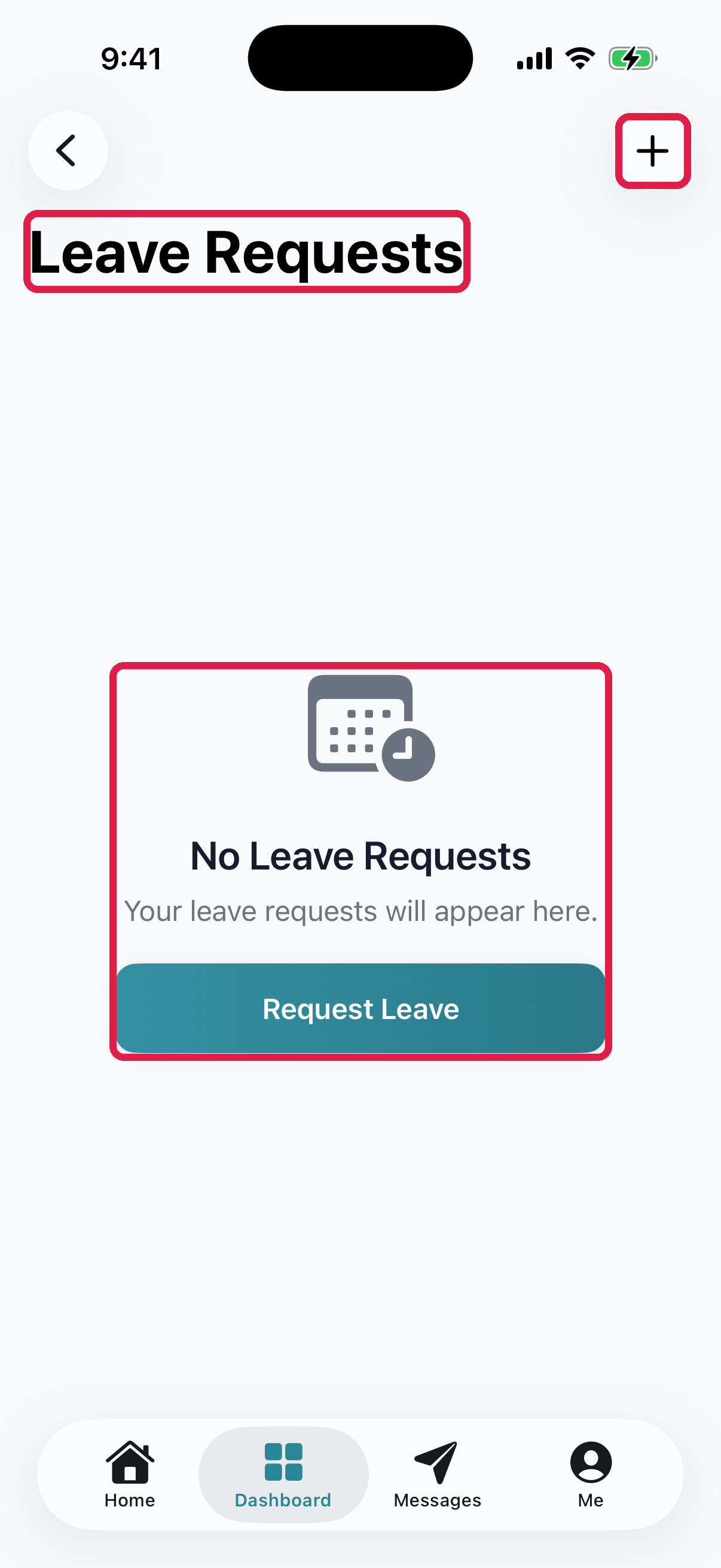
- 1Plus — opens the same request form, without going back to the Dashboard
- 2Leave Requests — every request you have sent, with its current status
- 3The empty state before you have sent anything
Each request shows its status: Pending, Approved, Denied, or Cancelled. If whoever reviewed it left a note, it appears in italics beneath, starting with Note:.
Cancelling
Swipe left on a request and tap Cancel. You can do this while it is still Pending, and also after it has been Approved — useful when plans change.
On Android
Sending a request
- Dashboard tab → scroll to Manage → tap either Request Leave or Leave Requests. Both open the same screen, titled Leave.
- Tap the round + button in the bottom-right corner. The form is titled New Leave Request.
- Choose a Leave Type from the dropdown.
- Type the dates by hand, in the format the fields ask for: Start Date (YYYY-MM-DD) and End Date (YYYY-MM-DD). So 4 September 2026 is typed
2026-09-04. There is no calendar picker on Android. - For a single day, choose Full day, Morning, or Afternoon.
- Add a Reason if you want to.
- Tap Submit Request at the bottom of the form.
Android does not show a running Total Days figure, so double-check your two dates before submitting.
Seeing your requests
The Leave screen splits your requests into Pending Requests and Past Requests.
Android also shows something iPhone does not: a Leave Balances card at the top, listing how many days you have used out of your allowance for each type of leave.
Cancelling
Open the request and tap the red Cancel Request button inside the card. There is no swipe gesture on Android.
What happens after you submit
Your request goes to your center's owners and admins, who see it on the web dashboard and either approve or deny it. Approved leave then shows up on the schedule — your own My Schedule screen marks the day On Leave, and a request that has not been answered yet is marked Pending there too.
Your admins get a notification when you send it, and you get one when they approve or decline it. If it's urgent, also tell your manager in person.
Troubleshooting
Submit does nothing on iPhone. If your staff profile is missing a center, the button silently fails with no error. Ask an owner to check that your profile has a center assigned.
You cannot find Request Leave. Both rows are at the very bottom of the Dashboard tab, under Manage — below the children, the schedule, and the room sections. Keep scrolling.
Your leave balance looks wrong on Android. Balances count approved leave only. A pending request is not deducted until somebody approves it.
A day you were approved for still shows as a normal shift. The schedule reflects approved leave, so if it has not updated, the request may still be pending. Check its status on the leave screen.
Related: See your work schedule, Leave requests, Staff scheduling.