
Add a pickup contact
Add a grandparent, babysitter, or other helper as a family member. They get their own pickup code, and it works at the kiosk right away.
When someone else helps with drop-offs and pickups, add them as a family member. They get their own personal 4-digit pickup code, and it works at the kiosk immediately. There is nothing to authorize and nothing to approve: adding them is the whole setup.
Short version first: this narrated video marks a child absent for the day, then adds a grandparent as a pickup person.
Add a family member
You do this once per person. Every family member has the same access you do: they can see your child's day, messages, invoices and payment history, manage payments, and add other family members. A family can have up to 10 members.
- Open the Me tab.
- Scroll to Family and tap Add Family Member.
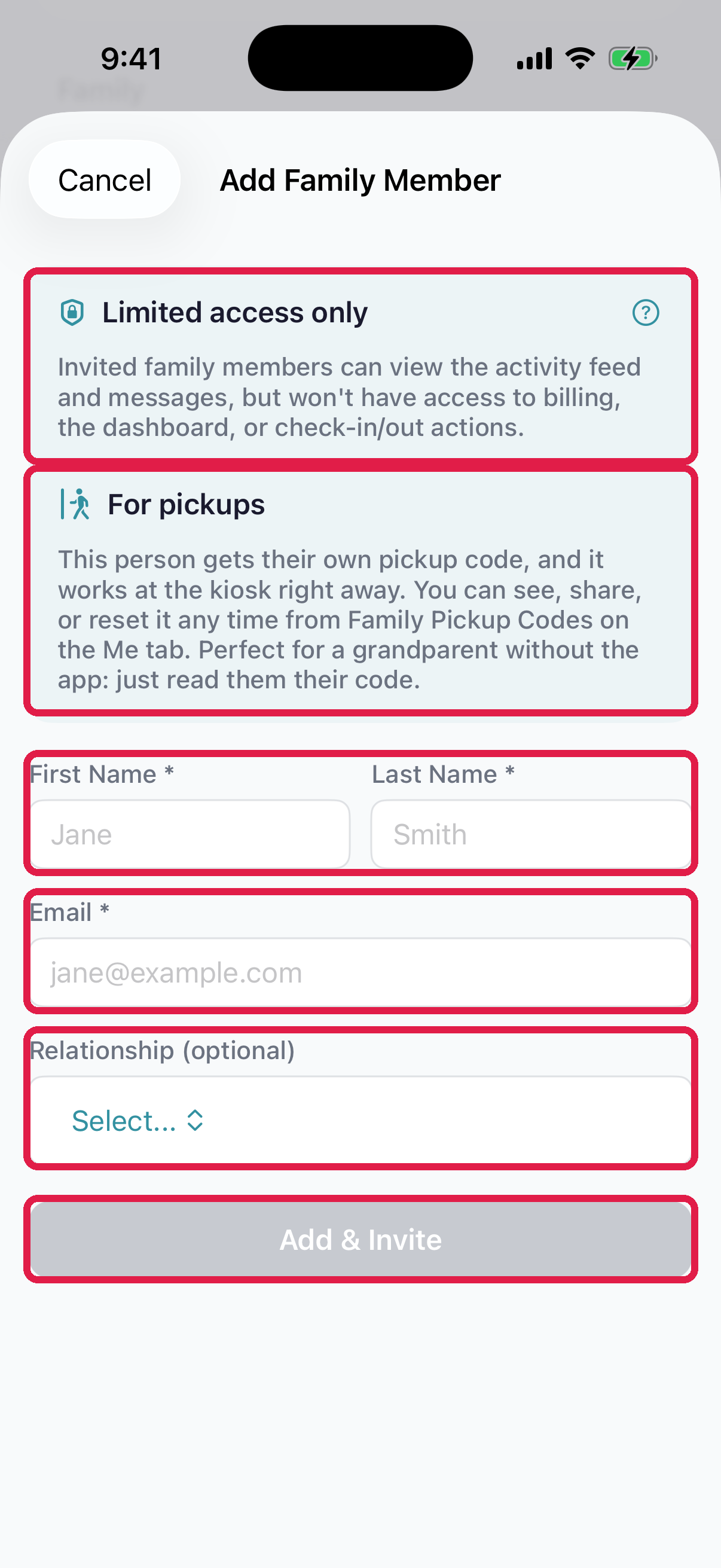
- 1'For pickups' banner — they get their own pickup code, and it works right away
- 2First Name + Last Name fields
- 3Email — they receive an invite link here
- 4Relationship (optional) — Mother, Father, Guardian, Grandparent, Aunt, Uncle, Other
- 5Add & Invite — enabled once name + email are filled
Tap Add & Invite. A confirmation screen appears:
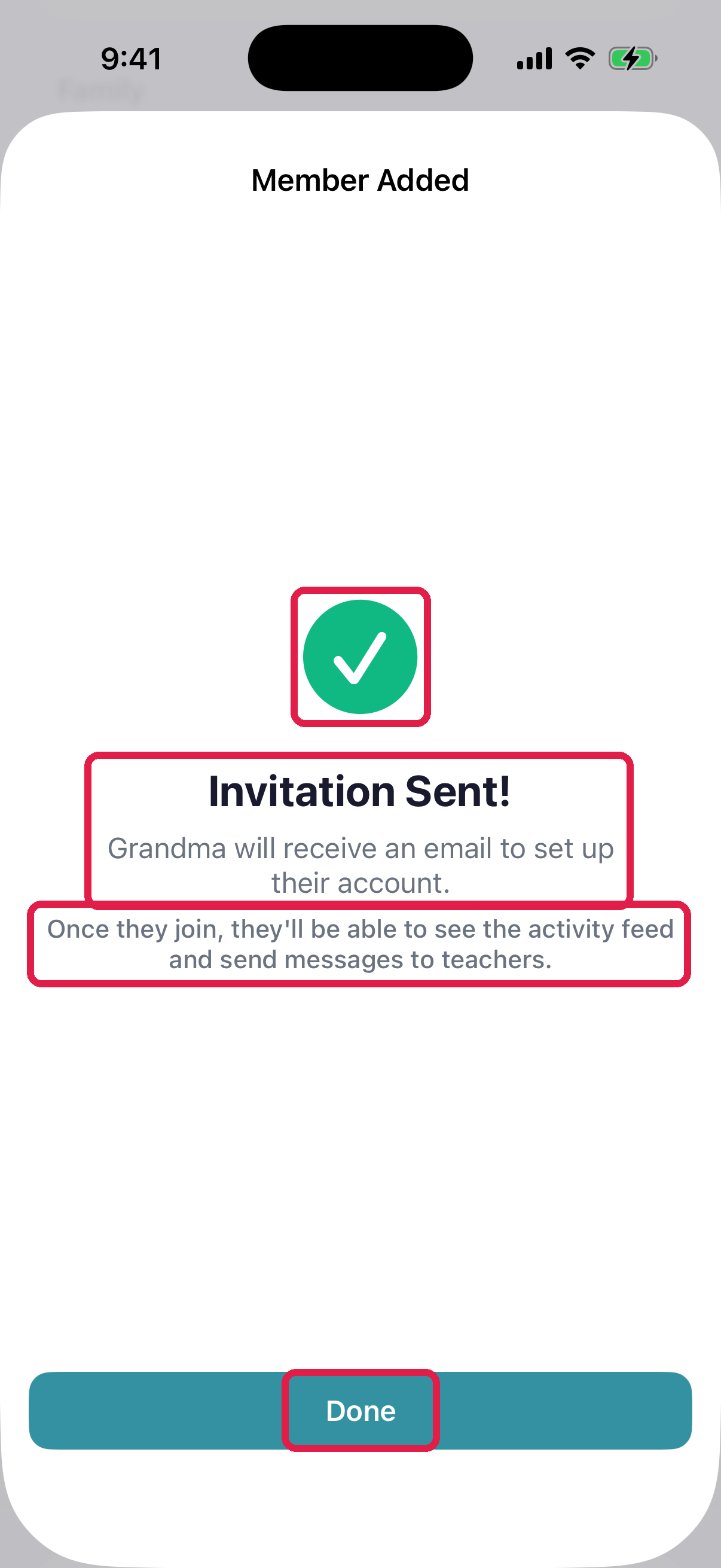
- 1Green checkmark — the invite is out the door
- 2'Invitation Sent!' with the person's name — they'll receive an email to set up their account
- 3A reminder of what they'll be able to do once they join — activity feed + message teachers
- 4Done — closes the sheet
Your daycare is notified that you added a pickup contact, and the person appears on your family's card in their dashboard. That's how the front desk knows who to expect.
Their code works right away
- If they have the app: their code is on the YOUR PICKUP CODE banner at the top of their Dashboard tab. Send them Use your pickup code.
- If they don't have the app: they never need it. Read their code to them from Me tab → Family Pickup Codes. See Share a pickup code with a family member.
At the daycare, they type their code at the kiosk (or tell it to the teacher at the door), the kiosk shows your children, and they check in or out. Same flow in the morning and the afternoon.
Their notifications
Family members you add start with quieter notifications: messages and reports. They can turn more on in their own notification settings.
Take someone off your family
You can't remove a family member from the app. Ask your daycare to do it.
Until they do, reset that person's code so it stops working:
- Open Me → Family Pickup Codes.
- On iPhone, tap ⋯ next to the person, then Reset code. On Android, tap the reset button next to their code.
- Confirm. The old code stops working right away. Don't share the new one.
Troubleshooting
Their code didn't work at the kiosk. Almost always a mistype — codes don't rotate, so the code you gave them should still work. If it keeps failing, it was probably reset since they learned it: check the current one under Me → Family Pickup Codes.
You can't add another person. A family can have up to 10 members. Ask your daycare to remove anyone who no longer needs access.
A code got into the wrong hands. Reset it from Me → Family Pickup Codes (on iPhone, tap ⋯ → Reset code; on Android, tap the reset button). The old code stops working at the kiosk immediately. Then send them the new one.
Lost phone — worried about the pickup codes. Sign in on another device. Reset your own code with New code on the YOUR PICKUP CODE banner (Dashboard tab), and any family member's code under Family Pickup Codes. Your daycare can also reset codes.