
Message a teacher
Send a message to your child's teacher or the daycare office from the app, add a photo, and fix a message you sent.
Use the Messages tab to reach your child's teacher without using their personal phone number. Messages go through the daycare, so the right staff see them and nothing gets lost.
Short version first: this narrated video sends a message to a teacher and gets a reply.
Every family member has the Messages tab.
Start a new message
- Open the Messages tab.
- Tap the new message button at the top right.
- The New Message list opens. Pick a teacher or someone from the office. You can search by name.
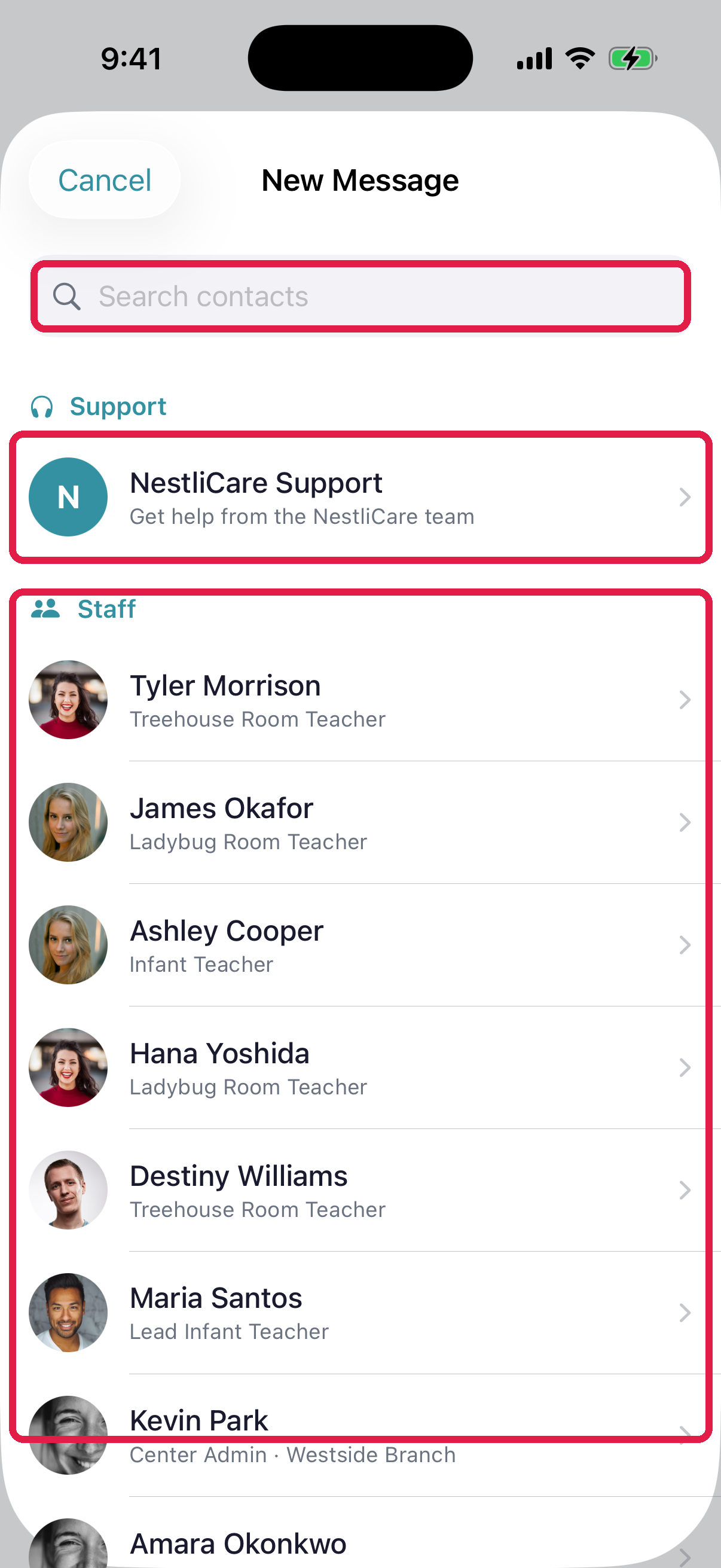
- 1Search contacts. Type a name
- 2Support: NestliCare Support, for problems with the app (not daycare questions)
- 3Staff: teachers and the office at your child's daycare. Most messages go here
- Type your message in the box at the bottom.
- Tap the send button.
Reply to a message
- Tap the chat in the Messages tab.
- Type your reply at the bottom and tap send.
Add a photo
Tap the photo button next to the message box. Then take a photo or pick one from your phone. You can send photos, like a rash or a signed note. Other files can't be sent.
Edit, delete or react
Press and hold a message you sent:
- Edit to fix a typo. The teacher sees the new text with an Edited label.
- Delete to remove it.
- Tap an emoji to react to any message.
Message or phone call?
- Message: everyday things. "Sally forgot her water bottle." "Can you add sunscreen?"
- Call the daycare: emergencies, custody changes, running very late, anything that can't wait.
Teachers check messages during the day, but they're busy with the children. Call when minutes matter.
Both parents in the loop
You can only start chats with one person at a time. If both parents want to hear the answer:
- Each parent messages the teacher, or
- Ask the teacher to start a group chat with both of you.
Each parent needs their own account. If your partner isn't on the app yet, ask the daycare to invite them.
Troubleshooting
"No Contacts." Your child may not be enrolled yet in the daycare's system. Call the daycare.
The teacher didn't see my message. Their phone may be off, or they're out today. For anything urgent, call the daycare.
I can't find an old message. Scroll up in the chat, or search on the Messages tab.
I messaged the wrong teacher. Delete the message, then send it to the right person.
I can't attach a file. Only photos can be sent in messages. Email other files to the daycare, or ask if they can send you a document request.