
Read and reply to a parent message
Use the Messages tab to read parent messages, reply with text or a photo, and fix a message you already sent.
Most parent messages are simple ("Did Sally leave her water bottle?"). Some are urgent ("New allergy"). Try to reply within an hour or two.
This narrated video walks through all of it on the phone: reading a chat, reacting, sending a photo, replying, editing your own message, starting a new chat, and the Team Board.
Open your messages
- Open the Messages tab.
- Make sure Chats is picked at the top. (Team Board next to it is for staff-only posts.)
- Your chats are listed, newest first. A teal number on a row means messages you haven't opened.
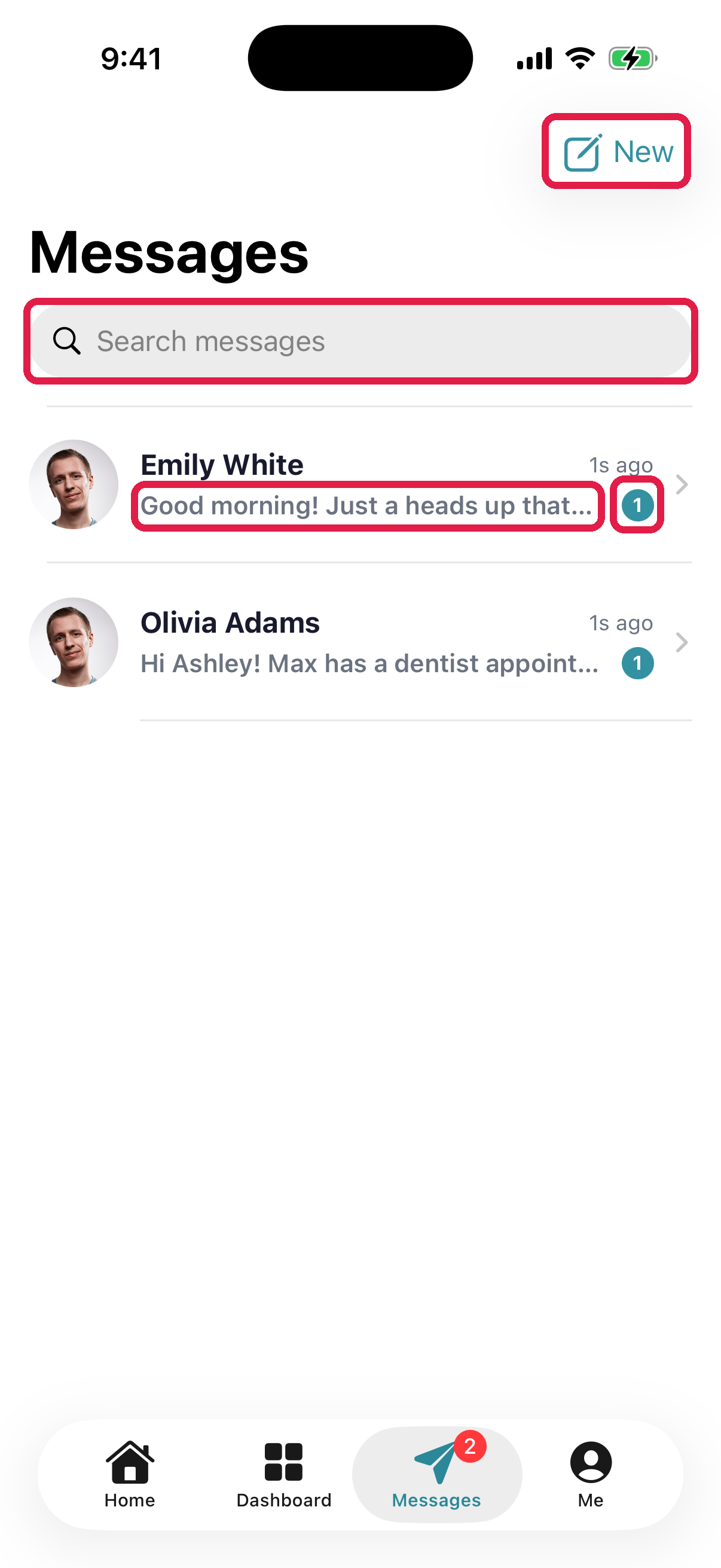
- 1New message. Start a chat with a parent or a coworker
- 2Search by name or word
- 3Teal number: messages you haven't opened
- 4The last message, so you can see what's urgent
Reply
- Tap the chat.
- Type in the box at the bottom. To add a photo, tap the attach button, then Take Photo or Choose from Library.
- Tap send.
The parent gets it right away in their app, and as a push if they have notifications on.
Edit, delete or react
Press and hold your message:
- Edit to fix a typo. Everyone sees the new text with an Edited label.
- Delete to remove it.
- Tap an emoji to react.
You can edit or delete only your own messages. Admins can delete any message.
Start a new chat
- Tap the new message button at the top right of the Messages tab.
- Search or scroll. The list has Support, Staff and Parents. You can message any parent or coworker at your center.
- Tap a name to start the chat.
To message several people in one chat, tap New group message first, pick everyone, then start.
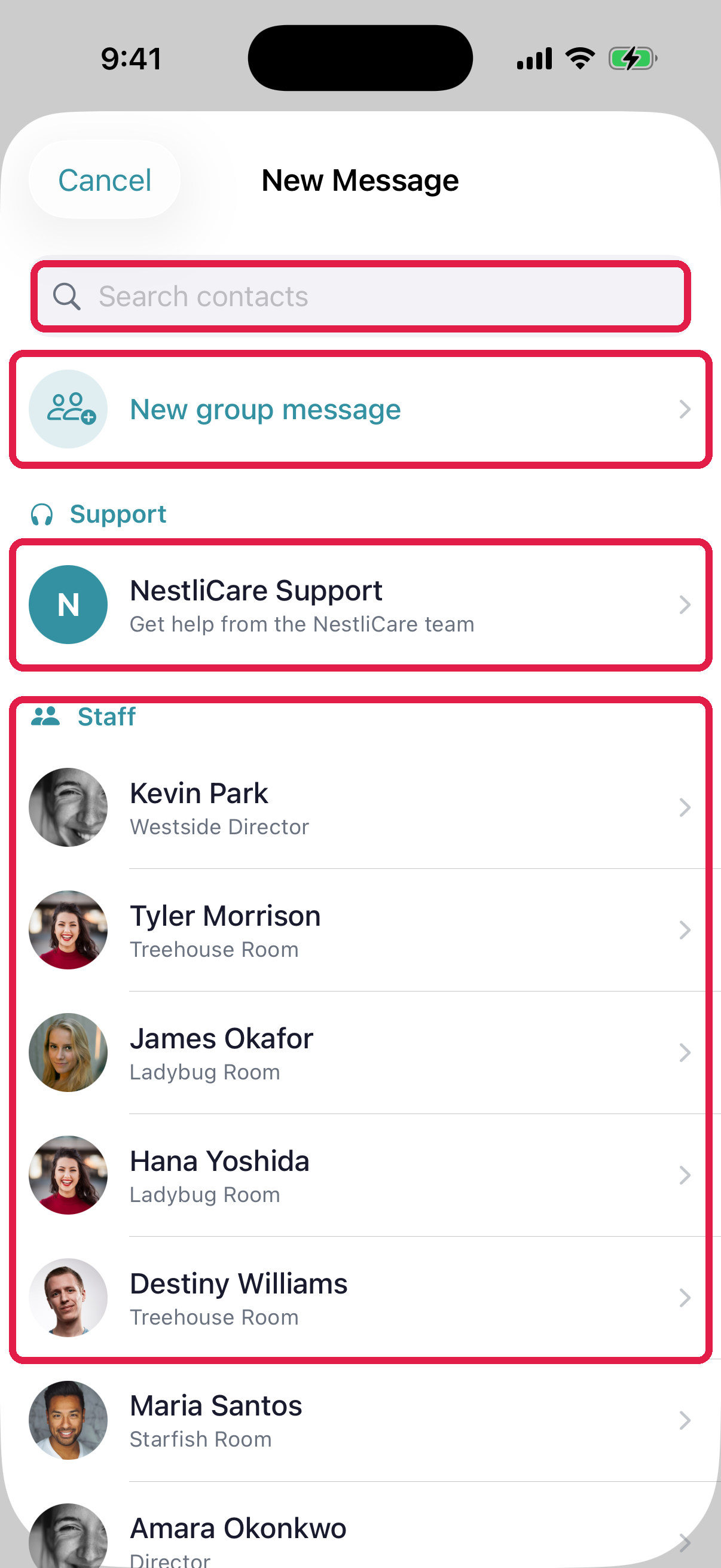
- 1Search contacts
- 2Support: NestliCare Support
- 3Staff, then Parents further down. Everyone at your center
- 4New group message: one chat with several people
Troubleshooting
Can't find a parent. Search by their first or last name. The list covers every family at your center. If they're still not there, they may not have accepted their invite yet. Ask your director.
Sent, but the parent says they didn't get it. Their notifications may be off. The message is still in their app. Ask them to open Messages.
Sent something by mistake. Press and hold it, then tap Delete.
The photo didn't send. Check your connection and send it again.