
Check a child in or out
How families check in at the door tablet, how to check a child in or mark them absent from your Dashboard, and how to fix a mistake.
Most check-ins happen at the door tablet (kiosk mode). A parent types their 4-digit code or scans the QR code, then taps Check in for each child. You step in only when something needs a hand.
The normal path — kiosk-driven
Once a tablet is in kiosk mode (an admin enables it from Organization → Kiosk Mode on the web dashboard), parents arrive and:
- Type their 4-digit code on the numpad, or scan the QR using their phone.
- The kiosk shows their family's row with every enrolled child for check-in.
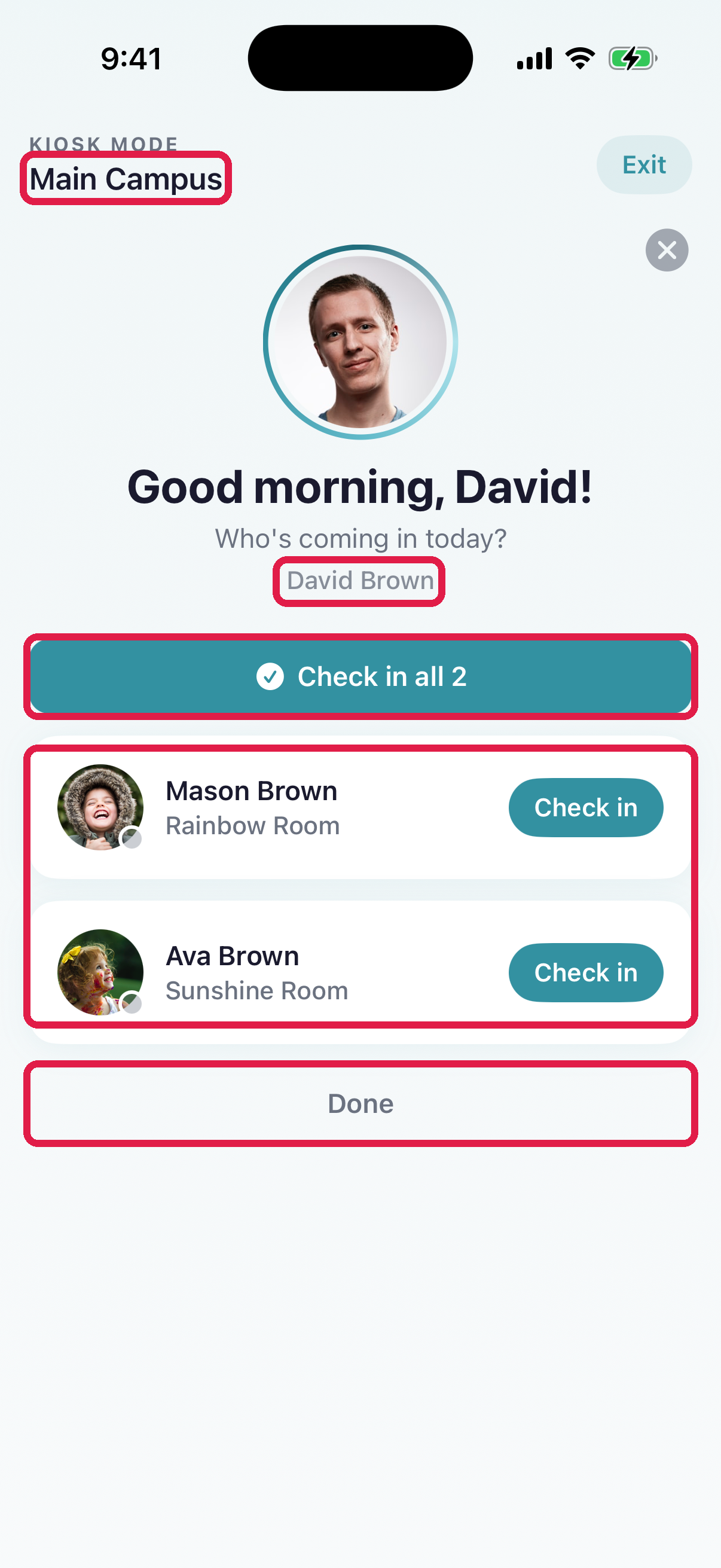
- 1Center name — confirms the parent is at the right kiosk
- 2Authenticated parent — the family member the code belongs to
- 3Check in all — one-tap bulk action when every child is arriving together
- 4Per-child row — child name + their home room. Parent taps Check in for each
- 5Done — dismiss the kiosk back to the code prompt for the next family
- They tap Check in next to each child (or Check in all 2 if the whole family is arriving).
- The kiosk confirms. They tap Done to go back to the code prompt for the next family. If they walk off without tapping it, the kiosk resets on its own after 30 seconds with no taps.
Check-out is the same flow in reverse — same screen, but the per-child buttons read Check out in red.
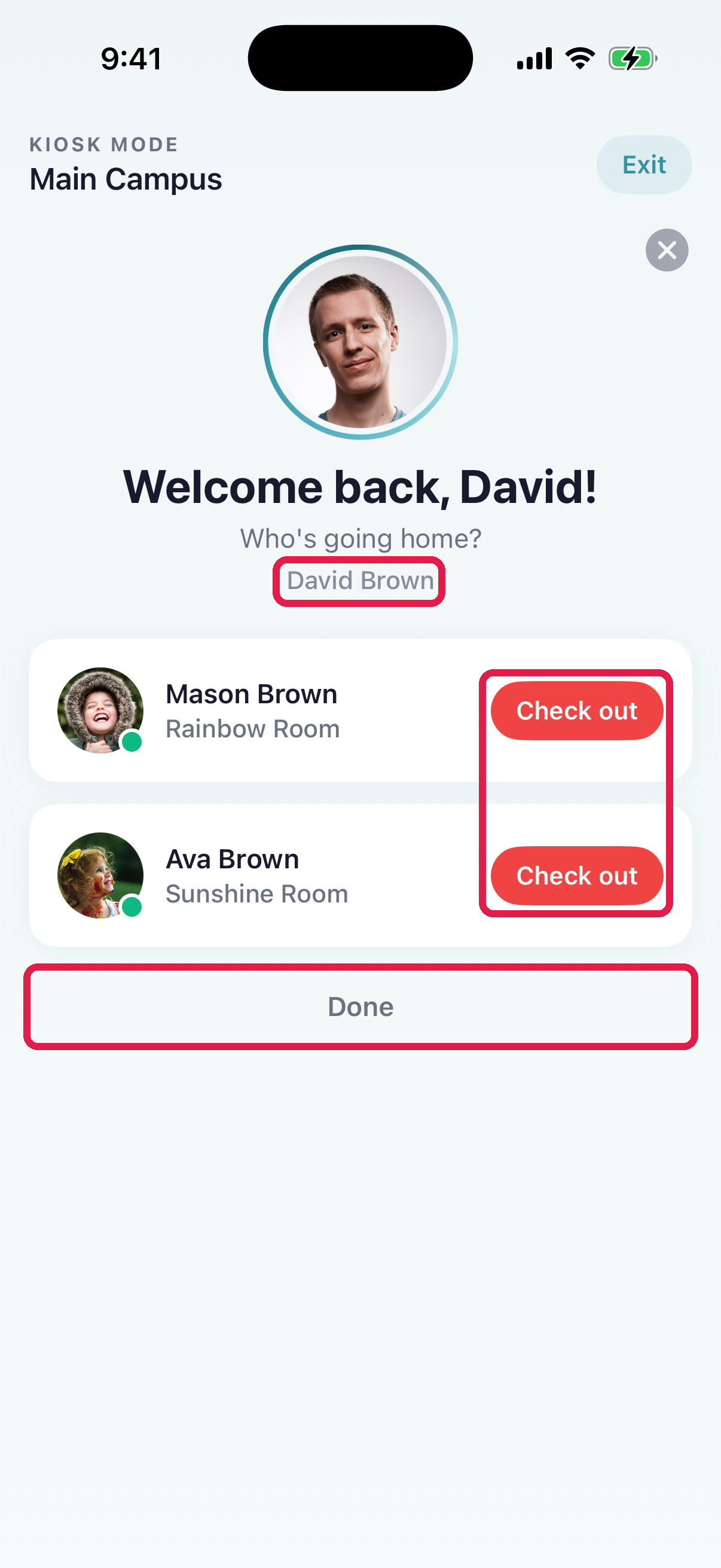
- 1Same authenticated-parent row — this time the kids are already in
- 2Red Check out buttons — visual cue this is a departure, not an arrival
- 3Done — returns to the code prompt
When to check a child in from your own Dashboard
If a parent drops off without using the kiosk (running late, tablet is rebooting, walking with a sleeping child in arms), you can check the child in directly from your Dashboard:
- Open the Dashboard tab and scroll to the Children section.
- Each child enrolled today shows their check-in status. Un-checked-in children have a Check In button on the right.
- Tap Check In → the child is marked checked in at the current time, logged under your name.
Mark a child absent
When a parent tells you a child is staying home:
- Tap Absent on the child's row.
- Pick Absent, Sick or Holiday.
- Add a reason if you have one, and save.
The kind matters for centers that report to a state subsidy program. Days the center is closed don't need marking.
Fix a mistake
Wrong time on a check-in or check-out?
- On the Dashboard, tap the child's row to open their profile.
- Tap the Attendance tab.
- Tap the pencil on that day and fix the time.
- Save.
Teachers can fix times. To undo a check-out, or remove a check-in made by mistake, ask an admin.
If someone unknown shows up to pick up
The kiosk only accepts codes that belong to the child's family members. Someone who was never added has no code, so the kiosk won't let them through. Unknown person, no code? Don't release the child. Call a parent or your director.
If a parent says someone new is coming who isn't in the system yet, they add them as a family member in their app. The person gets their own pickup code, and it works at the kiosk right away — your admins are notified whenever a family adds someone.
Don't override by checking out from your own Dashboard unless you've spoken with a parent first, and always follow your center's pickup policy: the child's approved contacts list in their enrollment paperwork still governs who may take them, code or no code.
Troubleshooting
"Code not recognized" at the kiosk. Pickup codes stay the same until reset, so a mistype is the usual cause — have them try again. If it still fails, the code may have been reset since they learned it: have the parent who added them check the current code in their app, or reveal it from the family card on the web dashboard.
Kiosk is on the wrong center. An admin needs to exit and re-provision: tap the small Staff button in the top corner of the code prompt and sign in with an admin email and password. See the owner-facing Set up kiosk mode article.
A parent tapped Staff and got an admin sign-in. That button is for staff leaving kiosk mode. Tap Cancel and the code prompt is back. It never shows while a family is mid-check-in, only on the code prompt.
Teacher-side Check In button is missing on the Dashboard. The child isn't enrolled today (maybe they're on the withdrawn list or today is marked absent). If it is missing for every child, your center has turned Manual Check-in off under Settings → Operations → Check-in Methods, and parents record arrivals at the door instead. Check with your admin.
A parent says the app has no scan button. Your center has turned QR Code Check-in off. They type their pickup code on the door tablet, or you check the child in for them.
App is stuck on the check-in screen. Pull down to refresh. Check your internet. A check-in made with no connection is not saved, so check the child's row shows them as checked in.