
Set up check-in at your door
One check-in code for your center — print it as a poster or run it on a locked tablet. Parents scan to check children in and out; staff scan the same code to clock in.
Your center has one check-in code. Parents scan it with the NestliCare app to check their children in and out, and staff scan the same code to clock in. You choose how to show it at your door: print it as a poster, run it on a locked tablet, or both.
Go to Organization → Kiosk Mode to manage it. The page is headed Check-in code. The same code is also one click away from the Check-in code button in the sidebar, the dashboard's Check-in Code quick action, and the Check-in code button on the Attendance page.
Parents scan the code from inside the NestliCare app, not with their phone's camera app.
Pick a center first
If you have more than one center, choose one at the top of the page. The code and both options below are per-center.
Your check-in code
The top of the page shows the code itself and its security mode:
- Printable code: one fixed code you can print and post. Works on a poster or a tablet. This is the default, and what most centers use.
- Rotating code (more secure): a new code every 5 minutes, shown only on a tablet screen, so it can't be printed or screenshotted for later.
The mode you pick applies to everything below it — the poster and any tablets. Reset code (printable mode only) generates a new code and invalidates anything you've already printed, for parents checking in and staff clocking in alike, so print and post the new copy right after.
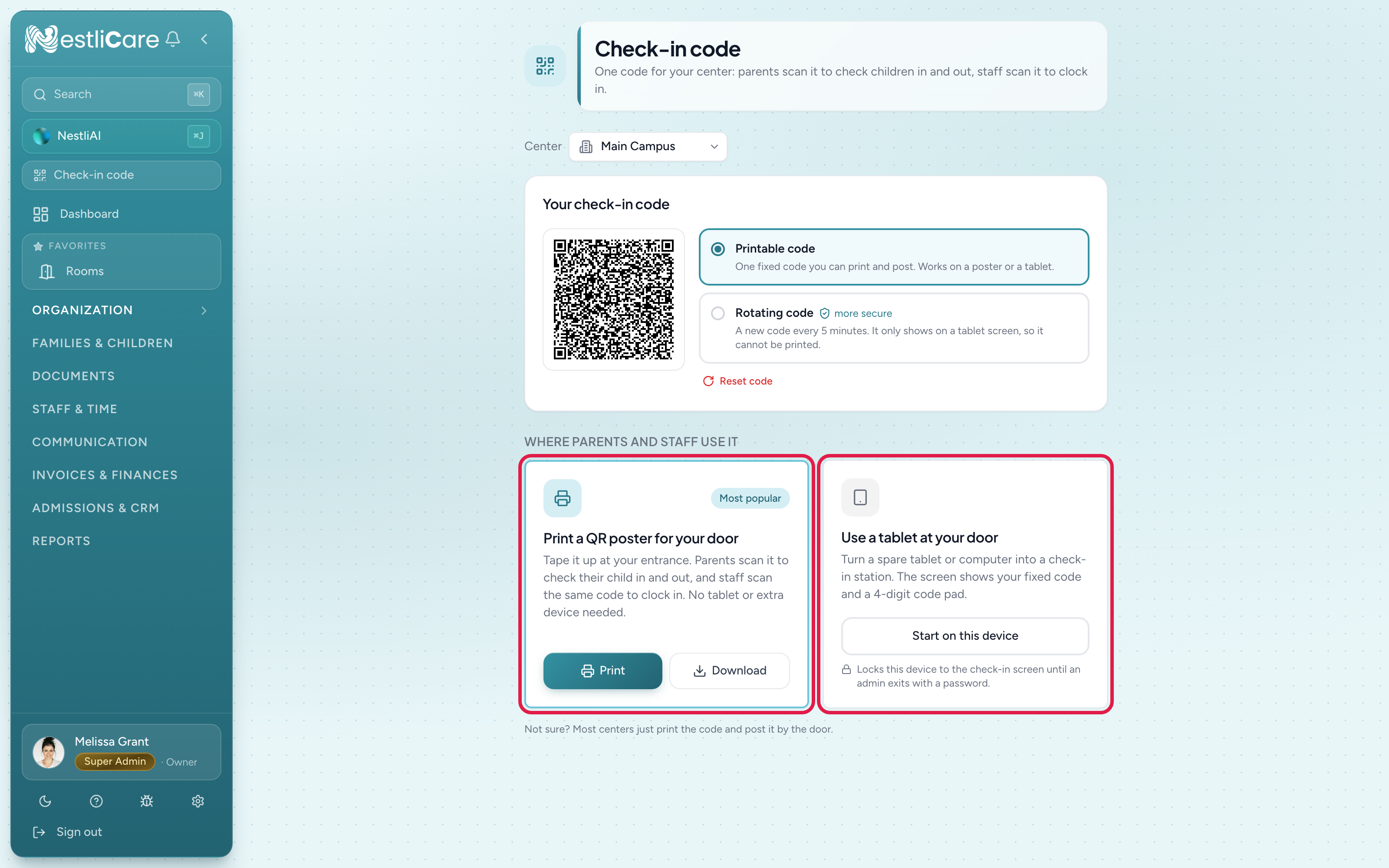
Option 1: Print a QR poster for your door (most popular)
With the printable code selected, click Print for a ready-to-tape poster, or Download for the bare code image. Parents scan it with their phone to check in and out; staff scan it to clock in. Nothing to buy, no device to babysit.
If the code is set to rotating, printing is off — the card explains why and switching back to printable turns it on again.
Option 2: Use a tablet at your door
Click Start on this device, then confirm with Start on this device again, to turn a spare tablet or computer into a check-in station. It locks to the check-in screen until an admin exits with a password, so a curious parent can't wander into your dashboard.
To leave kiosk mode, tap the small Staff button (with the lock icon) in the top corner of the code prompt and sign in with any admin's email and password. The button only shows on the code prompt: while a family is checking in, the only way off their screen is Done, so a parent can't tap into the admin sign-in by mistake. After a family finishes, the kiosk goes back to the code prompt on its own after 30 seconds without a tap, so the next family never sees the last family's children.
The tablet shows whatever your code is set to: the fixed code, or a fresh code every 5 minutes. Parents can also tap in their 4-digit pickup code instead of scanning.
From the iPhone or Android app
On the admin Dashboard, pick a single center, then tap the Kiosk tile and Start Kiosk Mode. The tile is hidden when kiosk check-in is turned off in your check-in methods.
Troubleshooting
I don't see the code. The page says "Choose a center above to manage its check-in code." Pick a center at the top first. The picker only shows when you have two or more centers.
The page says kiosk or QR check-in is turned off. The owner turns them back on under Settings → Operations → Check-in Methods. See Choose your check-in methods.
A parent's scan isn't working. If you're on a rotating code, it changes every 5 minutes, so an old screenshot won't work — the tablet says so under the code. Ask them to scan the live code at the door. If you recently reset a printable code, old printouts no longer work either; post the new one. Also check that they're scanning from the NestliCare app, not the phone's camera.
Related: Require a QR scan to clock in, for staff using the same code.