
Move a child to another room for the day
Move children between rooms during the day (opening and closing combines, nap, break cover, ratio) without touching their enrollment. Ratios, rosters, and parents follow the move.
Children move rooms all day: everyone starts in one opening room at 6:30, splits to their own rooms at 8, combines again at nap or at 5pm, and a child spends a morning in the next room up before moving for good. Move to room records that without changing anything permanent. It is for today; the child stays enrolled in their own room and is back there the next morning on their own.
If you want to change which room a child is enrolled in, that is a different action: see Move a child from one room to another.
What a move does
- Ratios follow the child. Room Insights counts them in the room they moved to, and stops counting them at home, the moment you move them.
- Rosters follow the child. The teacher covering the new room sees them on their activity logger and on that room's Room Mode tablet; the home room's list drops them for the day.
- Parents are told. "Emma moved to Toddler 2" goes out as a push and bell notification Parents can turn Room Moves off in their own notification settings. You can turn room move alerts off for everyone under Settings → Operations → Notification Defaults → Room Transfers. A child checked in straight into another room gets "Emma is in Toddler 2 today" instead.
- A trail is kept. Every move records the time, from and to room, who did it, and an optional reason. The child's profile shows the day's trail; the Room Day Log report shows it per room.
- Nothing else changes. Enrollment, billing, and the Rooms page are untouched.
Teachers and admins can move children. A Room Mode tablet can move children too, attributed to whoever is on its identity chip.
Move one child, or a whole room
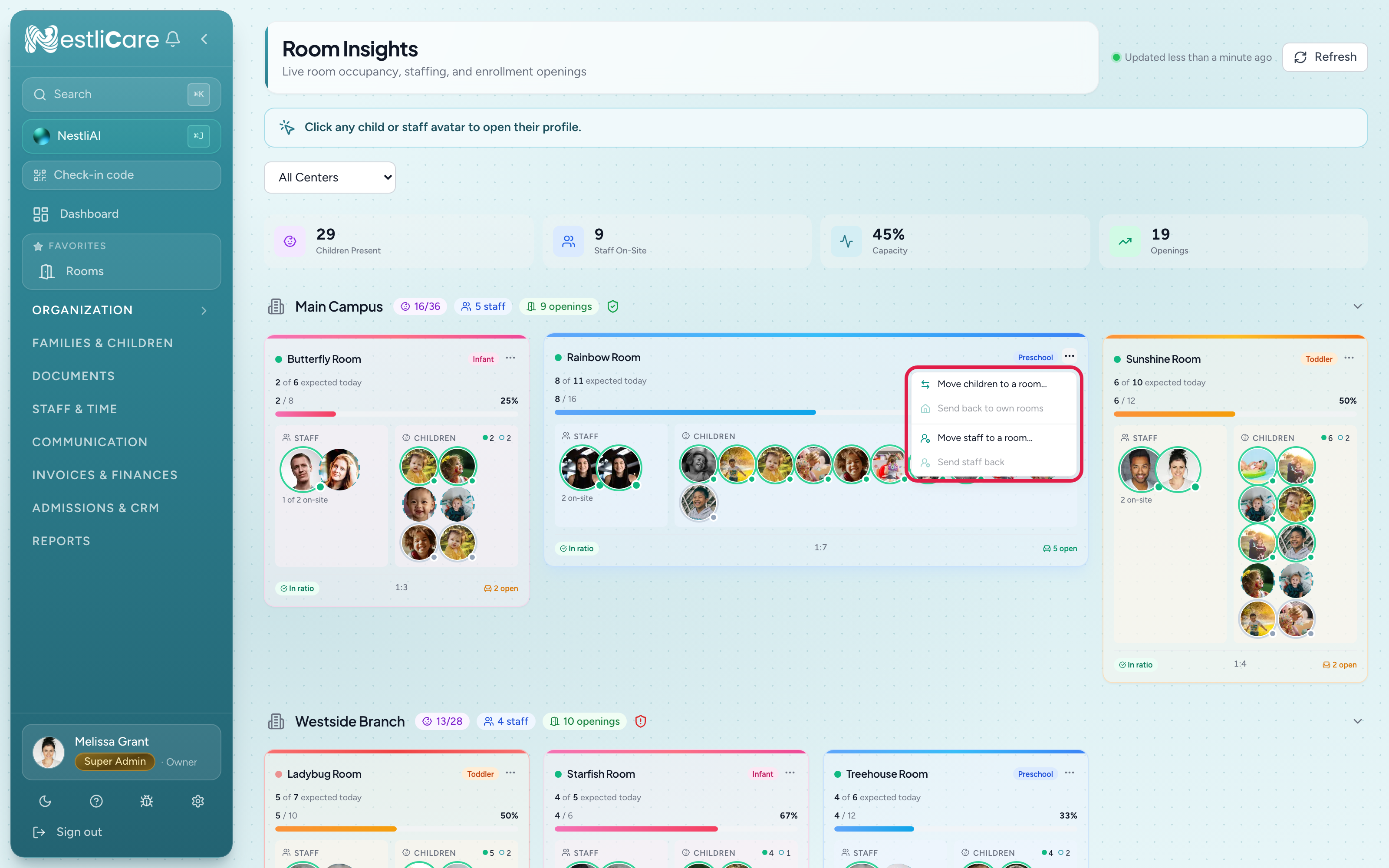
From Room Insights (web). Go to Organization → Room Insights, or use the Room Overview cards on your Dashboard (they're the same cards). Open the room card's ⋯ menu → Move children to a room…. Children who are here now are pre-selected; tick or untick, pick the room, optionally a reason (Ratio, Rooms combined – opening, Rooms combined – closing, Nap, Break cover, Transition), and click Move. Children who are not here yet get placed: when they are checked in at the kiosk, they land in the new room. When a room is over ratio, the red warning's "move N children" is a shortcut to this dialog.
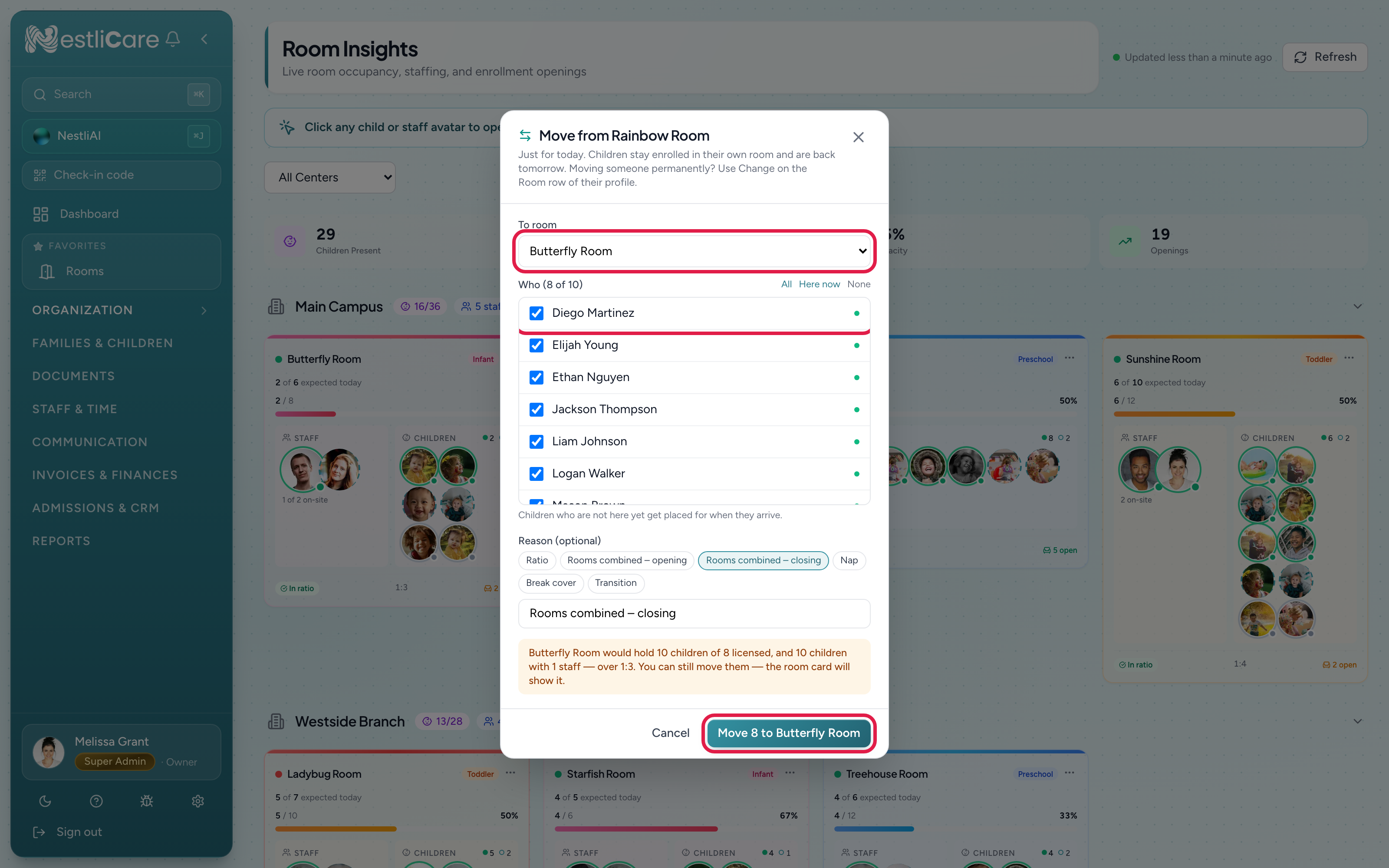
If the destination would end up over its staff ratio or licensed capacity, the dialog says so before you confirm — "Butterfly Room would hold 12 children of 8 licensed" — but it never blocks the move. Sometimes going over for ten minutes is the right call, and the room card shows it either way.
From a child's profile. Open the child → Attendance tab → the Room today card → Move to room. This is also where you set a move ahead of time (pick a day) and where you can Undo last move.
From a Room Mode tablet. Each present child's row has a Move button; with Select on, the bulk bar has Move (n). Pick the destination room and the child leaves this tablet's list.
From the apps. iOS and Android: child profile → Attendance → Move to room, and the same Move buttons on the Room Mode roster.
Send everyone back
On the room card's ⋯ menu, Send N back to own rooms returns every child who is here on a move to their own enrollment room, one tap. It is the closing-time counterpart of "combine rooms" at opening.
Undo
Undo last move (child profile → Attendance) removes the most recent move of the day and puts the child back where they were. Only the latest move can be undone; to change an earlier one, just make a new move.
Moving staff too
Ratios have two sides: a teacher who goes with the children has to count in the new room too, and stop counting in the old one. A staff move does that. It never touches anyone's timecard (no clocking out and back in), and their schedule and home room never change.
- When you move children, bring the teacher along. In the move dialog (Room Insights or a Room Mode tablet), Is a teacher going with them? lists the staff counted in the room the children are leaving. Tap the ones going too; nobody is selected unless you pick them. Teachers can bring a colleague this way when that colleague is in the room the children are leaving.
- Covering another room on your own. On your dashboard, while you're clocked in, Cover another room counts you in the room you pick from now. Back to your room undoes it.
- From Room Insights. The room card's ⋯ menu → Move staff to a room… moves anyone; Send staff back returns them. Room Insights is for admins. On the web, teachers move themselves with Cover another room on their dashboard. A Room Mode tablet can move staff into or out of its own room.
The staff member is listed in the new room as "covering" and counts in its ratio from now. Someone with no home room (a floater or a director) counts in the room they picked when they clocked in.
Troubleshooting
The child moved but still shows in the old room's ratio. Reload Room Insights; the count updates as soon as the page refetches.
"Already left for the day." You cannot move a child who has been checked out or marked absent. Check them in again first.
"Isn't in this room." A Room Mode tablet can only move children who are currently in its room.
A parent did not get the notification. Check Settings → Operations → Notification Defaults → Room Transfers (the org-wide switch) and the parent's own Room Moves setting.