
Archive or delete a center
Close a center's future without touching its past or its people, restore it later, or permanently delete a center that was created by mistake.
Centers close, merge, or get created twice by accident. NestliCare gives you two different answers, and picking the right one matters.
- Archive when the center has history worth keeping. A closed site, or a site you have not opened yet.
- Delete when the center should never have existed and has nothing in it.
Both live under Organization → Centers, as icon buttons at the top right of each center's card. Both are owner-only.
What archiving does
The principle is one sentence: archiving closes a center's future, keeps its past, and never touches its people.
The future closes. In an archived center you can no longer:
- enrol a child
- assign staff into it
- create rooms
- set up a kiosk or Room Mode device
- schedule shifts
Each of those is refused by the server with a clear message, so it holds no matter which app someone tries it from.
The past stays. Every report, attendance record, invoice, and incident is exactly where it was. Nothing is hidden or deleted.
The people are untouched. Nobody is logged out and nobody loses access. Staff at an archived center keep working normally, and see an amber banner on their dashboard explaining that new enrollments and assignments are paused, so nobody is left wondering why a button stopped working.
Money still flows in. Open invoices stay collectable and families can still pay them. Archiving never strands your receivables.
Archive a center
- Go to Organization → Centers.
- On the center's card, click the archive icon (Archive center).
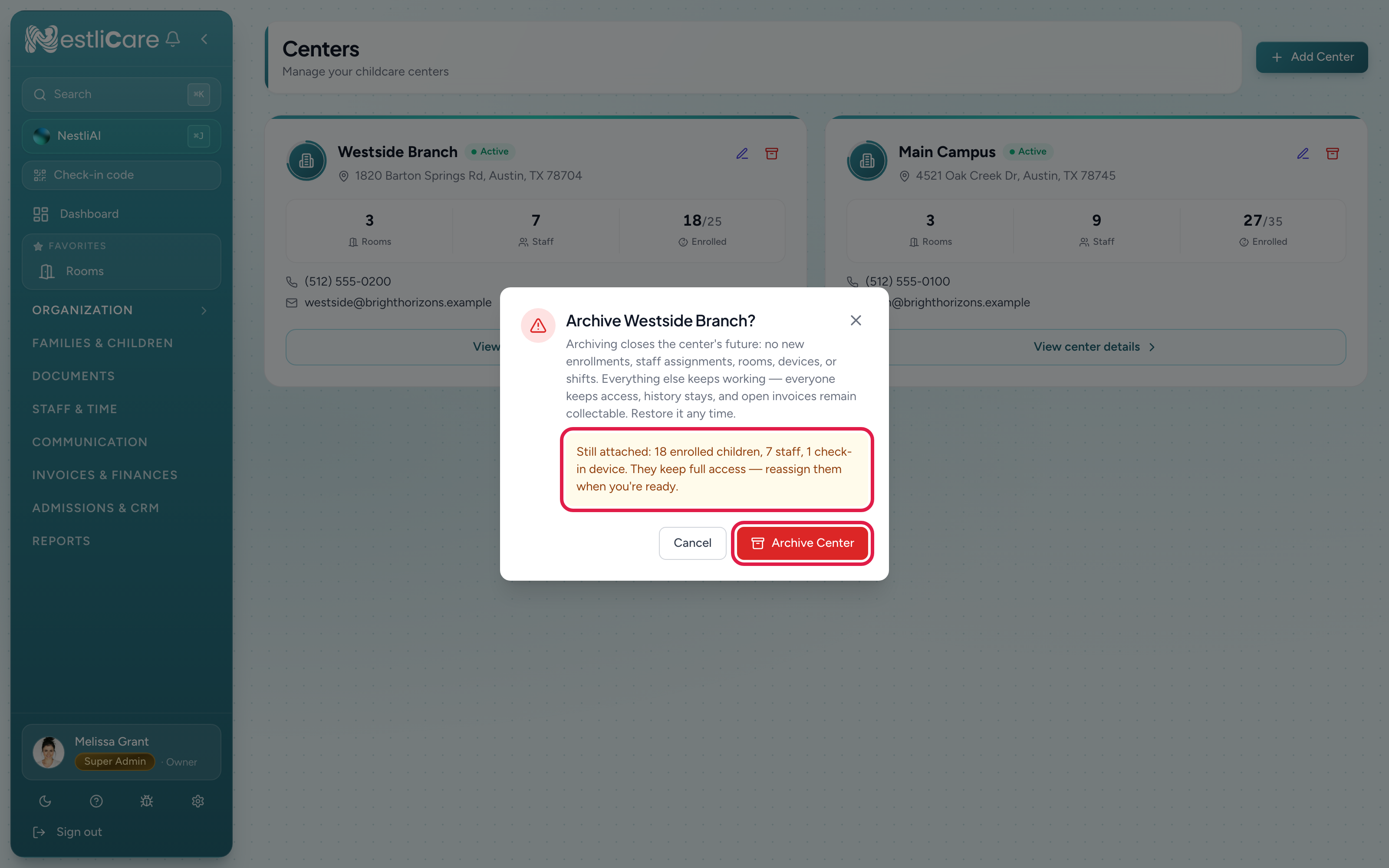
- The dialog lists what is still attached to the center: enrolled children, staff, check-in devices and open invoices. Read it. Nothing here blocks the archive, it is there so you know what you are leaving behind.
- Click Archive Center.
The center now shows an Archived pill. It disappears from the pickers people use to choose a destination: the dashboard center switcher, attendance, scheduling, kiosk setup, and the create-staff form. It is still listed when you edit a staff member who is currently assigned there, marked "(archived)", so you can move them out.
Restore a center
Click the restore icon (Restore center) on the archived center's card, then click Restore Center. Everything that was paused starts working again immediately. There is no cost to archiving and restoring more than once.
Delete a center
Deletion is permanent and is deliberately hard.
A center can only be deleted when it is provably empty: no rooms, no staff, no enrollments, no attendance, no billing history, and no payment account set up. If anything at all is attached, the delete is refused. The error reads "This center has data (...) and can't be deleted. Archive it instead." and names what is in the way.
- Archive the center first. The delete icon only appears on archived centers.
- Go to Organization → Centers and click the trash icon on the archived center's card.
- Click Delete Center.
This exists for one situation: a center created by mistake or a duplicate. If a center has ever been used, archive it. Regulators expect that history to still exist.
Wind down a center that is closing
The order that works:
- Archive it first. That stops anyone adding new children or shifts while you work.
- Move staff out to the center they are moving to. Moving people out of an archived center always works.
- Transfer or withdraw the children into their new center.
- Collect the remaining invoices. They stay payable.
- Leave it archived. Do not delete it. Its attendance and incident history is the record you would need if anyone ever asks.
Troubleshooting
"This center is archived — staff can't be assigned to it. Restore it first." That is the gate working. Restore the center if it is opening again, or pick an active center for that staff member.
A center admin says their whole dashboard is showing an amber banner. Their center is archived. They keep full access; the banner is there so they know new enrollments and assignments are paused. Restore the center if that was not intended.
The center is missing from a dropdown. Destination pickers only offer active centers. Check whether it is archived.
Delete is refused. The center has data attached, and the error says what. That is the intended answer: archive it instead.
I only see archive on some centers. Archive shows on active centers. Restore and delete show on archived ones. Only owners see any of these buttons. Center admins can edit their own center's details but cannot archive, restore or delete it.
I can't find the delete button. Archive the center first. Delete only appears on archived centers.
Related: Add a center, Edit center details, Deactivate or delete a room.