
Deactivate or delete a room
Mark a room Inactive when you close it for a season, or permanently delete an empty room you created by mistake.
Closing a room for the summer? Deactivate it. Its history stays and you can turn it back on later. Created a room by mistake? Delete it. Delete is permanent and takes the room's records with it, so use it only for rooms that were never really used.
Deactivate a room (keeps history)
Best for seasonal closures, temporary consolidations, or rooms you'll reopen later.
- Go to Organization → Rooms.
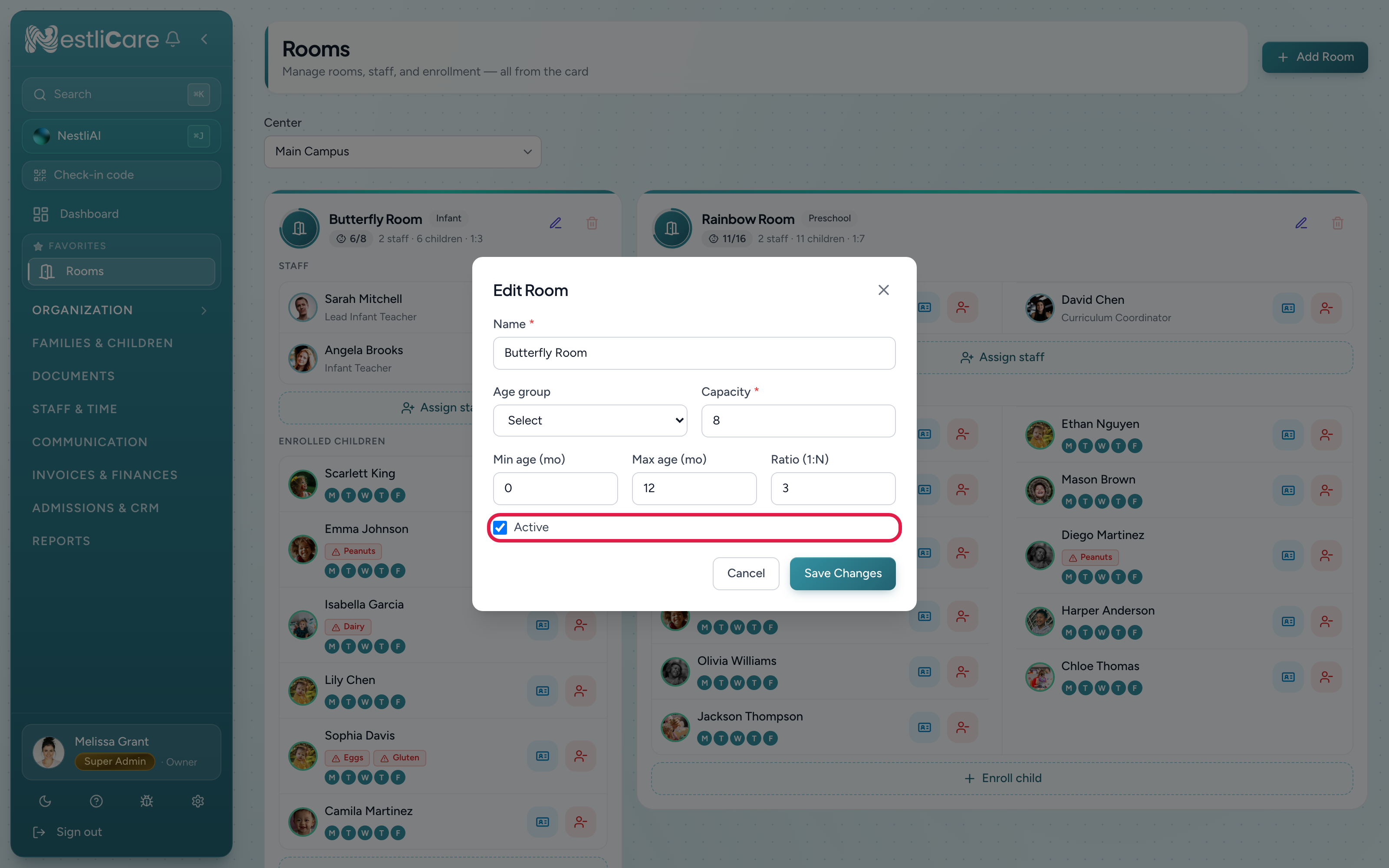
- Click the pencil (Edit room) on the room's card.
- Untick Active.
- Click Save Changes.
The card now shows an Inactive pill. While a room is inactive:
- The Enroll child and Assign staff buttons disappear from its card.
- It drops out of room pickers and out of Room Insights.
- Children already enrolled stay enrolled. Move them first if they're going to another room.
- All past enrollments, attendance and activities stay attached.
To reopen it, tick Active again and click Save Changes.
Delete a room (permanent)
Use this only for a mistake, like a test room or a duplicate.
- Make sure no child is enrolled in the room or set to Also attends it. Until then the trash icon is dimmed and its tooltip says "Remove enrollments before deleting".
- Go to Organization → Rooms and click the trash icon on the room's card.
- Click Delete Room.
What if children are still in the room?
Delete is refused. You'll see a message like "Cannot delete room "Toddlers" — it has 3 active enrollments. Remove or transfer enrollments first." A similar message appears if children also attend the room part of the day.
Two paths:
- Move them to another room first. See Move a child from one room to another.
- Deactivate instead of delete. The children stay enrolled, but nobody new can be added.
Troubleshooting
The trash icon is dimmed and does nothing. The room still has enrolled children. Move or remove them first.
I deactivated a room and new children can't be enrolled there. That's what Inactive does. Tick Active again on the room's edit dialog to reopen it.
I deleted the wrong room. Deletion can't be undone from the dashboard. Contact [email protected] right away and tell us which room it was.
Related: Archive or delete a center, for closing a whole center.