
Add a room
Create a room with its capacity and staff ratio. Rooms are where children are enrolled and grouped.
A room is where children are enrolled and grouped: Babies, Toddlers, Pre-K. Signing up already created your first room (Room 1); here's how to rename it or add more. Rooms live under Organization → Rooms, shown as cards.
Add a room
- Go to Organization → Rooms. If you have more than one center, pick the center at the top of the page first. The new room goes into that center.
- Click Add Room in the top right.
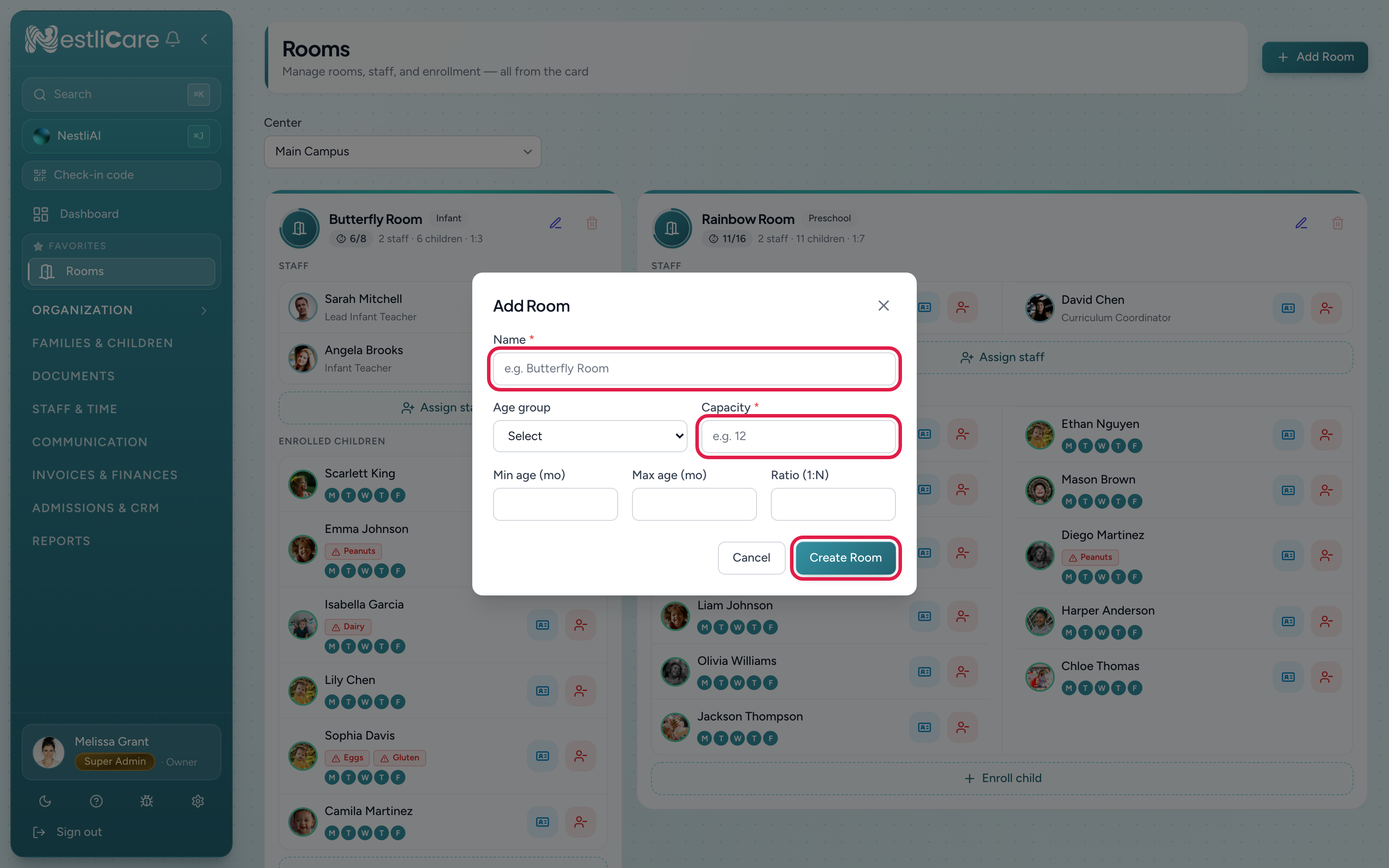
- Fill in the Add Room form:
- Name (required), like
Butterfly Room - Age group
- Capacity (required): the licensed maximum for the room
- Min age (mo) and Max age (mo) (optional)
- Ratio (1:N): the staff-to-child ratio you're required to keep
- Name (required), like
- Click Create Room.
The room appears as a card showing its occupancy, staff, enrolled children, and ratio.
Capacity and ratio
- Capacity is the licensed maximum. It drives the occupancy ring and the count on the room card (like
9/10). NestliCare does not stop you enrolling past it, so keep an eye on the count. - Ratio is what you enter for your own region's rules. NestliCare shows your live ratio (children present versus staff present) on the dashboard and in Room Insights, and in Reports for a licensing visit. Enter whatever your local regulators require; there's no built-in assumption about your area.
Next steps
- Assign staff to the room so it becomes their home room. Teachers can see every room at their center either way.
- Enroll children from the room card, or when you add a child to a family.
Troubleshooting
I want to rename Room 1. Click the pencil (Edit room) on its card, change the name, and click Save Changes. Room 1 is just a starter name.
I can't enroll a child into this room. If the child is already in another room, change their room instead of enrolling them twice. See Move a child from one room to another. If the room is marked Inactive, turn it back on first. See Deactivate or delete a room.
I added the room to the wrong center. Rooms are created in the center picked at the top of the Rooms page. Check the picker before you click Add Room.