
Report an incident
File an incident report when a child is injured, has an allergic reaction, or has a behavior incident — with photos, witnesses, and parent notification.
Incidents happen. A scraped knee on the playground, a bite in the toddler room, an allergic reaction to an unexpected food. Every state requires you to document each one. Filing the incident report also triggers parent notification.
Short version first: this narrated video files a report for a scraped knee, start to finish.
File the report
- Open the Dashboard tab.
- Tap Incident. It's one of the four tiles under the Quick log bar. Your incident list opens.
- Tap + (Report Incident). The Report Incident form opens.
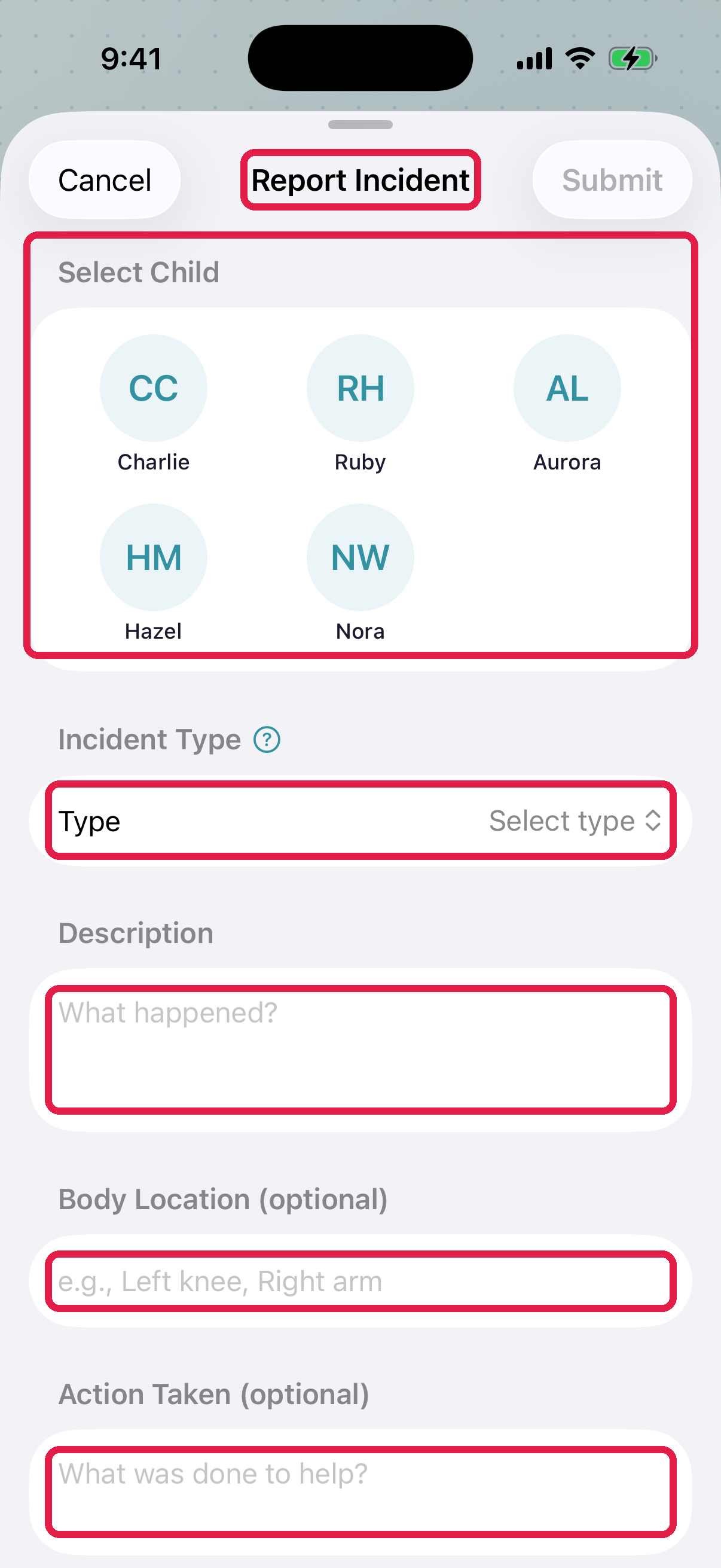
- 1Screen title — 'Report Incident'
- 2Child * — pick the child involved (single-select)
- 3Incident Type — Injury, Fall, Bite, Scratch, Bump, Allergic Reaction, Behavioral, Medical, Other
- 4Description * — 'What happened?' Multi-line, required
- 5Body Location — 'e.g., Left knee, Right arm' (optional but very helpful for licensing)
- 6Action Taken — 'What was done to help?' (what first aid, did you call the parent, etc.)
-
Fill in:
- Child — pick from your room's roster
- Incident Type — the category
- Description — what happened, in plain language
- Body Location — if applicable ("left knee," "under right eye")
- Action Taken — first aid applied, who was called
- Photos — up to 5, for injuries or the environment (optional)
- Witnesses — names, comma-separated (optional)
- Medical care — First aid only, Seen by a doctor or clinic, Emergency room, or Hospitalized, and whether 911 was called. Your admin uses this to report to state licensing, so pick it whenever you know.
-
Tap Submit (on Android, Submit Report).
You'll see Incident Reported and "The incident has been recorded and the parent has been notified."
Who gets notified
- The child's parents get a push notification immediately (and email if they've enabled it)
- Your center admin sees the incident in their dashboard's incidents report
- The incident lands in the child's feed for future reference
Parents acknowledge the report in their app. Where your center asks for a signature (Texas does by default), the parent draws their signature on the report instead, and NestliCare reminds them if they haven't signed. See Parent signatures.
What to describe in the description
Be specific and factual. Avoid judgment or speculation:
- Good: "Eli tripped on the edge of the rug while running to the block area. He landed on his left knee and started crying. No cut but a small scrape was visible."
- Not great: "Eli was running around like usual and hurt himself."
State licensing inspectors may read these reports. Clear, factual descriptions protect your center.
Body location matters
For any physical injury, specifying the body location is critical. "Scrape on knee" is not the same as "scrape above left eye." The more precise, the easier to defend in a dispute.
Photos — when and when not
Do photograph:
- Visible injury (cut, bruise, scrape) — parents will ask
- Environment where it happened if it might need fixing (loose tile, broken fence)
Don't photograph:
- The child's full face in distress (dignity)
- Anything that could identify another child in the background
- The bite mark in graphic detail — document location with words if the child is upset
Photos are shared only with the child's parents and your center's staff.
What happens after you submit
On your side:
- Incident is logged with your user ID attached
- You can open it again from the Incident tile on the Dashboard tab. Teachers see the reports they filed and the reports for their own rooms' children.
- On the report you can see whether the parent has signed, tap Send reminder (one an hour), and save or print it as a PDF with the share button (iOS) or Share PDF (Android).
On the admin side:
- The incident appears on the web under Families & Children → Incidents
- Status starts as Open
- An admin follows up with the parent if anything more is needed
- If the child needed care beyond first aid, the admin reports it to state licensing
- Eventually the incident is moved to Closed once follow-up is done
Don't try to close the incident yourself — that's an admin-side action.
Common scenarios
Minor scrape
- Type: Injury
- Body Location: specific
- Description: what happened + that first aid was applied
- Action Taken: ice, bandaid, hug, returned to play
- Photos: one clear shot of the scrape
Bite (toddler room)
- Type: Bite
- Body Location: specific
- Description: describe the event, not intentions
- Action Taken: separated the kids, ice, comforted
- Photos: location of mark, not facial features
- Don't name the biter in the injured child's report — licensing rules treat them as separate incidents. File each biter's report separately.
Allergic reaction
- Type: Allergic Reaction
- Description: what was served, what happened, timing
- Action Taken: medication given (if authorized), 911 if called, parent called
- Photos: rash/hives if visible
Troubleshooting
Child isn't in the picker. On iPhone, the form lists the children in your home room. On Android, it lists the children checked in today. For a child in another room, ask an admin to file the report.
"Submit" is greyed out. Required fields missing — usually Child, Incident Type, and Description. Fill all three.
Photo won't upload. Switch to wifi and retry. If a photo is stuck in a failed state, tap the X to remove and try a different one.
Submitted the wrong child. You can't change the report after you submit it. Tell your admin. They can correct it or remove it.
Parent says they didn't get the notification. Ask them to check that notifications are on for NestliCare in their phone settings, and that Incidents is on under Me → Settings → Notifications in the app. The report is in their app either way.
Teachers filed the same incident twice. Tell your admin. They can remove the extra one.