
Closures and holidays on the calendar
Add a closure or holiday, see what it changes and what it does not, and credit every family for a closed day when you choose to.
A closure on the calendar tells everyone you are shut on that day: families see it in the app and in their subscribed calendar, staff see it on the dashboard. It does not, on its own, change anyone's bill. That is deliberate, and it is how child care software generally works: tuition is charged straight through the planned closures listed in your handbook. When you want to give a day back, the closure event has a button for that.
Add a closure or holiday
- Go to Calendar and click Add Event (or click the day itself).
- Give it a title, and set the type to Closure (unplanned or one-off: weather, a burst pipe, a sick day in a home daycare) or Holiday (planned, on your annual calendar).
- Leave All day ticked and set the start date. For a multi-day closure, set the end date too.
- Pick a center and, if only some rooms are affected, the rooms. Leave both empty for the whole daycare.
- Choose who sees it under visibility. Whether holidays show to parents at all is a setting: Settings → Calendar → Show Holidays to Parents.
- Save.
Closures and holidays flow into every parent's and staff member's subscribed calendar automatically; see Share your calendar. For a same-day heads-up, post an announcement as well, since a calendar entry does not notify anyone.
What a closure changes, and what it does not
- Attendance. Nobody is expected in, so the day does not count as an absence in attendance reports.
- State subsidy uploads. If your daycare uploads attendance to a state program, the closure is filed as a "closure" absence for every program child on that day, so the day is explained rather than counted against the family. See Connect state subsidy attendance.
- Billing. Nothing. Tuition plans keep billing as if the day were open. Hourly and day-rate plans charge for attendance, so a closed day simply has none.
Credit families for a closed day
If you want to make a closure good, open the event and use Credit families for this closure. It is only shown to owners and center admins, and only on closure and holiday events.
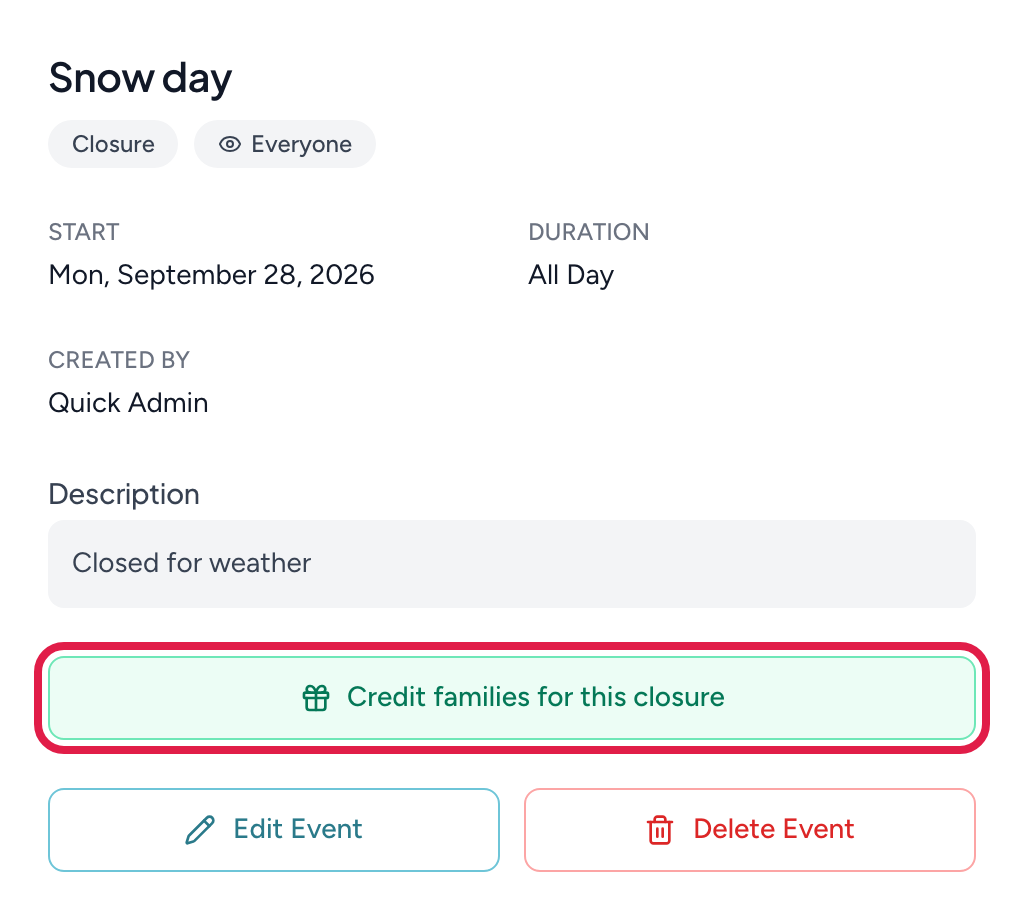
- 1Credit families for this closure — opens the preview; nothing is issued yet
The panel lists every family with a child on a fixed billing plan who was scheduled on the closed day(s), with a suggested credit for each:
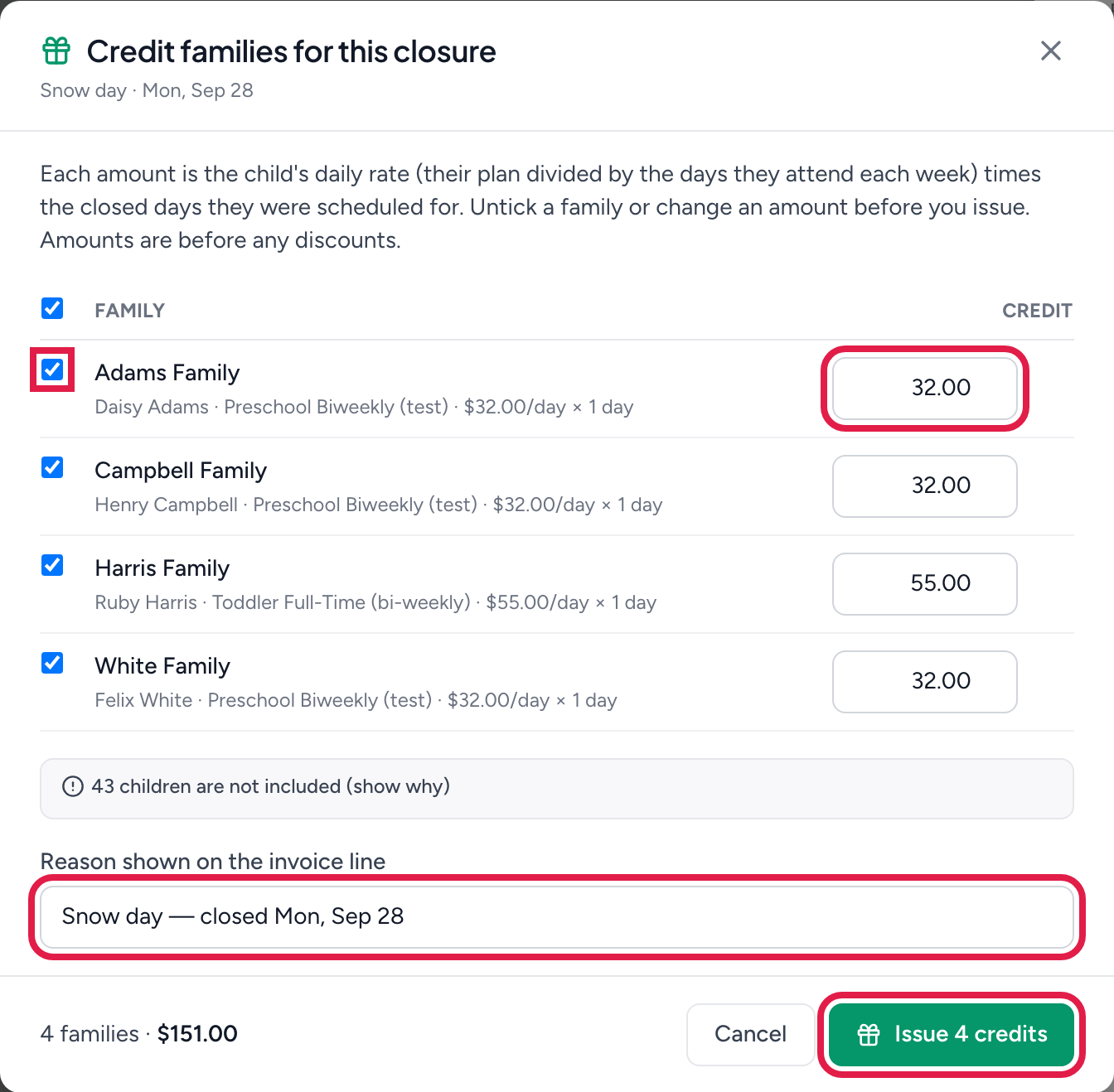
- 1Untick a family to leave them out
- 2Change any amount before you issue
- 3The reason families see on their invoice line
- 4Issue — one credit per ticked family, applied to their next invoice
How the suggested amount is worked out. For each child: their plan amount divided by the days they attend each week gives a daily rate, times the closed days that fall on a day they attend. A child who comes Tuesday and Thursday gets nothing for a Monday closure. Monthly plans are converted to a weekly amount first (× 12 ÷ 52), so a $1,000-a-month, five-day child is worth $46.15 a day whatever the month. Siblings are added up into one credit for the family. Amounts are before discounts; adjust by hand if a family has one.
Who is left out. The panel can show the children it did not include and why: no billing plan, an hourly or day-rate plan (never charged for a closed day anyway), or not scheduled on the closed day.
Issuing twice. Families already credited for the same closure are shown as done and cannot be credited again from this panel, so reopening it later is safe. The credits themselves are ordinary family credits: each one comes off that family's next invoice automatically, and you can see or void any of them from the family's card.
Related: Credits and referral bonuses, Credit or discount: which one?, Share your calendar.