
Send a newsletter
Send a longer, plain-text update to families by email. It also shows in the parent app. Admins only.
A newsletter is a longer, plain-text update with a title, sent to families as an email (it also appears in the parent app). Use it for your monthly or weekly roundup. Only admins can send newsletters. For a short in-app notice, use an announcement instead.
Create one
- Go to Communication → Newsletters.
- Click Create Newsletter.
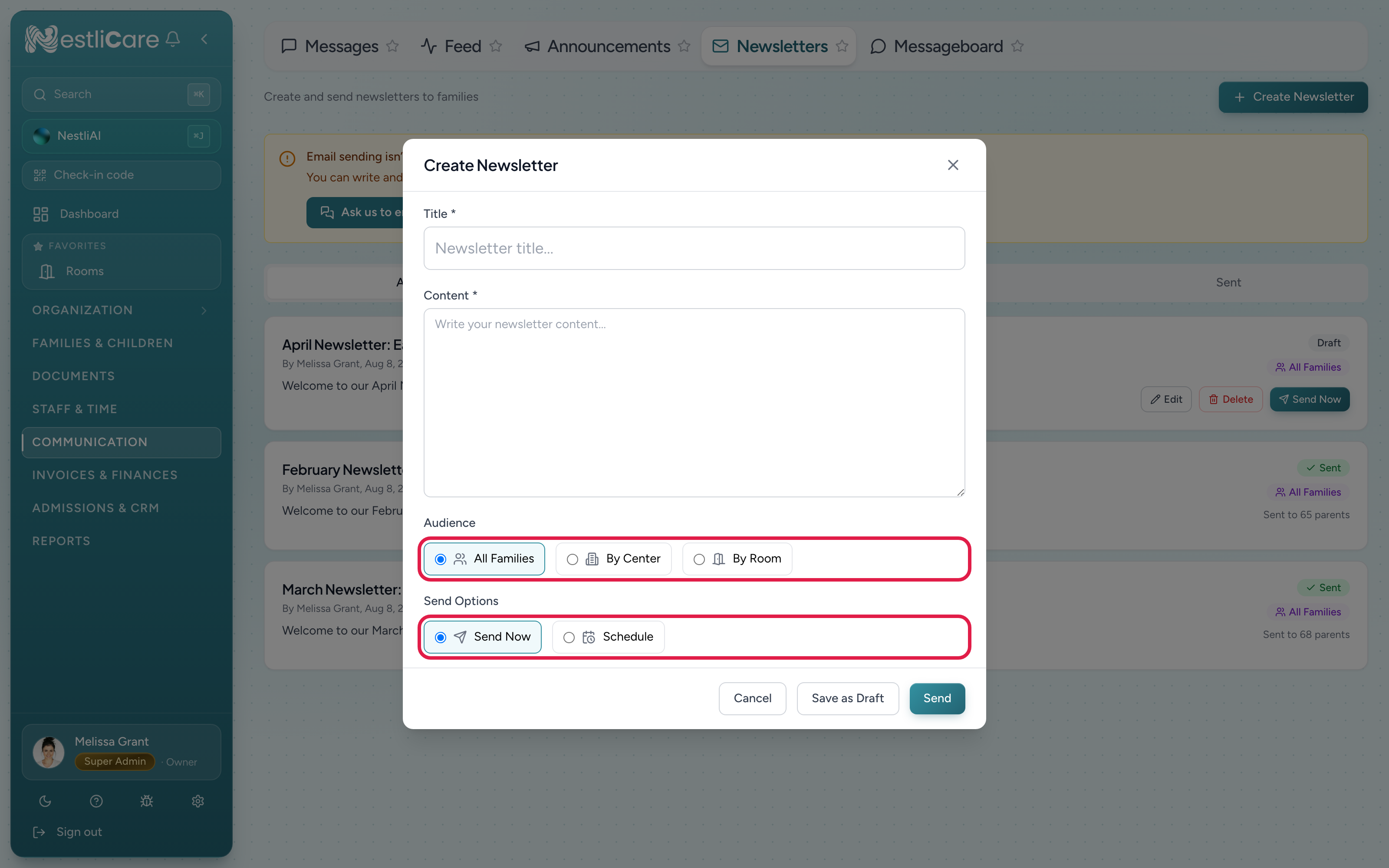
- Fill in the form:
- Title (required): this becomes the email subject.
- Content (required).
- Audience: All Families, By Center, or By Room.
- Send Options: Send Now or Schedule for later.
- Click Send to send now, or Save as Draft to finish later.
Schedule and manage
Choosing Schedule lets you pick a date and time; the newsletter sends automatically then. The Newsletters page has All, Drafts, Scheduled, and Sent tabs, and each newsletter has Edit, Delete, and Send Now actions. You can edit or delete a scheduled newsletter up until it sends.
Audience
- All Families: everyone in your organization.
- By Center: only families at the centers you pick (one or more, or All centers).
- By Room: only families with a child in the rooms you pick (one or more, or All rooms).
Before your first send
Newsletters go out as email, so your organization must be approved to send email first. If it isn't yet, Send shows a message asking you to email [email protected], and we'll switch it on.
Troubleshooting
A family says they didn't get the email. Ask them to check spam. A parent can also turn newsletter emails off in their own app settings; either way, the newsletter still shows in their app.
"Newsletter sent, but no parents are currently set to receive newsletter emails." Every parent in that audience has newsletter emails turned off. They can still read it in the app.
Can I add a picture or attachment? No. A newsletter is text only, with no image or file field. To send a photo or flyer, post an announcement instead. An announcement can carry up to 4 photos.
Newsletters aren't available at all. The Announcements & Newsletters feature may be off in Settings → Features. Turn it on.