
Send documents and enrollment forms
Build enrollment packets in Admissions & CRM → Packets and send them to new families, and send everyday forms from Documents → Document Requests.
Paperwork for families lives in two places:
- Enrollment packets (the bundle a new family fills in as they enroll) are built and sent from Admissions & CRM → Packets.
- Everyday forms (permission slips, handbook sign-offs, document uploads) for families already enrolled are sent from Documents → Document Requests.
Both use the same form templates.
Send an enrollment packet
- Go to Admissions & CRM → Packets.
- Click New Packet, give it a name and an optional description, and click Create. Or click Create starter packet for a ready-made packet with core enrollment forms.
- Click Edit Forms on the packet. Use Add Existing Form to pick forms from your library, or create a new Fillable form or Acknowledgement. Mark each form Required or Optional with Make Required / Make Optional.
- Click Send to a family, find the lead, and choose Email packet or Copy link to share it yourself.
When the family finishes, the lead shows as Ready under Waiting on you on the Pipeline. When you convert the lead, the completed forms are copied to the family's documents.
The admissions video shows a starter packet being created and sent to a lead (from 2:22), and what happens to the forms when the lead is converted.
Send everyday documents
The video below walks the whole feature: starter forms, building your own template, sending to a family, and tracking what comes back.
The Documents workspace
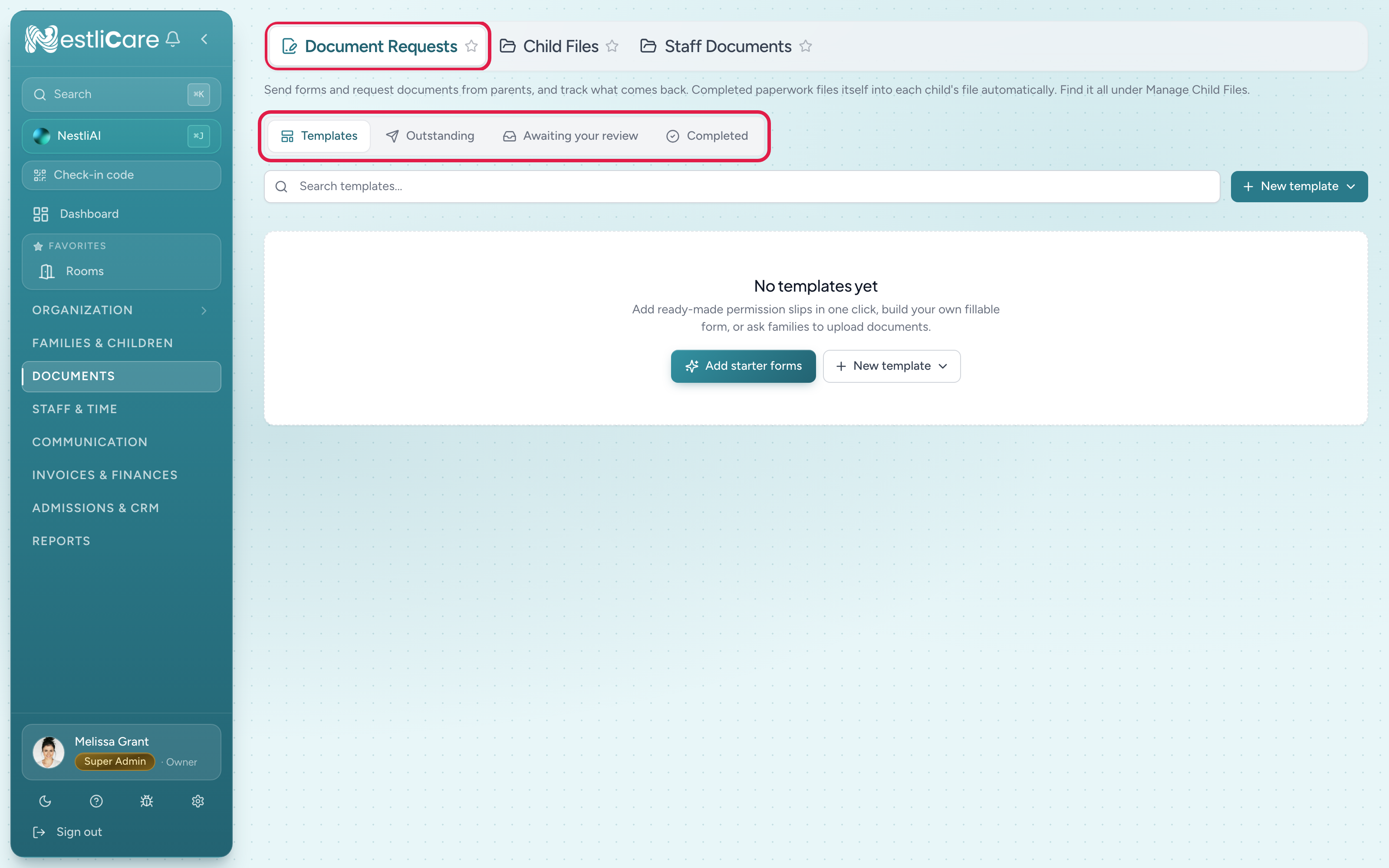
The Documents → Document Requests page has four tabs that follow a document's life:
- Templates: the forms and packets you can send. Start with Add starter forms for ready-made permission slips, or use New template to build your own fillable form or request an upload from families.
- Outstanding: what you've sent that families haven't finished yet.
- Awaiting your review: submissions that families have completed and are waiting on you.
- Completed: everything that's done.
Get some templates ready
If you're just starting, click Add starter forms to drop in a set of common permission slips in one click. To make your own, use New template, which offers three kinds:
- Fillable form: you upload a PDF and drop fields onto it (text, date, checkbox, signature). Parents fill it in and sign.
- Acknowledgement: parents read a PDF and sign it with their typed name. Good for handbooks and policies.
- Document request: a checklist of files you ask families to upload, like a birth certificate or immunization record. Parents can scan paper with the app. See Request documents from a family.
Send a document to a family
Send from the Documents page: on a template card, click Send (or the card's menu → Send to family). Pick the family and the child, set an optional due date, and click Assign.
Track what comes back
As families work through what you sent, it moves from Outstanding (waiting on the family) to Awaiting your review (they've submitted) to Completed (you've approved). Check Awaiting your review for anything that needs your sign-off.
Troubleshooting
A family says they didn't get the form. Confirm you sent it to the right family, then check the Outstanding tab; resend from there. The family needs an app account to receive it, so make sure they've been invited.
I can't find the Documents area or the Packets tab. The feature may be off in Settings → Features ("Documents & Enrollment Packets"). Turn it on.