
Track leads and convert them to families
Use the Pipeline board in Admissions & CRM to follow inquiries from first contact to enrollment, add leads by hand, and convert a lead into a family.
The Pipeline (under Admissions & CRM) tracks prospective families from their first inquiry to enrollment. It's a board with a column for each stage, so you always know where every family stands.
The board
Go to Admissions & CRM → Pipeline. Leads move left to right across these columns: Inquiry, Tour Scheduled, Toured, Waitlisted, Admitted, Lost. Each column shows a count. Drag a lead card to move it between stages. Cards show the contact, the child, where the lead came from, and how warm it is.
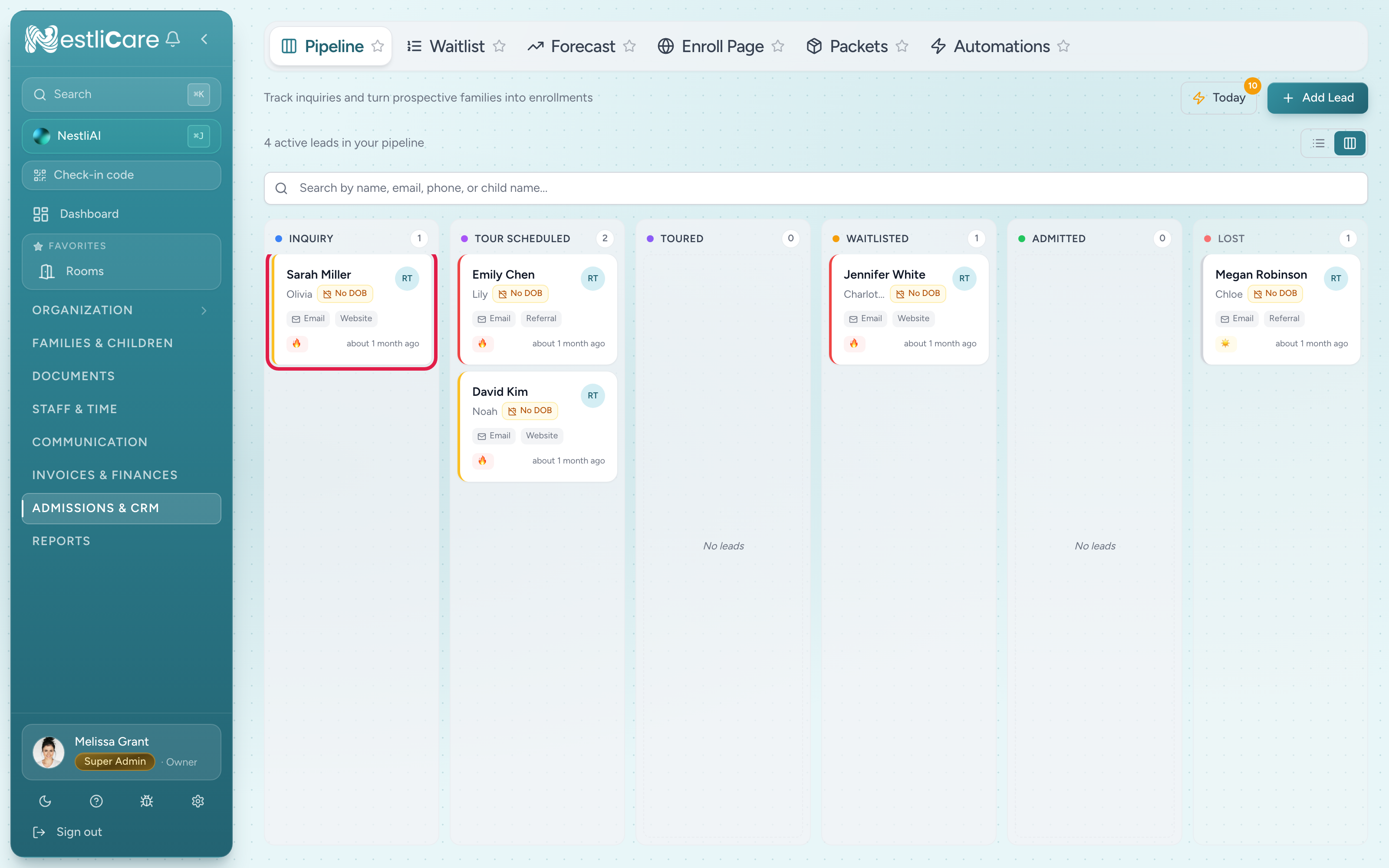
Add a lead
- On the Pipeline, click Add Lead.
- Fill in the Add Lead form. Only First Name is required. You can also add the last name, email, phone, child name and date of birth, desired start, preferred schedule, source, who it's assigned to, the center (or Any center), a priority (Normal or Urgent), how they heard about you, and notes.
- Click Create Lead.
Convert a lead to a family
When a family enrolls, convert their lead so you don't retype anything:
- Click the lead's card to open its detail drawer.
- Click Convert to Family at the bottom.
- Check the details in the Convert to family dialog: a new or existing family, the child's name and date of birth, whether to add the parent and email them an app invite, and which classroom the child starts in.
- Click Convert (or Add to family for an existing family).
The dialog creates the family, the child, the parent (if you leave that ticked) and the classroom placement in one go. Completed enrollment forms are copied to the family's documents. It can't be undone, so convert when the family is genuinely enrolling. Each option is explained in Review and convert a lead.
Troubleshooting
A lead I converted is gone from the board. That's expected. Converting marks it enrolled and it becomes a family. Find them under Families & Children → Families.
Converting says to add the child's date of birth. The child needs a date of birth before they can be created. Type it into the Date of birth field in the dialog, or add it to the lead first.
There's no Convert to Family button. It's hidden on leads in the Lost column. Move the lead back to an active stage first.