
What you can do from the Admin tab
The gold ADMIN tab in the mobile app, everything it contains, and which jobs still need the web dashboard.
If you own or help run a center, the mobile app has a fifth tab that your teachers do not see: a gold ADMIN button in the middle of the tab bar. Tapping it opens the admin hub — a single list of everything you can run from your phone.
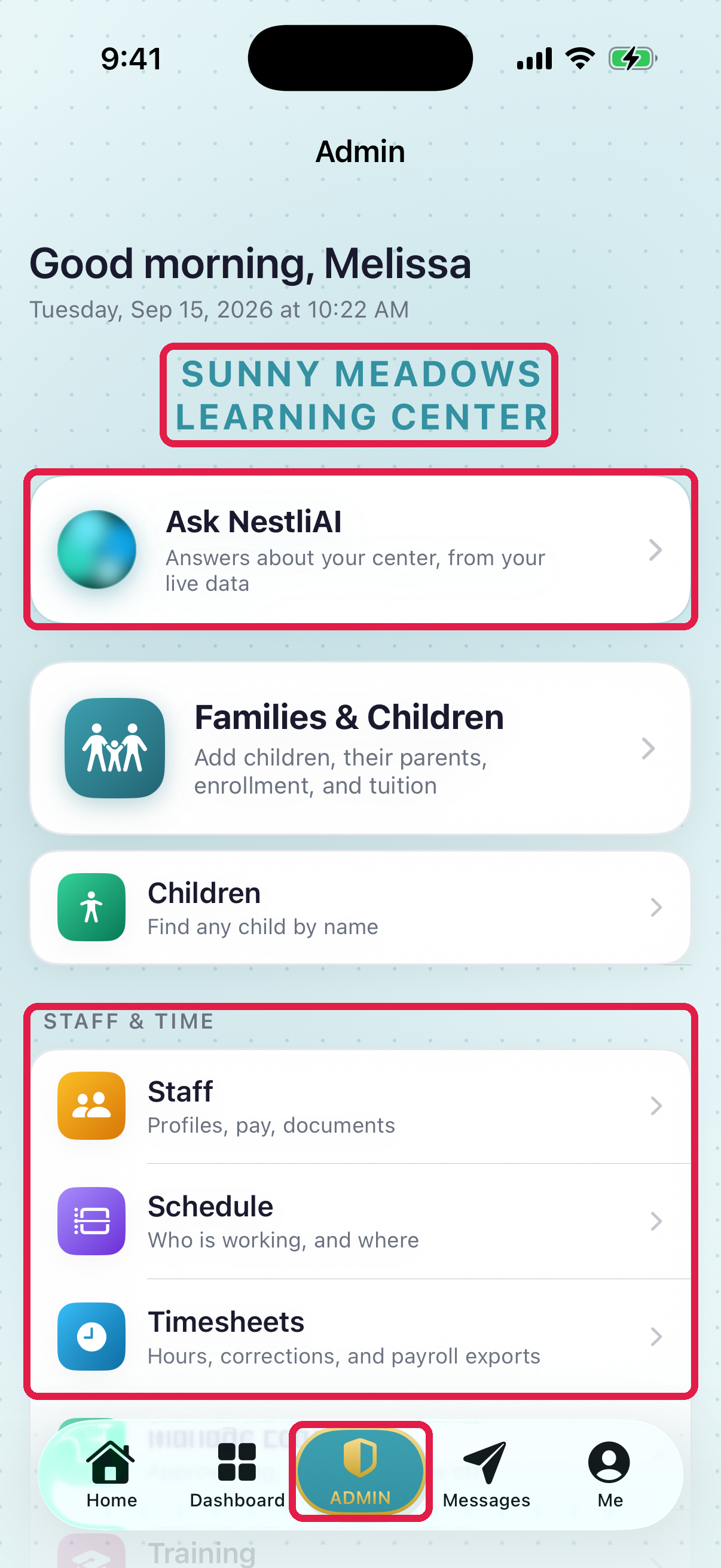
- 1ADMIN — the gold tab. Only owners and center admins see it
- 2The center you are currently working in
- 3Ask NestliAI — questions about your center, answered from your live data
- 4Cards are grouped into sections, the same groups as the web sidebar
What is on it
At the top right of the hub there's a Check-in QR code button. It opens your center's check-in code, so you can show it or switch between a printable and a rotating code. A single-center daycare may also see its setup checklist at the top, and Ask NestliAI appears if NestliCare has turned it on for you.
Below that, the hub is grouped into sections:
- Families & Children: add children, their parents, enrollment and tuition. Under it:
- Children: find any child by name
- Medication (Android: Medication requests): requests families signed, and doses given
- Incidents: every incident report, from open to closed; open one to change its status or notify the parent
- Staff & Time:
- Staff: profiles, pay, documents
- Schedule: who is working, and where (when Staff Scheduling is on)
- Timesheets: hours, corrections, and payroll exports (when Timesheets is on)
- Manage Leave: approve, log and export time off
- Training: approve training submissions
- Curriculum: Week plans, Observations, Coverage and Progress reports
- Admissions: Admissions & CRM, your pipeline, tours and follow-ups (when the Admissions feature is on)
- Documents: Documents & forms (requests, child files, templates)
- Invoices & Finances: Invoices, Family Accounts (who owes what), Billing (plans, discounts, subsidies, late fees), Finances (payouts and your Stripe account) and Books (money in, money out, monthly close)
- Organization: Rooms, Activity tiles (your own logger tiles), Calendar (closures, holidays and events), Reports (attendance, ratios and exports), Data Migration and Settings (features, check-in and notification defaults)
Who sees what
Owners see everything above. Center admins see most of it, with these exceptions:
- Finances and Books are for owners only.
- Data Migration is for owners only.
- Settings opens for center admins, but shows "Organization settings are for the account owner" instead of the switches.
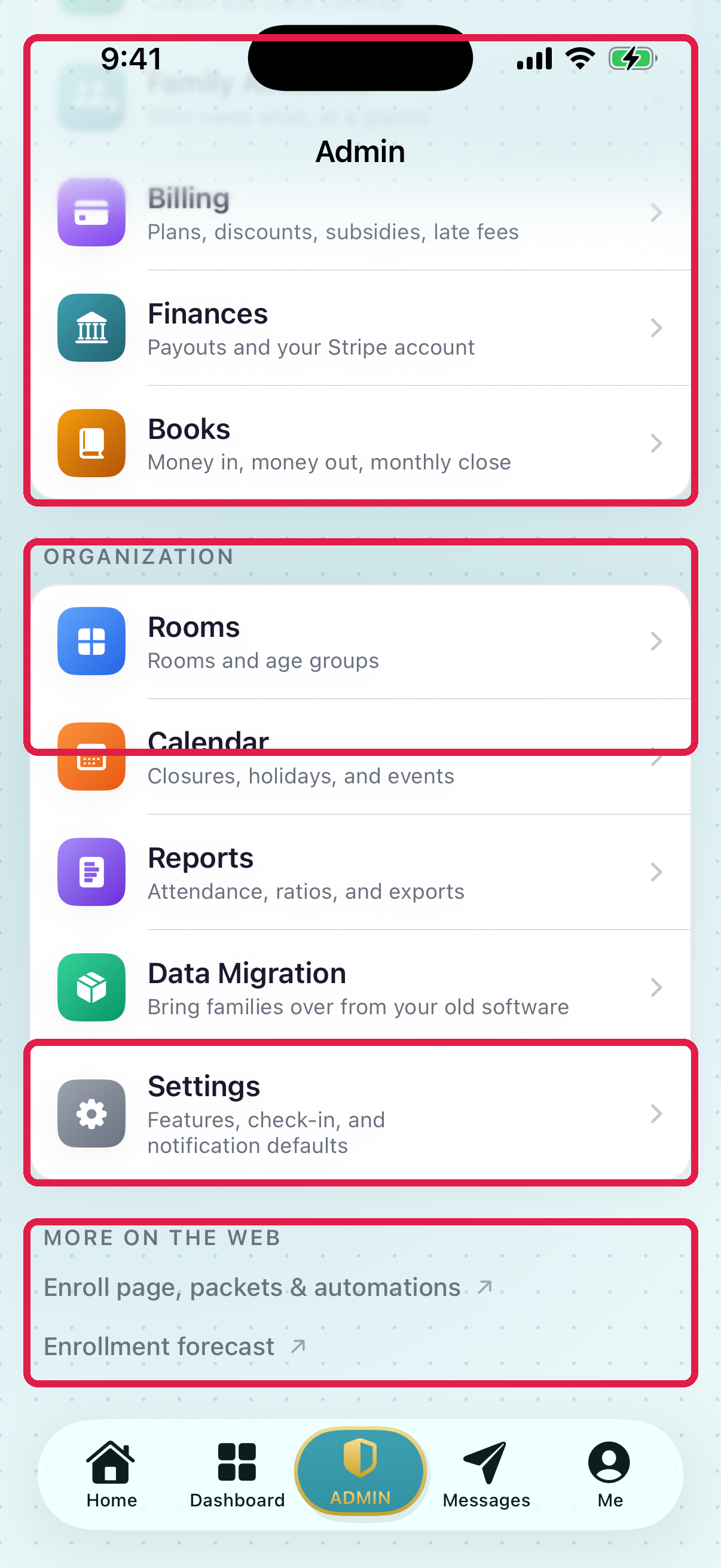
- 1Invoices & Finances — invoices, family accounts, billing plans, your payout account, and Books
- 2Organization — rooms, calendar, reports, migration and settings
- 3Settings — where the check-in and clock-in options live (owners only)
- 4More on the web — jobs the app deliberately hands to the browser
What still needs the web dashboard
The app tells you this itself. At the bottom of the hub there is a More on the web section listing the jobs that open in a browser rather than in the app — currently your enroll page, enrollment packets and automations, and the enrollment forecast.
Timesheets on the phone handle the day-to-day fixes: adding or editing a punch, adjusting hours, and finalizing or reopening a week. See Approve a timesheet.
Some settings stay on the web: your organization's name and timezone, billing currency, tax details, and the Not here yet check.
If you cannot find something on your phone, the web dashboard has it. The two share the same data, so a change made in either shows up in the other straight away.
The other tabs
The Admin tab does not replace the rest of the app. Alongside it you still have:
- Home — the activity feed for your center
- Dashboard — your own working day, including the clock-in banner and the quick actions for logging activities, meals, incidents and photos. The Incident tile here opens the list of every filed report (app 6.0 or later); a single child's reports are under that child's profile → Documents. See Report and review incidents.
- Messages — conversations with families and staff
- Me — your own profile and settings
Your own clock-in lives on the Dashboard tab, not here. See Clock in and out from your phone.
Related: Find your way around, Get the mobile apps.