
Bill by the hour from attendance
Charge before and after school care by the hour, so a family pays for the time their child was actually signed in — computed from check-in and check-out.
Some care doesn't fit a flat weekly rate. A child in before and after school care might be with you an hour on Monday and three hours on Wednesday, and the bill should follow. An hourly plan charges a rate per hour and works out each family's amount from the check-in and check-out times your staff already record.
The same parent question, in their words: "So if they come in the morning and afternoon, it might be $10.00 one day and $20.00 another depending on how long they are there." That's what this does.
How it differs from a fixed plan
| Fixed plan | Hourly plan | |
|---|---|---|
| What you enter | An amount per period | A rate per hour |
| Amount charged | The same every period | Varies with hours attended |
| When it's invoiced | At the start of the period, in advance | After the period ends, in arrears |
| Auto-Send | Follows your Auto-Send setting | Never — always a draft you review |
The arrears part matters: an hourly invoice can't be produced until the period is over, because the hours don't exist until then. A weekly hourly plan invoices on Monday for the week that just finished.
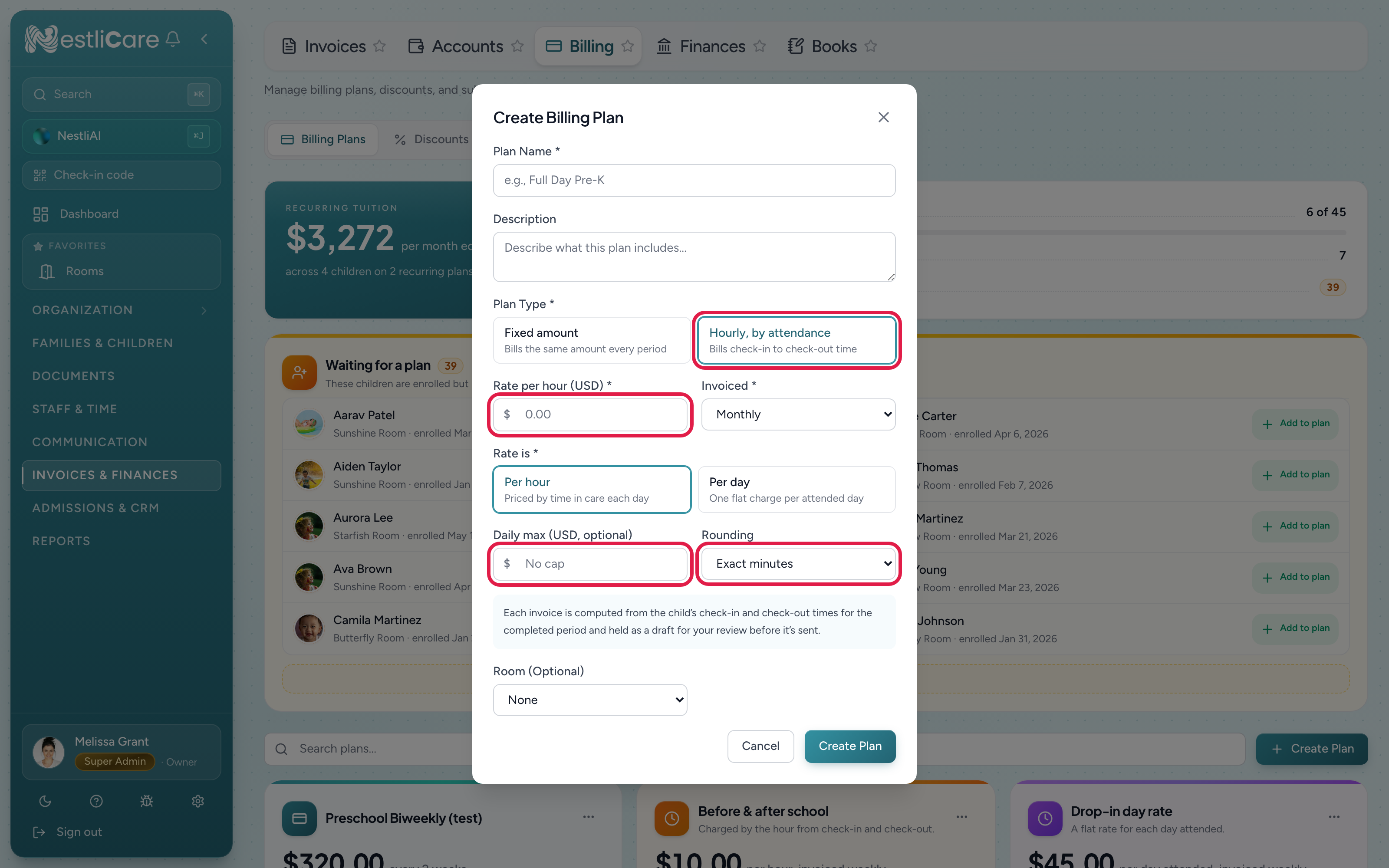
Create an hourly plan
- Go to Invoices & Finances → Billing → Billing Plans.
- Click Create Plan.
- Give it a Plan Name, like
Before & after school. - Under Plan Type, choose Hourly, by attendance.
- Under Rate is, keep Per hour (see below for the Per day option).
- Fill in the hourly fields:
- Rate per hour (required) — what one hour of care costs.
- Invoiced (required) — how often to send the bill: Weekly, Bi-weekly, or Monthly. This is only the billing rhythm; it doesn't change the rate.
- Daily max (optional) — a ceiling for any single day. A long day stops adding up once it hits this.
- Rounding — bill exact minutes, or round each day up to the nearest 15 minutes, 30 minutes, or hour.
- Click Create Plan.
The plan appears on the Billing Plans tab showing its rate and a by attendance badge, so you can tell it apart from your flat-rate plans at a glance.
Charging a day rate instead
If drop-in families pay a flat rate per day rather than by the hour, set Rate is to Per day on the same plan type. Everything on this page still applies — arrears invoicing, drafts, warnings, recalculate — only the pricing changes. See Bill drop-in families a daily rate.
Attach it to a child
An hourly plan bills nobody until it's attached to a child's enrollment, exactly like a fixed plan:
- A child who's already enrolled: open the child's profile, go to the Details tab, and in the Enrollment section set the Billing plan row.
- A child you're enrolling now: on a room card under Organization → Rooms, click Enroll child and pick the plan under Tuition plan (optional). The Add Child and Add Family forms also offer a tuition plan once you pick a room.
Hourly plans show as $10/hr with the by attendance badge. You can also do this from the iOS and Android apps.
Hourly plans attach to a child's room enrollment. They can't be attached to an add-on program, because program fees aren't driven by check-in and check-out — use a fixed plan for those.
What gets billed
When the period ends, NestliCare walks each attended day for that child:
- It measures check-in to check-out, applies your rounding, prices it at the hourly rate, and caps the day at your daily max if you set one.
- Days the child was absent, or never signed in, add nothing.
- If nothing was attended in the whole period, no invoice is created for it at all.
The invoice line spells out the maths, so a parent can check it:
Maya Okafor — Before & after school (After School) — Week of Aug 2 — 12.5 hr @ $10/hr
Sibling discounts and subsidies work exactly as they do on fixed plans, and are applied after the hours are priced. A 10% sibling discount on a $40 week takes off $4.
Review before sending
Hourly invoices are always created as drafts, even if Auto-Send is on for the rest of your billing. Attendance data drives real money here, so a human looks first.
If any day in the period has an attendance problem, the draft is flagged. You'll see "1 attendance issue" next to it on the Invoices list, and the detail panel names the day and the child:
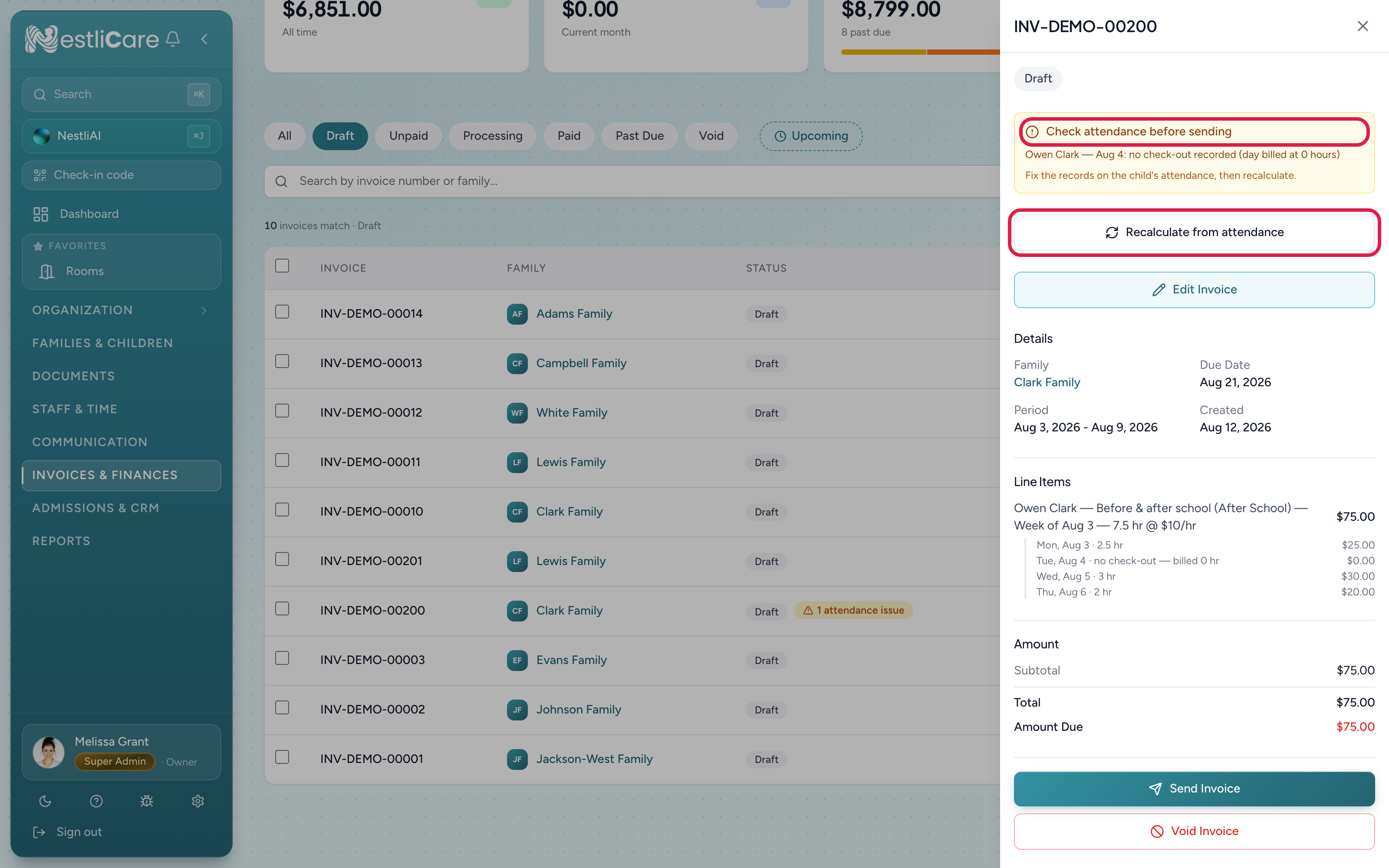
Two kinds of flag:
- No check-out recorded — someone forgot to sign the child out. That day is billed at zero hours rather than guessed, so the invoice is short until you fix it.
- Check-out was auto-closed — NestliCare closed the day for you at your center's usual closing time. Those hours are billed, but they're an estimate, so they're worth a look.
Fix the attendance, then recalculate
- Correct the records on the child's attendance (see Fix an attendance mistake).
- Come back to the draft invoice and click Recalculate from attendance.
The line items, hours, and total are recomputed from the corrected records, and any flag that no longer applies disappears. Recalculate works on drafts only — once an invoice is sent, adjust it like any other invoice. Only the owner can recalculate.
When invoices are generated
Hourly plans generate after the period closes:
- Weekly — every Monday, for the previous Monday to Sunday.
- Bi-weekly — every other Monday, for the previous two weeks.
- Monthly — on the 1st, for the month that just ended.
Generation runs in the morning in your organization's timezone, alongside your other invoicing. Fixed plans are unaffected and keep billing in advance, so a family with one child on each plan gets two invoices covering different periods. That's expected.
You don't have to wait for the schedule. In the iOS or Android app, the owner can tap Generate on the Invoices screen to run it now. The web Invoices page has no Generate button.
Switching an existing plan to hourly
You can change a plan's type on the Billing Plans tab. If children are already on it, NestliCare asks you to confirm, because it changes how their next invoice is worked out. Invoices already generated keep their original amounts.
Troubleshooting
No invoice was created for a child on an hourly plan. There were no billable hours in that period — check the child was signed in, and signed out, on at least one day. A period with no attendance produces no invoice by design.
The total looks too low. Almost always a missing check-out: that day bills at zero hours. Open the draft and look for the attendance flag, fix the record, then Recalculate from attendance.
The total looks too high. Check for an auto-closed day, where the child was signed in but never signed out and the day was closed at your usual closing time. Correct the check-out time and recalculate.
A busy day charged less than the hours suggest. Your Daily max capped it. Raise or clear the cap on the plan for future invoices.
Nothing generated on Tuesday. Weekly hourly plans generate on Mondays, bi-weekly on alternating Mondays, monthly on the 1st — and always for the period that has already finished.
The plan won't attach to a program. Hourly plans are room enrollments only. Programs bill at a fixed amount.
The parent's app shows a plain total. Older versions of the iOS and Android apps show the invoice and its total correctly, but label the plan's rate using the billing cadence rather than "per hour". The invoice line itself still reads 12.5 hr @ $10/hr. Updating the app clears it up.
Related
- Bill drop-in families a daily rate — the same plan type priced per attended day
- Create a billing plan — flat-rate plans, and attaching plans to children
- Auto-generate invoices on a schedule — the schedule hourly plans ride on
- Create and send an invoice — sending drafts, one at a time or in bulk
- Fix an attendance mistake — missed check-outs and backfilling a day
- Charge a late pickup fee — a per-minute fee past your cutoff, on the same weekly draft