
Charge a late fee
Set a flat late payment fee and a grace period, then apply fees yourself or let NestliCare apply them each morning.
If your parent handbook charges a late fee, NestliCare can add it to the overdue invoice for you. The fee is a line on the invoice that is already late, so the family keeps one balance and one Pay button. There is no second invoice and no second due date.
Short version first: this narrated video sets a late fee and applies it to an overdue invoice.
Set it up under Invoices & Finances → Billing → Late Fees. Owners and center admins can both set the policy. In the iOS and Android apps, the same Late Fees tab is under billing in the admin area.
Set your policy
The policy is two numbers.
- Late fee amount. A flat amount, between $1 and $500. Setting an amount is what turns late fees on. Clearing the field turns them off entirely.
- Grace period. How many days past the due date an invoice gets before it becomes eligible, between 1 and 60 days.
Charge it on the due date instead. If your policy is "a late fee is added if tuition isn't paid by closing time on the due date", tick Charge it on the due date, after a set time under the grace period and enter the time, for example 5:15 PM. An invoice still unpaid at that time on its due date becomes eligible that same day. The grace period in days isn't used while this is on. Untick it to go back to the grace period.
The panel shows a worked example with real dates as you type, so you can see exactly when an invoice due today would first become eligible.
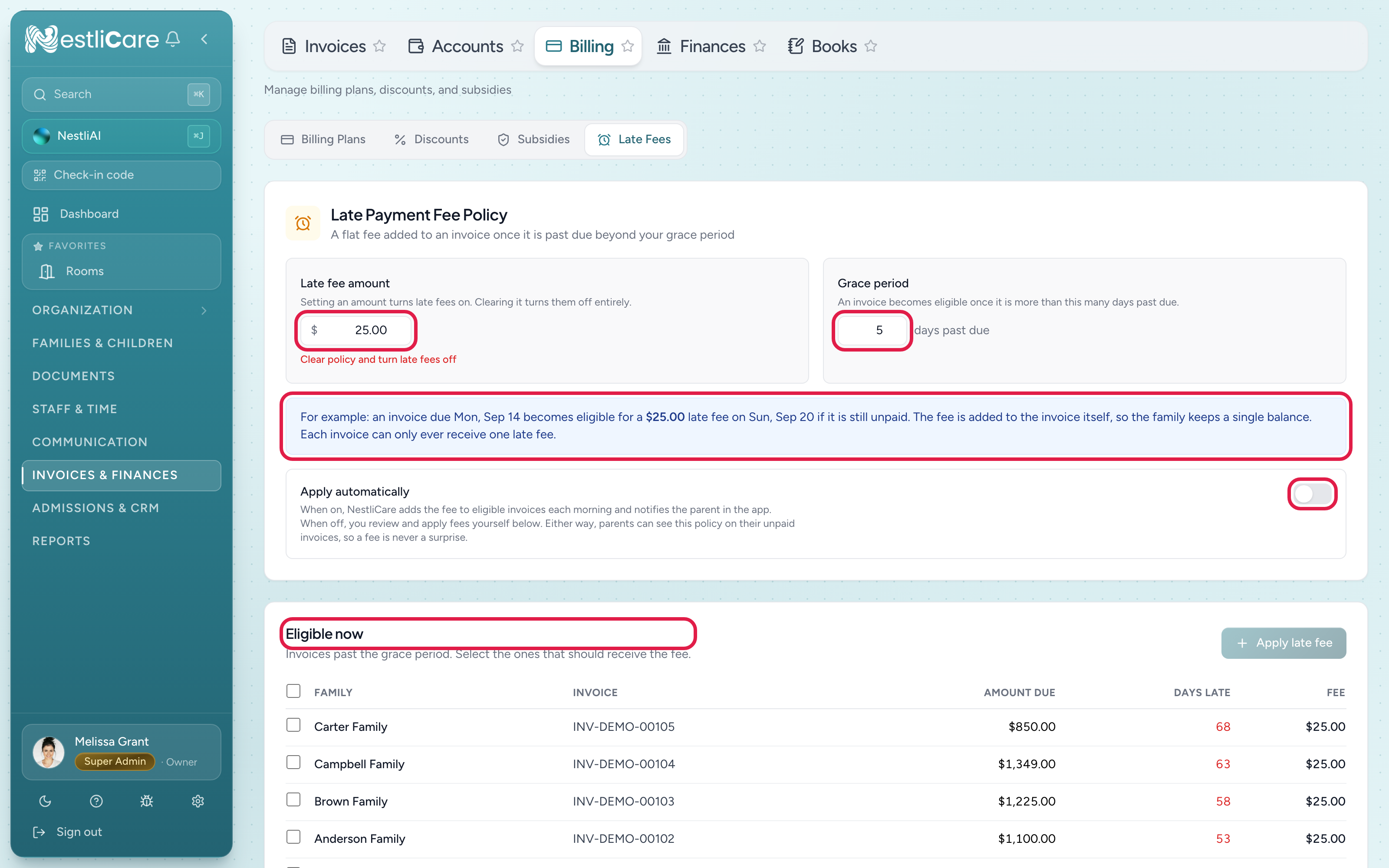
- 1Late fee amount. Setting it turns late fees on; clearing it turns them off.
- 2Grace period, in days past the due date.
- 3A worked example in real dates, so the policy is not abstract.
- 4Apply automatically. Off until you turn it on.
- 5Eligible now: every invoice past the grace period, with days late and the fee it would get.
Apply fees yourself
With a policy set, the Eligible now table lists every invoice that is past the grace period, with the family, the invoice, the amount due, and how many days late it is.
- Tick the invoices that should get the fee.
- Click Apply late fee (it shows how many you ticked), then Apply to confirm.
Nothing happens until you do this. While Apply automatically is on, this button is hidden because the morning run does it for you. Reviewing the list first is the recommended way to start, especially in your first month.
Or apply them automatically
Turn on Apply automatically and NestliCare adds the fee for you. The job runs each morning in your organization's own time zone, so a fee and its notification land during the working day rather than at midnight. If you charge on the due date after a set time, it also runs within an hour after that time, so the fee lands the same evening. The parent gets a notification in the app when a fee is applied.
This toggle is off until you turn it on. The first fees an organization charges should be ones a person chose.
What is never charged a fee
The eligible list already excludes these, so you do not have to watch for them:
- Invoices inside your grace period.
- Invoices with nothing left to pay.
- Invoices being paid right now. A bank payment that is still settling shows as processing, and that family has paid.
- Invoices waiting inside the auto-pay charge delay.
- Invoices that already have a fee, or had one waived.
- Sample invoices.
Waive a fee
The Applied late fees table below shows every fee you have charged: when, which family and invoice, the fee, and whether it was Automatic or Manual. Use Waive to remove one.
Waive only shows while the invoice still has money owing (unpaid, partly paid or past due). Once the family has paid, the fee can't be waived; give them a credit or a refund instead.
Waiving takes the fee off the invoice and puts the balance back. It also marks that invoice permanently ineligible, so the fee will not reappear tomorrow. The ledger keeps the original amount so you can still see what was forgiven.
What parents see
Parents see your policy on their unpaid invoices before any fee can apply, so a fee is never the first they hear of it. Once applied, it shows as a Late fee row in the invoice breakdown on the web, on iOS, and on Android.
Troubleshooting
The Eligible now table is empty. Either no invoice is past the grace period yet, or you have not set an amount. Without an amount there is no policy, so nothing is eligible.
An invoice I expected is missing from the list. Check the exclusions above. The most common surprise is an ACH payment still settling, which shows as processing and is deliberately spared.
I applied a fee to the wrong family. Use Waive on its row in Applied late fees. The balance goes back to what it was.
A parent says the fee is a separate charge. It is not. Open the invoice and show them the Late fee line. There is one balance, and paying it clears the fee too.
Related: A family is behind on payment, Create and send an invoice, Enable online payments.