
Create and send an invoice
Create a one-off invoice for a single family, add line items, and send it, plus how to find any invoice and bill under the right center.
You bill families two ways: one invoice at a time (a single family, for a drop-in, a late fee, or a custom charge) or automatically on a schedule (every family on their plan's cadence). This article covers the manual invoice. For the scheduled kind, see Auto-generate invoices on a schedule.
Only the owner can create, send, remind about, and void invoices. Center admins can view invoices, Mark as Paid, and Apply credit.
The video below walks the whole money side end to end: plans, automatic invoicing, creating a real invoice, online payments, and the Outstanding Balances report.
Create a single invoice
- Go to Invoices & Finances → Invoices.
- Click Create Invoice.
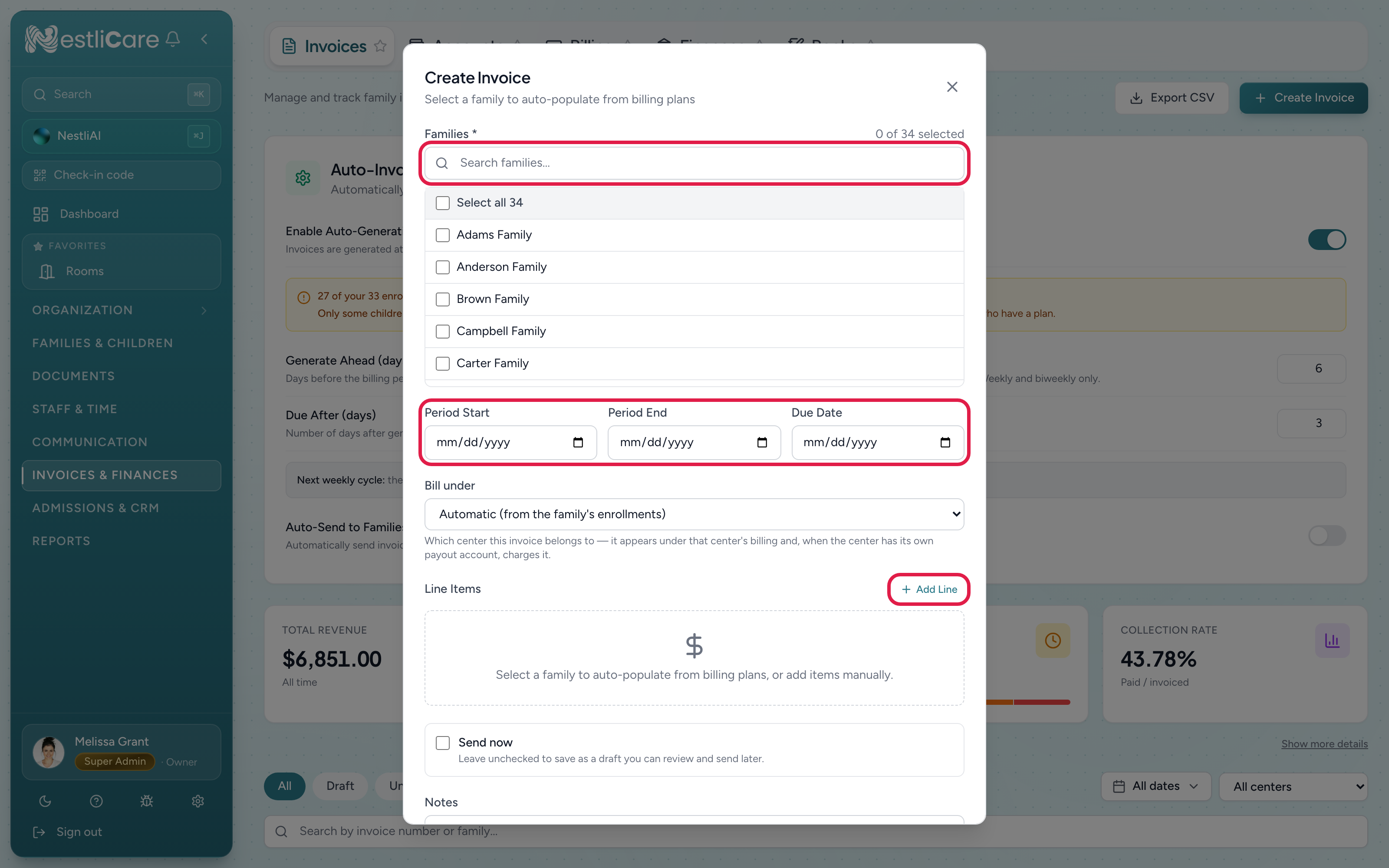
- Fill in the Create Invoice form:
- Families (required): pick who the invoice is for. You can pick one family or several; picking several creates a separate invoice for each, with the same lines. When you pick a family, their billing plan lines fill in by themselves.
- Period Start and Period End: the window the charge covers. These show on the invoice and in reports.
- Due Date: when the family should pay by.
- Line Items: click Add Line for each extra charge. Give each a type (Fee, Tuition, Discount, One-off credit or Adjustment), a description and an amount.
- Send now: tick it to send the invoice to the family straight away. Leave it off to save a draft you can check first.
- Notes (optional): anything you want the family to see on the invoice.
- Click Create & Send Invoice (with Send now ticked) or Create Invoice (to save a draft).
A draft isn't sent to anyone. When it's ready, open it and click Send Invoice.
If you run more than one center
Organizations with more than one active center get a Bill under picker on the create form. Leave it on Automatic and NestliCare works the center out from the family's enrollments, which is right almost every time. Pick a center explicitly when you need to override that.
The center an invoice belongs to decides which center's billing it appears under, and, if that center has its own payout account, which account collects the charge. It is set when the invoice is created and cannot be changed afterwards.
A family with children at two centers is billed per center, so they get one invoice for each, and any sibling discount is still worked out across the whole family rather than per center.
The Invoices page also has a center filter so you can look at one site at a time. Center admins pinned to a single center see only their own center's invoices, with no filter to change.
Track invoices
The Invoices page lists everything with status tabs across the top: All, Draft, Unpaid, Processing, Paid, Past Due, Void. Use them to see what's outstanding. All leaves out voided invoices so cancelled and practice invoices stop cluttering the list; open the Void tab when you need one. There is no delete for an invoice: void it, and it drops out of the everyday view. Export CSV (top right) downloads a CSV of payments received for your records or accountant. It's shown to owners and to center admins with Finances access. For invoice reports, see Export a financial report.
Search by invoice number or family in the box at the top. The search runs across every invoice you have, not just the page on screen, and the "Showing X to Y of Z" count underneath describes the search result. It narrows whatever filters are already set, so searching can never show you invoices outside your center or your organization.
Remind a family about an unpaid invoice
Sent an invoice and it is still sitting there? Open the invoice and tap Send reminder. The family gets a push notification and a bell notification in the app, titled "Payment reminder from" your daycare's name, saying for example "Invoice INV-0042 for $45.00 is due September 18, 2026. Open the app to pay." No email goes out, and the invoice itself does not change: its due date, its sent date, and any auto-pay the family has set up all stay exactly as they were.
The button appears on any invoice that is Unpaid, Past Due, or partly paid. Under it you will see when the last reminder went out and how many you have sent, so you can judge whether another one is welcome. You can send one reminder per invoice per hour.
Let a family pay part of an invoice
By default a family pays the whole balance when they pay online. To let one family pay in parts, open the invoice and turn on Let family pay part. When they pay, they can choose the full balance or any amount from $5 up to what's left. Each part shows on the invoice as a payment, and the rest stays due until it's paid. The setting is per invoice and starts off, so you decide case by case. Auto-pay, if the family has it, still charges whatever is left on the due date. Each online payment carries its own convenience fee, so three parts mean three fees.
If a family pays part by cash or check instead, record it with Mark as paid and enter the amount they gave you.
From your phone
Invoices and Finances are both on the iOS and Android Admin tab. The owner can create an invoice, charge several families at once, take a part payment, and issue a refund from there. If you run several centers, pick the center first and a banner shows the scope you are working in.
What families see
When you send an invoice, everyone in the family gets a push notification ("New invoice from" your daycare), and the family's billing contact gets an email with the invoice number, amount, and due date. They pay in the NestliCare app or by signing in at nestlicare.com. Invoice emails never contain a payment link, on purpose, so families can trust that a "pay here" link is never from you. See the parent side in Pay an invoice.
Troubleshooting
The line-item total doesn't match what I expected. Totals add up the lines you entered. Reopen the invoice and check each line's amount.
A family says they didn't get the email. Open the invoice and tap Send reminder to notify them again in the app. The email is skipped if the parent turned off billing emails, and an invoice that comes to $0 is marked paid without an email.
I bill everyone the same way every month. Don't create them by hand. Turn on auto-generation so invoices are created on each family's cycle automatically.
An invoice moved to Past Due on its own. That is expected. NestliCare checks hourly and moves a sent invoice to Past Due once its due date has passed on your organization's own calendar. An invoice due today is not past due; it becomes past due when your day rolls over, not when a server somewhere else does.
I searched for a family and got nothing, but I can see their invoice in the list. Search matches the invoice number and the family name. Check the spelling of the family name as it is stored, not the parent's name.