
Switch a family to bi-weekly billing
Move one child from weekly or monthly invoices to one invoice every two weeks, bill the fortnight already under way, and keep everyone else as they are.
A parent asks to pay every two weeks while the rest of your center bills weekly or monthly. You do not need to change your center's billing to say yes. Billing cadence lives on each child's billing plan, so you give that child a bi-weekly plan and nothing changes for anyone else.
This takes about two minutes on the web. The same steps work in the other direction (bi-weekly back to weekly) and for monthly-to-bi-weekly.
Center admins can change a child's plan, but the Upcoming tab, voiding, and creating invoices are owner-only, so the owner should do this end to end.
Switch the child's plan
- Go to Invoices & Finances → Accounts and open the family.
- Click the Setup tab. Under Recurring billing you'll see each child with their current plan.
- Click Change next to the child.
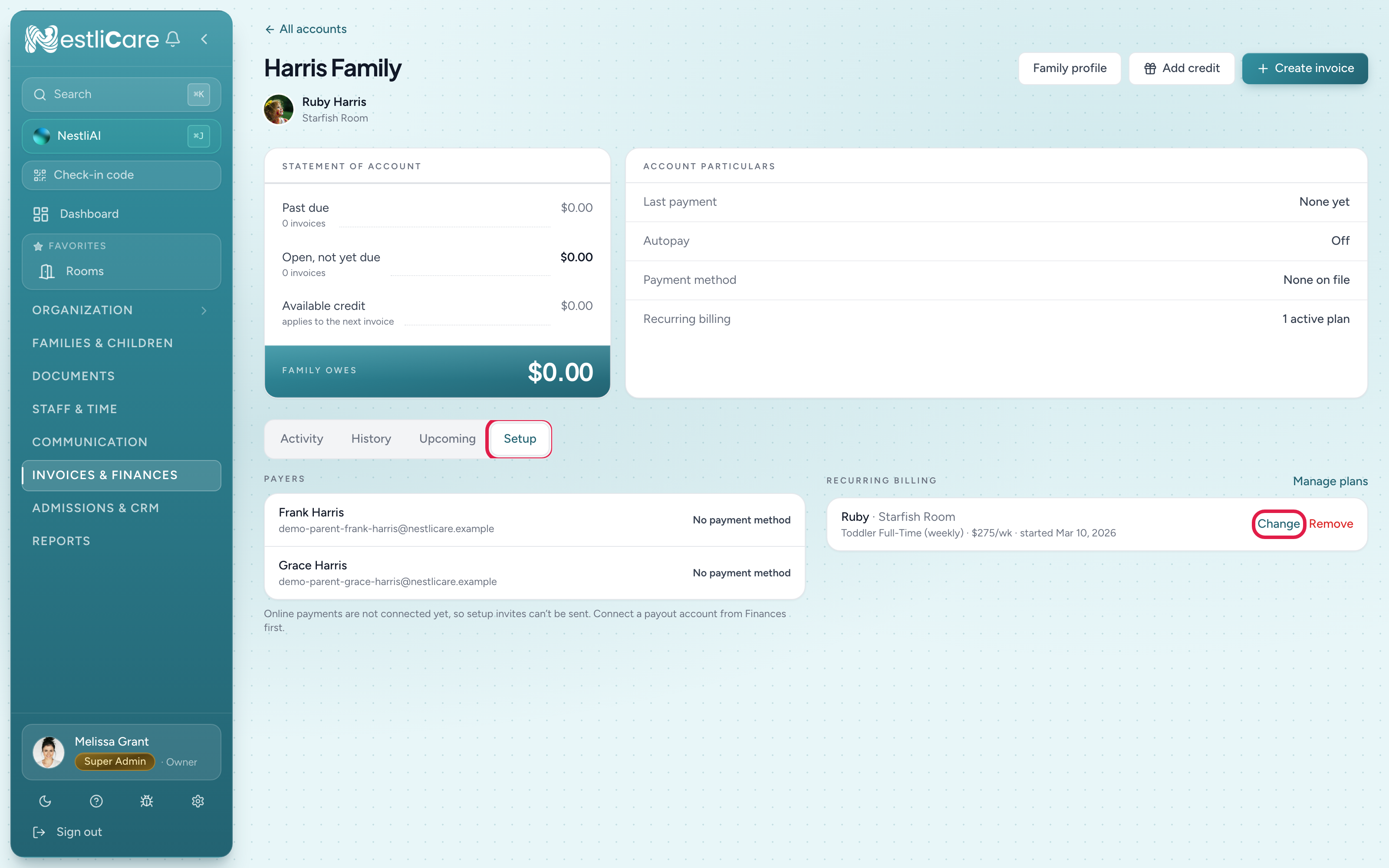
- 1Setup tab
- 2Change, next to the child's current plan
- In the Tuition plan picker, pick an existing bi-weekly plan if you have one. If you don't, type a name for the new plan, such as
Toddler Full-Time (bi-weekly). A Create new plan form opens right there:- Type: leave on Fixed amount.
- Amount: what two weeks costs. For a $275-a-week child that's
550. - Interval: Biweekly.
- Click Create & select.
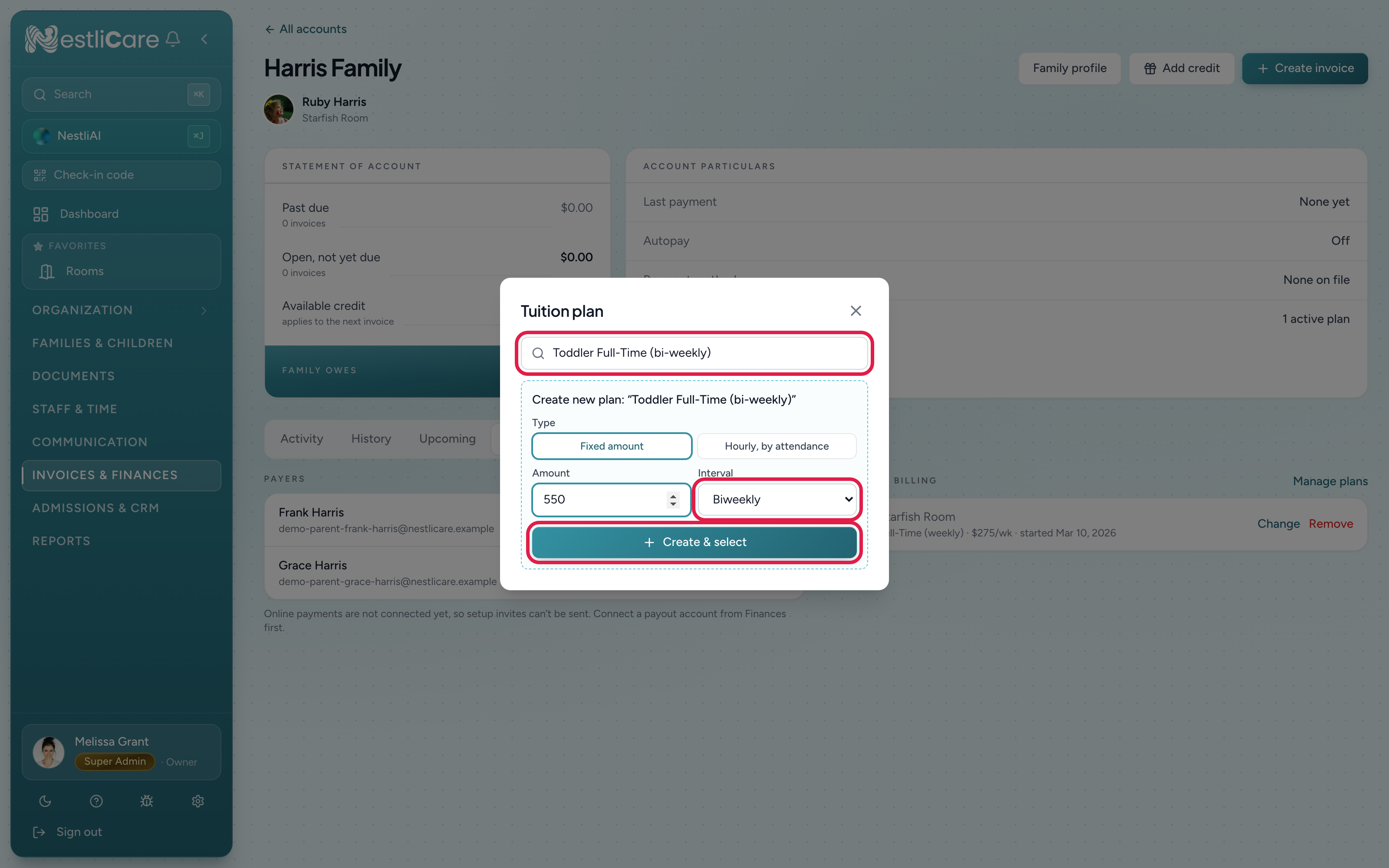
- 1Type a new plan name here, or search for an existing bi-weekly plan
- 2Interval: Biweekly
- 3Create & select attaches the plan to this child
The row now reads $550/2wk (or whatever you entered), and a Bi-weekly cycle row appears underneath it showing Standard cycle. The plan you created is a normal plan: it's on the Billing Plans tab and you can attach it to other children later.
A family with two children has a plan per child, so repeat step 3 to 5 for each child who should move. A child left on a weekly plan keeps getting weekly invoices, and the family gets both.
Check which fortnight they're on
Bi-weekly billing runs on one shared fortnight for the whole center. Click the family's Upcoming tab (owners only): it lists the next bi-weekly invoices for this child, with the day each one generates and the day it's due.
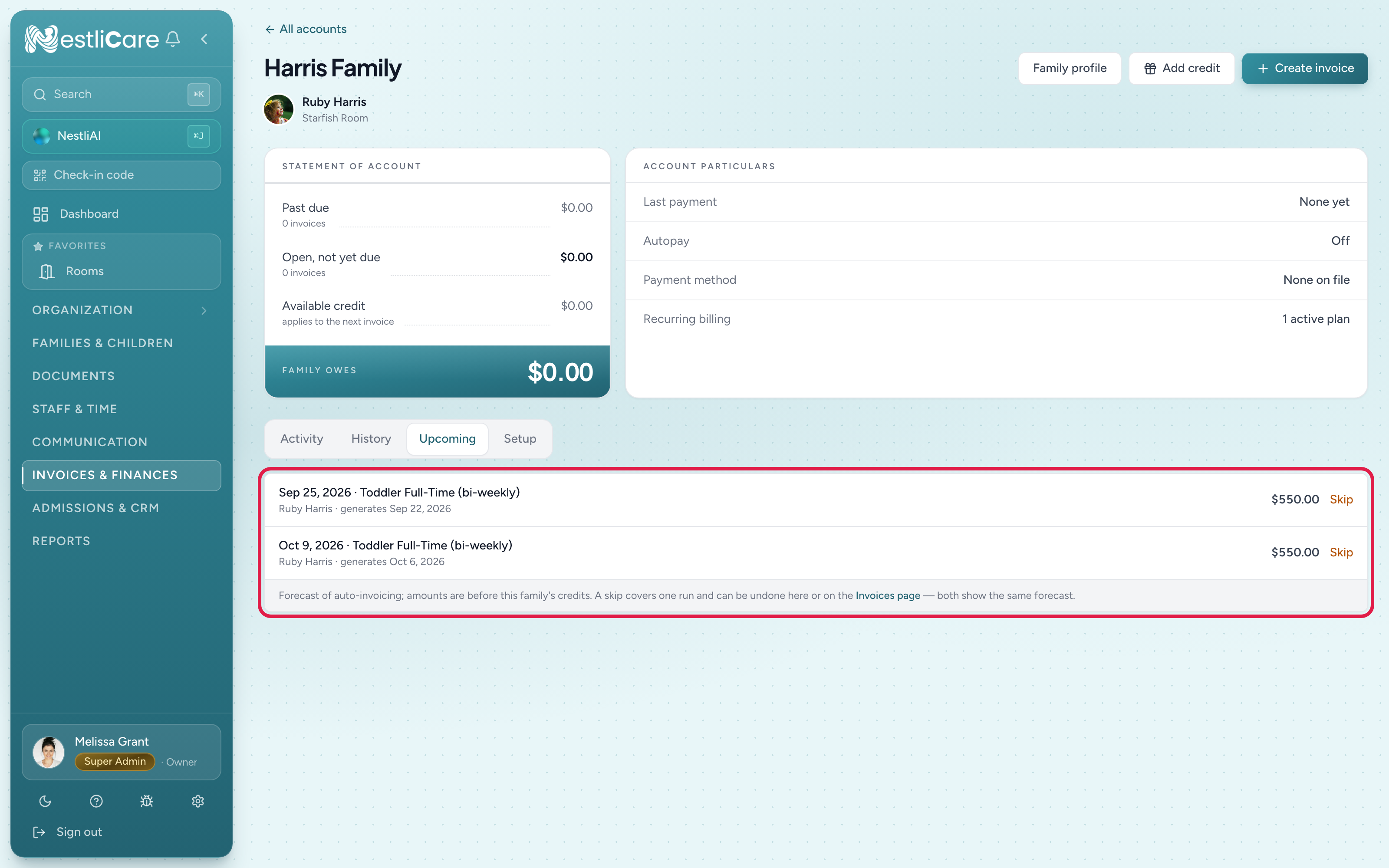
If the parent's two weeks start on the other Monday, don't move the whole center: give this family its own cycle start with Change on the Bi-weekly cycle row. See Families on the other bi-weekly week.
Bill the fortnight that's already under way
Changing the plan only changes what auto-invoicing creates from the next run onward. It never touches invoices that already exist, and it never goes back for a fortnight whose run has already happened. So the first line on the Upcoming tab is the next fortnight, and any days between now and then are yours to invoice by hand. Two common cases:
This week's weekly invoice is out and unpaid, and the parent wants one invoice for both weeks. Void the weekly invoice, then create one for the fortnight:
- On the family's Activity tab, click View on the weekly invoice, then Void Invoice. A voided invoice is never recreated (see Will a voided invoice come back?), and any late fee it carried goes with it. Add the fee as a line on the new invoice if you still want to charge it.
- Click Create invoice at the top of the family page. The child's bi-weekly amount is already filled in from the new plan. Set Period Start to this Monday, Period End to the Sunday of next week, and whatever due date you agreed with the parent. Tick Send now to email it, or leave it as a draft to review first. See Create and send an invoice.
This week's weekly invoice is already paid. Leave it. Create one invoice by hand for next week only: remove the prefilled two-week line with the ×, use Add Line to add one week's tuition, and set the period to that Monday to Sunday. From the fortnight after, auto-invoicing takes over.
Switch before the next run
Weekly invoices generate on a fixed morning each week: Generate Ahead days before the Monday, from about 9:40 AM in your organization's timezone. If you switch the plan after that morning's run, the family already has next week's weekly invoice, and with Auto-Send on it has been emailed. Void it, and the bi-weekly plan takes over from there. The family's Upcoming tab shows the exact day of every run, so check it and make the switch the day before.
Troubleshooting
The bi-weekly plan I already made isn't in the picker. The picker lists every active plan, so type part of its name or its amount to narrow the list. If it still isn't there, it was probably deactivated: check the Billing Plans tab, or simply type a new name and create a fresh one on the spot.
The Bi-weekly cycle row didn't appear. It only shows once a bi-weekly, fixed-amount plan is attached. Hourly plans don't have it. Refresh the page if the plan row updated but the cycle row didn't.
The first invoice on Upcoming has the wrong dates. Give the family its own cycle start with Change on the Bi-weekly cycle row. If a live invoice's period doesn't line up with the new cycle, the change is refused and the invoice is named: void it or wait for its period to end.
The family got both a weekly and a bi-weekly invoice for the same week. The weekly run fired before you switched. Void the weekly one; the bi-weekly one stands.
A sibling still gets weekly invoices. Plans are per child. Open the Setup tab and change the sibling's plan too.
Related: Create a billing plan, Auto-generate invoices on a schedule, See and skip upcoming invoices, Family credits.