
Enable online payments
Let families pay tuition online. Request payments setup on Finances, finish Stripe's verification, and choose who pays the convenience fee.
NestliCare collects tuition from families through Stripe, and you keep the money. NestliCare is free for your daycare. Each online payment carries a small convenience fee (a percentage plus a fixed amount on cards, a capped percentage on bank payments), and you choose who pays it. Our team sets up your payment account by hand, usually within 1–2 business days.
Only the owner can request setup and change payment settings. Center admins with Finances access see their own center's payments, with a note that payout and payment settings are managed by the owner.
Already set up? This longer video tours the whole Finances page: every payment setting, your balance, payments and refunds, disputes, payouts (including a failed one), and the Account tab.
Where it lives
Go to Invoices & Finances → Finances. The Online Payments card shows your current status.
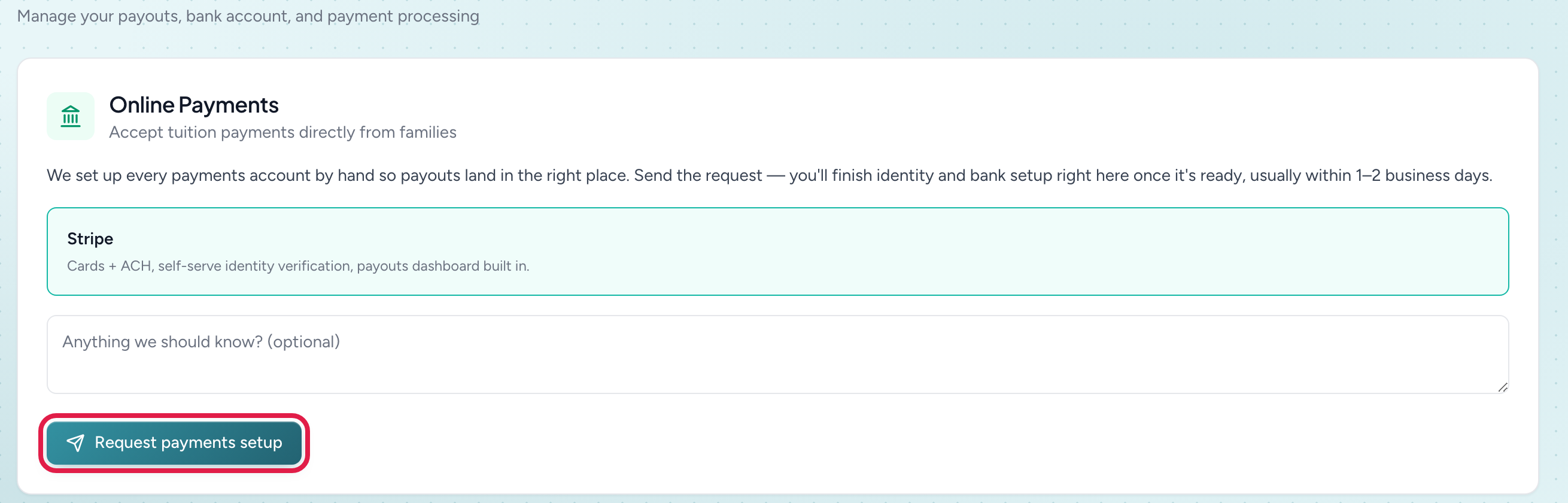
The card shows one of these, depending on where you are:
- Not requested yet. It explains that we set up every payments account by hand, usually within 1–2 business days. There's an optional "Anything we should know?" note and a Request payments setup button.
- Request received — we're on it. We have your request. You can still Cancel request.
- Approved — NestliCare is completing your account setup. Nearly there. Next comes Stripe's verification step, right on this page.
- We couldn't set up payments yet. We'll say why if we can. Click Request again when you're ready, or contact support from the card.
How to get it turned on
- Go to Invoices & Finances → Finances and click Request payments setup. The request goes straight to our team from inside your account, so there is nothing to email.
- Our team sets up your payment account, usually within 1–2 business days.
- The Finances page then shows a verification step, run by Stripe. Complete it and you are live. Families can pay online switches on by itself when verification finishes, and you can find it on the Payment settings card.
If you would rather write to us, [email protected] works too, but the button is faster and we can see exactly which organization is asking.
The verification step, and why it can stall
Provisioning is our part. Verification is Stripe's, and it is where setup most often stops.
Stripe has to confirm who is legally responsible for the account before it will move money. It asks for the business details, a bank account, and information about the person named as the account representative. That last part regularly includes:
- The representative's Social Security number (in the US).
- A photo ID for the representative, such as a driver's license or passport.
Stripe asks for the photo ID when the Social Security number alone does not give it a confident identity match. That is routine and does not mean anything is wrong with your business.
Nothing is charged and no family can pay until Stripe finishes this. Your organization can look completely set up on every other screen while this one item is outstanding.
The Finances page names whatever Stripe is still waiting on, so you never have to guess. If it lists an item, that item is on you. If it says Stripe is reviewing, it is on Stripe and there is nothing to do but wait.
When your first payout arrives
This is the question we get asked most, so here it is plainly.
Your first payout lands 7 to 14 days after your first parent payment. After that, payouts run automatically, roughly every two business days.
The delay is Stripe's, not ours. Stripe applies a hold to the first payout of every new business on its platform as a standard security step. It cannot be waived or sped up, by us or by you. The money is not lost or stuck; it is queued.
You get an email when your first parent payment comes in, telling you the same thing, so the wait is never a surprise.
Until payments are on
You can still do everything except take online payment:
- Create billing plans and invoices.
- Track what's owed on the Invoices page.
- Record payments you took in person (cash or check).
Families just won't see a Pay now button until online payments are enabled.
Get notified when a parent pays
Once payments are on, you don't have to keep checking the app. Every time a parent pays an invoice online (card or bank, including auto-pay), you get a push notification and a bell entry with the family, the amount, and the invoice number. Tap it to open that family's invoices.
It is on by default for owners, and for center admins who have been given Finances access; a center admin only hears about their own center's invoices. To turn it off, open your notification preferences from your profile and switch off Payments received.
Payments you record by hand (cash or check) don't notify anyone; you already know about those.
Who pays the convenience fee
You choose this yourself. Once you're set up, open Invoices & Finances → Finances, find Who pays the convenience fee on the Payment settings card, and pick:
- Parent pays (the default): the fee is added at checkout, so you receive the full invoice amount.
- Daycare pays: parents pay exactly the invoice amount, and the fee comes out of what you receive.
The change applies to the next payment. Payments already in progress keep their setup. Click See the breakdown under your rates to see what a parent pays and what you receive.
In some places, card fees generally can't be passed on to families. In Connecticut, Massachusetts, Maine, Puerto Rico, New York, New Jersey, Colorado, Louisiana and Quebec, and anywhere outside the US and Canada, it's always Daycare pays. See Who pays the processing fee?
Troubleshooting
The card still says "Request received" after I asked. Setup usually takes 1–2 business days on our side. When it's done, the card changes and shows Stripe's verification step. If it's been longer, contact support.
My account exists but families still cannot pay. You are on the verification step, not waiting on us. Open Invoices & Finances → Finances: the page lists exactly what Stripe still needs. It is most often the representative's Social Security number or a photo ID.
Stripe rejected my ID. The Finances page shows Stripe's reason under the item ("Stripe said: …") and what to do about it. Usually: retake it with the physical document, laid flat in bright light, all four corners in frame, no glare. If it keeps failing, sign in at dashboard.stripe.com with the email on the account and contact Stripe support from there; they can see more than the one line we are shown.
I already have a Stripe account. We can't connect an existing Stripe account. We set up a new one for your daycare, and you add your bank details during verification.
I can't find the Finances page. Online payments depend on Stripe paying out to businesses in your country, and we only turn them on in countries where we've checked the fees and the law. If your daycare is somewhere we can't take online payments yet, the Finances page and the "turn on online payments" step in your setup checklist are hidden, and the Invoices page says so. Everything else in NestliCare works the same. Record cash, bank transfers and other payments with Mark as Paid on each invoice. We add countries over time.
Where is my money? If this is your first payout, see the section above: Stripe holds it 7 to 14 days after your first payment. If it is not your first, open Invoices & Finances → Finances and check the payout list and your bank details.
I run several centers and want them paid into different bank accounts. That is possible, but it is not self-serve, and it is only worth doing when the centers are genuinely separate legal entities with separate banking. Message us and we will talk it through. If your centers are one legal entity, keep one account and use the center filters on Invoices and Reports instead.