
Invite your team
Add teachers and admins, give them the right role, and assign them to a room. Each person gets their own login.
Everyone who works at your daycare gets their own NestliCare login. Their role controls what they can see and do.
Short version first: this narrated video adds a teacher, sends their invite, and shows where to find the QR code staff scan to clock in.
The longer video below tours the whole Staff & Time area: your staff list, the weekly schedule and ratio check, timesheets for payroll, and time off.
Everything to do with your team, adding people, the weekly schedule, timesheets, training, and leave, sits on one sidebar row, Staff & Time: the roster and the clock together, since the schedule feeds the punches and the punches feed the timesheets. Their paperwork is the exception, filed under Documents → Staff Documents.
- Teacher works in the classroom: check children in and out, post activities, message parents, log their own hours. Teachers use the mobile app.
- Center Admin runs a single center: staff, billing, rooms, reports, everything on the web dashboard.
- Super Admin manages every center in your organization. Most single-site daycares only ever need one super admin (you).
Add a staff member
- Go to Staff & Time → Staff in the sidebar.
- Click Add Staff in the top right.
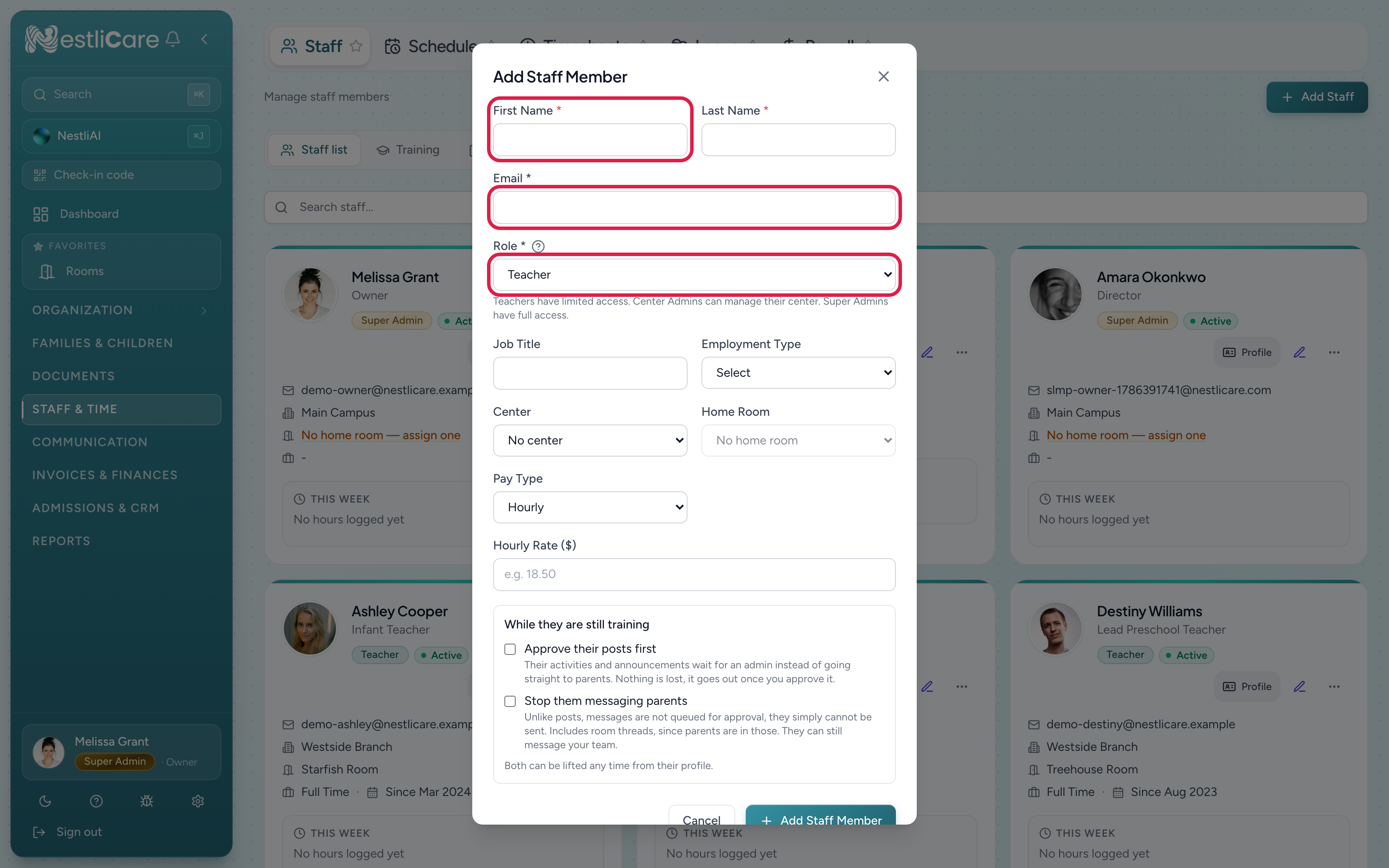
- Fill in the form: First Name, Last Name, Email, and Role are required.
- Optionally set their Job Title, Employment Type (Full Time, Part Time, Substitute, Per Diem, or Contractor), Center, and Home Room. The home room is where a teacher's app opens on days they aren't on the schedule; the room pills at the top of their dashboard let them switch to any room at their center.
- If you track pay, set Pay Type and Hourly Rate. You can add this later.
- Click Add Staff Member.
The new person appears in your staff list marked Not invited. Click Send invite on their card and they get an email to set their password and download the NestliCare app. (Not ready yet? Leave it, and send the invite whenever you like.)
New daycares require a QR scan to clock in, unless you turn that off. The code is under Check-in code in the sidebar: print it and post it, or show it on a tablet. Staff scan it with the NestliCare app, not the phone's camera. See Require a QR scan to clock in.
Change a role or room later
Open a staff member from Staff and edit them. You can change their role, home room, job title, or pay at any time.
Remove someone
Deactivate a staff member instead of deleting them. Deactivating stops them from logging in but keeps their history (check-ins they made, activities they posted) attached to their name for your records. See Deactivate a staff member.
Troubleshooting
They never got the invitation email. Check their card first: Not invited means no invite has gone out yet, so click Send invite. Otherwise, ask them to check spam first. Then click Resend invite on their card in Staff & Time → Staff. If it still doesn't arrive, their email provider may be blocking it, so try a different address.
"Email already in use." That email already has a NestliCare account, and that is fine: one login can hold both a staff role and a parent profile. If the person is a parent at your daycare, adding them as staff links to their existing login. If their account is at another organization, the form offers Send an invitation instead; accepting it from their existing login adds the staff role. See A teacher is also a parent.
A teacher says they can't see a child. Their app opens on today's room; ask them to tap the child's room in the room pills at the top. If they see no children at all, check that they're assigned to a center: open them from Staff and set their Center and Home Room. See Assign staff to rooms.