
Switching from other daycare software
A week-by-week plan for moving your daycare to NestliCare without losing records or disrupting your families.
Most daycares come to NestliCare from another app, a spreadsheet, or paper. Nobody wants to lose a year of records to switch. Here's the plan that keeps it painless.
Step one: bring your data over, free
You don't have to retype anything. The owner uploads whatever you can export or photograph in Settings → Data Migration. Then you either set it up yourself with NestliAI in minutes, or send the files to our team. Both are free, whatever your size. See Move your data over for the details.
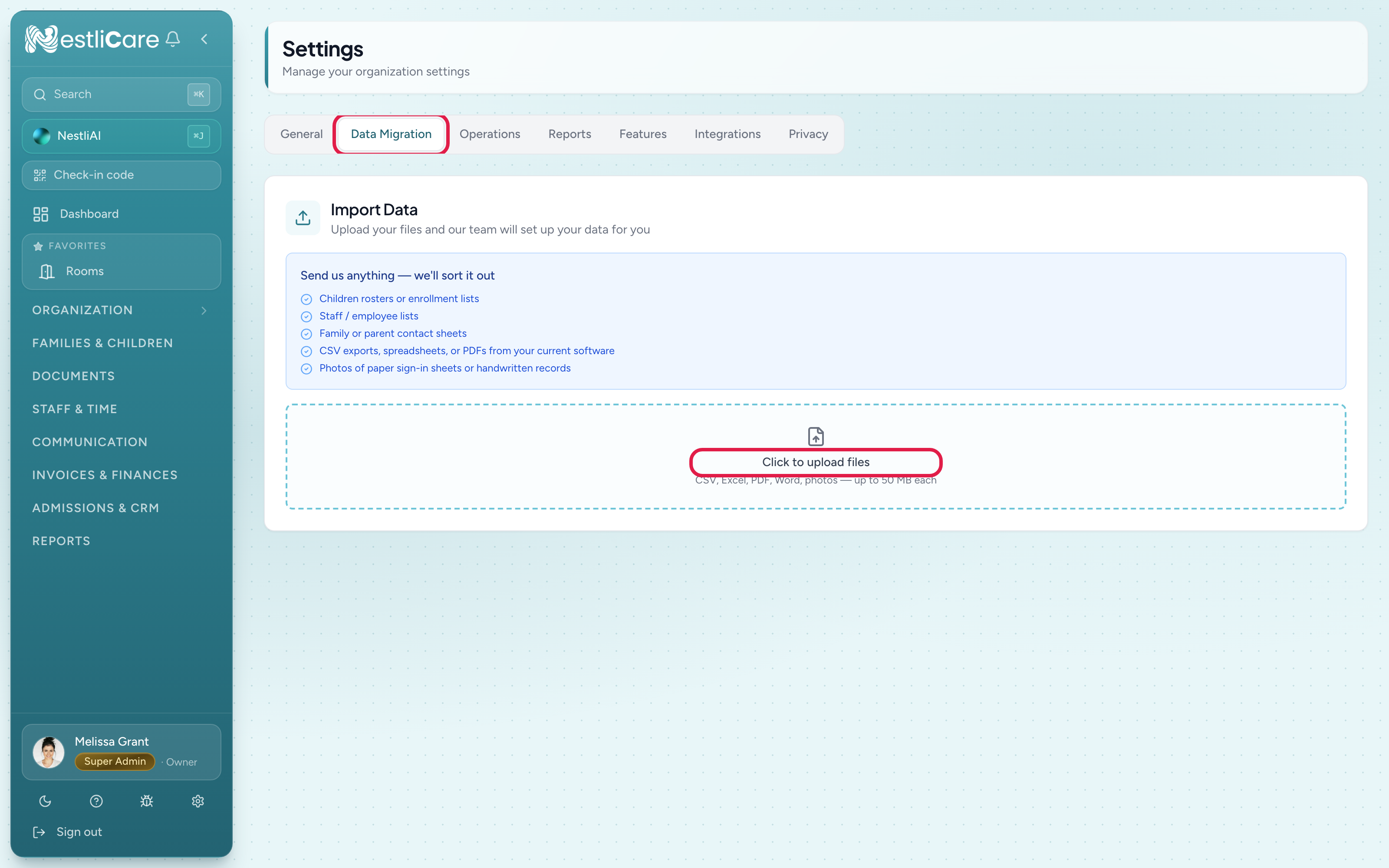
What moves, and what you set up
| Data | How | Your effort |
|---|---|---|
| Families and children | Settings → Data Migration | Minutes to upload |
| Staff | Include your staff list in the same upload, or add each person in Staff & Time → Staff | Minutes |
| Rooms | Set up once in Organization → Rooms | 15 min |
| Billing plans | Create in Invoices & Finances → Billing | 30 min |
| Online payments | Click Request payments setup in Invoices & Finances → Finances. We set it up in 1–2 business days | 5 min, plus identity and bank setup |
| Saved cards and bank accounts | Don't move between systems. Parents add theirs once | Parents do this |
| Old attendance, photos, messages | Not migrated. Keep your old system for reference | None |
Your side of a full switch is usually an hour or two, spread over a week.
A week-by-week plan
Week 1: set up alongside your old system
- Sign up and check your organization, center, and time zone.
- Upload your roster and staff files to Settings → Data Migration.
- Set up rooms and billing plans.
- Request online payments on the Finances page, so it's ready by cutover.
- Add your staff and click Send invite for each. They can explore while your data lands.
Week 2: cut over
- Pick a start date. The 1st or 15th of a month lines up best with billing.
- Stop entering new data in your old system.
- Send parents a short heads-up (template below).
- Invite parents to the app. Nothing goes out until you do: use Invite on each family card, or send every invite at once from the Families page. See Invite parents to the app.
- Send your first NestliCare invoices. Parents pay in the app.
Week 3: check and close out
- Keep the old system open for reference.
- Confirm your first payouts land in your bank.
- Cancel the old software once the first pay cycle finishes cleanly.
What to ask your current provider for
Most daycare software lets an administrator export at least a roster. Ask in writing about a week before you switch:
- Child roster as a spreadsheet, with birthdates and rooms
- Family and guardian contacts, including authorized pickups
- Current balances and open invoices, so nothing is billed twice
- Immunization records and signed documents as PDFs
- A final export of anything you must keep for licensing or taxes
No export? Photos of printed rosters and paper sign-in sheets work too.
Old attendance logs, photo libraries, and messages don't come over. For records you must keep, export them once before you cancel, or keep the old account at its lowest level for a while.
Parent message template
Copy, edit, send:
Hi families,
We're moving our daycare's billing and daily updates to a new app called NestliCare starting [date]. Here's what changes for you:
- Daily updates, messages, and photos will be in the new app. You'll get an invitation email to set up your account.
- Invoices and payments: your [next month] invoice will come through NestliCare. If you used auto-pay before, add your card or bank once in the new app, and auto-pay continues from there.
- Nothing about your child's day is changing. Same teachers, same routines.
If you run into anything, just reply to this email.
What switching costs
Nothing on the NestliCare side. The software is free, and so is the migration. Keep your old subscription through the first NestliCare pay cycle, then cancel it.
A printable version of this plan is at nestlicare.com/switching-daycare-software.
If you ever leave NestliCare
The same courtesy goes both ways. Owners can download everything any time from Settings → Privacy → Download everything (JSON). We'll never hold your data hostage.
Need help planning?
If you want help planning the whole switch (timing, what to tell parents, lining up billing), email [email protected] with how many children you have. We'll plan it with you, free.