
Add your first family
Add your first family with its children and parents in one form, then invite the parents to the app.
In NestliCare, children belong to families. A family is one or more children plus the parents or guardians who care for them. One form creates the whole household.
Moving over a whole roster? Don't type it in. See Move your data over.
Prefer to watch? This video adds a family and walks through every button on the family card.
Add a family
- Go to Families & Children → Families and click Add Family.
- The New family form opens. Fill in:
- Family name (optional). Leave it blank and the family is named after the first last name you type.
- Children: each child's name, Date of birth, Room, Enrollment type, and the Days they attend. Click Add tuition plan (optional) to attach a billing plan now. Click Add another child for siblings.
- Parents & guardians: click Add a parent and enter a first name and email. Last name and phone are optional. Pick the Relationship (Mother, Father, Guardian, or Grandparent). Click Add another parent for a second parent.
- Click Add family.
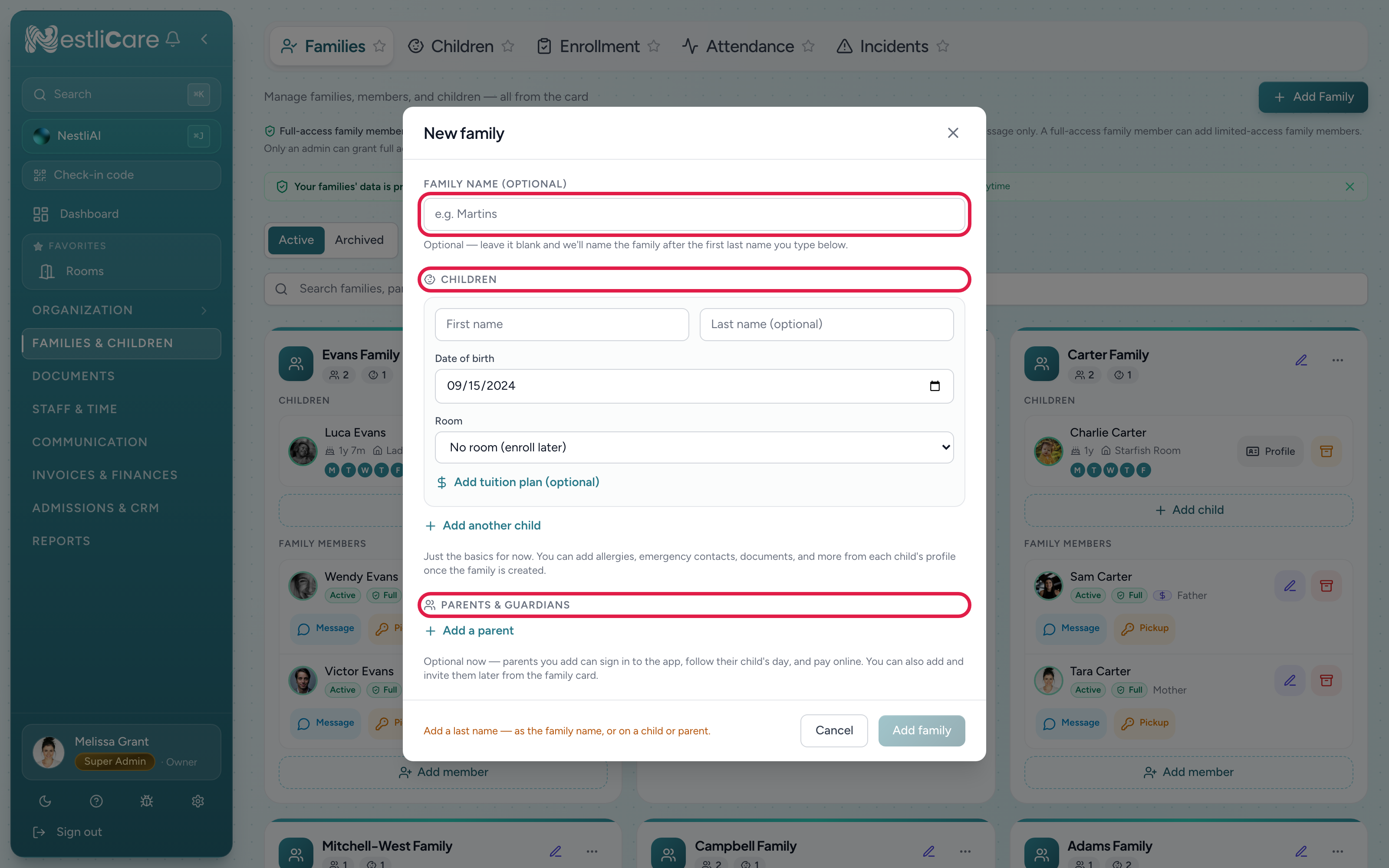
The form takes the basics only. Add allergies, emergency contacts, documents and start dates later from each child's profile.
Invite the parents
Adding a parent does not email them. After you click Add family, a Family created box asks if you want to invite them now:
- Send invite emails each parent a link that opens the app and signs them in.
- Later sends nothing. The parent shows an Invite button on the family card until you send it.
Prefer to set up every family first? Click Later each time, then send all invites at once from the Families page. For parents without email, you can print invite sheets with a QR code to scan. See Invite parents to the app.
Each parent gets their own login. Both can check in, pay, and message on their own.
Attach a billing plan later
If you skipped the tuition plan, open the child's profile and set the Billing plan there. The child needs a room first. See Create a billing plan.
Troubleshooting
"This person is already a member of this family." That parent is already on this family's card. Check the card instead of adding them again.
A parent already belongs to another family. That's fine. If the email belongs to a parent already in your daycare, NestliCare links them to this family too, for example in a blended household.
Child doesn't show up in the app. Check that the child has a room. A teacher may also need to tap that room in the room pills at the top of their dashboard.
Parent never got an invite. Adding a parent doesn't send one. Click Invite on their row on the family card.