Log a meal

Record what children ate, for how many, and how much — for parents' daily feed and your CACFP claims. Attach photos optionally.

guideUpdated 2026-09-15 Raw markdown

Meal logging is the biggest driver of the CACFP (Child and Adult Care Food Program) reimbursement. It's also what parents check first in the daily feed to see if their kid ate. Do it right.

The fast way: use today's menu

If your center publishes a menu, you almost never have to type foods. When the day's menu is published, the meal you're logging shows a Use today's menu button: one tap fills in the foods from the plan and selects the children who are checked in. Deselect anyone who didn't eat, change a portion here and there, and save. Same button in Room Mode.

Some centers also turn on a reminder: if a published meal hasn't been logged by its usual time, clocked-in staff in that room get a push. Logging the meal is what clears it.

Log a meal

  1. Open the NestliCare app on your staff account.
  2. Tap the Dashboard tab.
  3. In Quick Actions, tap Log Activity, then the Meal tile (or Snack).
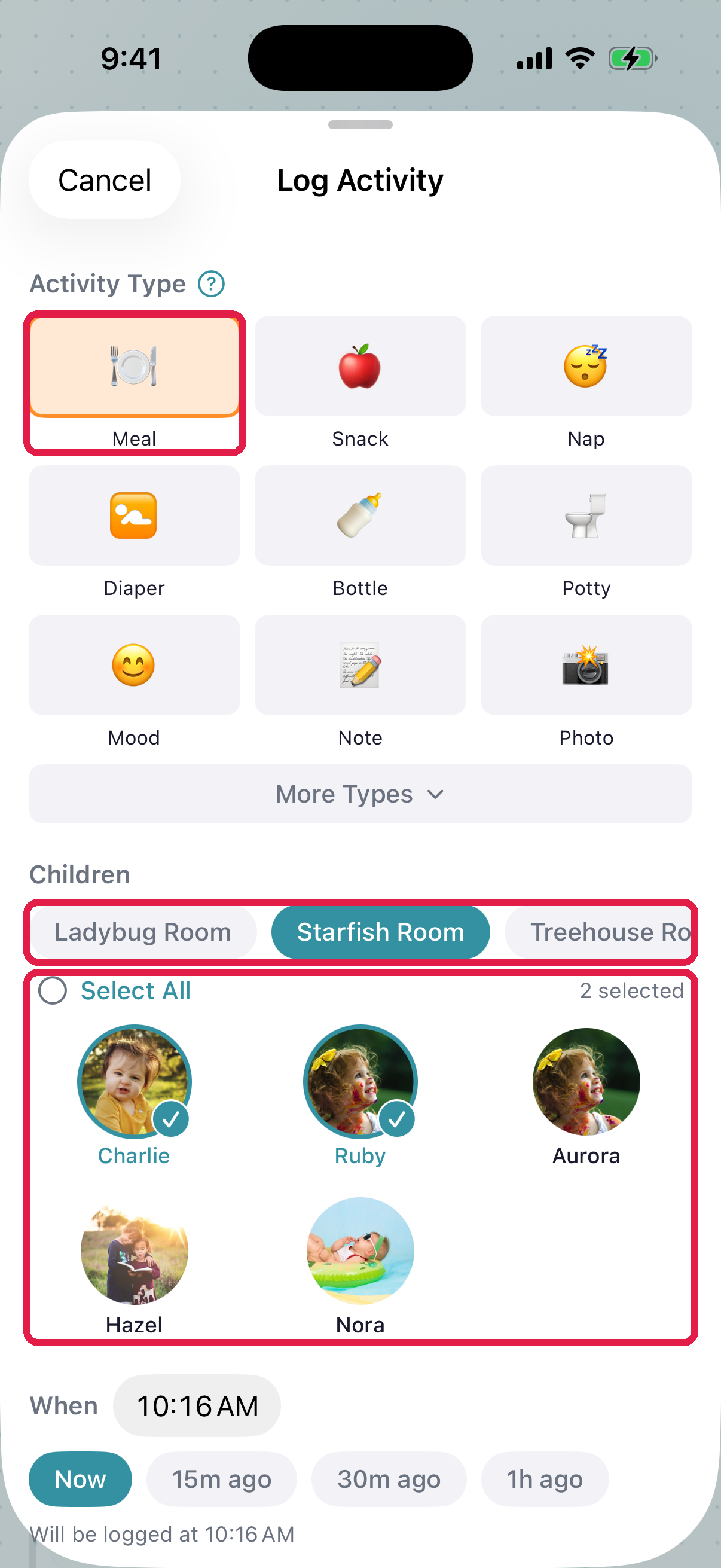
  4. The Log Activity sheet is now a meal form: room and children at the top, the meal details underneath.
Screenshot pendingLog Activity sheet with the Meal tile selected, room pills, and the child avatars
  1. 1Meal tile — selected. Snack is the tile next to it
  2. 2Room — horizontal pill selector. Tap yours to filter the children below
  3. 3Children — tap each child who ate, or Select All for the whole room. Selected avatars get a teal check

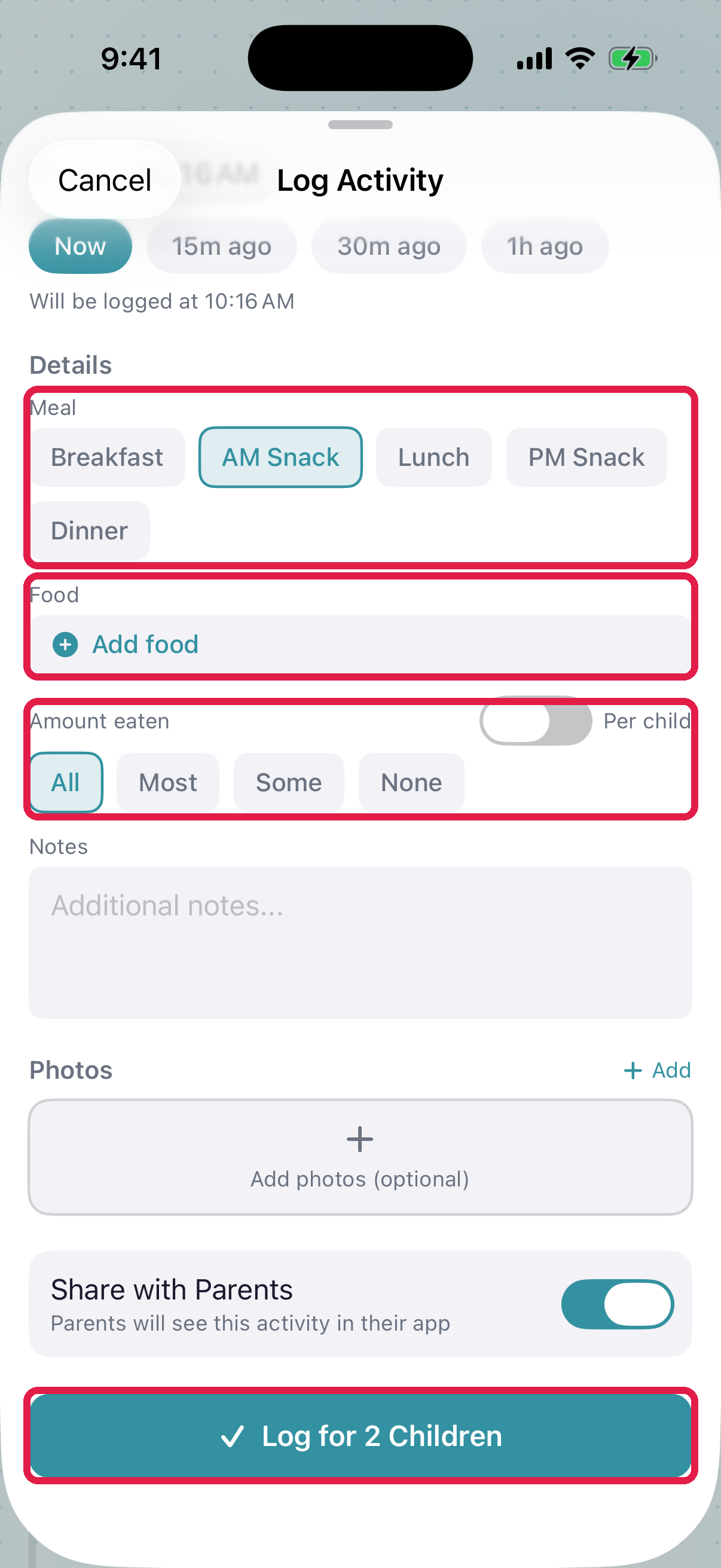
Scroll down for the meal details:

Screenshot pendingThe meal details section: meal type, food, amount eaten, and the Log for N Children button
  1. 1Meal — Breakfast, AM Snack, Lunch, PM Snack, or Dinner. One tap
  2. 2Food — Add food picks from your food list (or today's published menu), or type a new one. Use the same names consistently ('peanut butter', not variations)
  3. 3Amount eaten — All / Most / Some / None for everyone, or tap Per child to set different portions per kid
  4. 4Log for N Children — the count updates live as you check and uncheck children
  1. Pick the Room, then the Children who ate (Select All for the whole room).
  2. Pick the Meal: Breakfast, AM Snack, Lunch, PM Snack, or Dinner.
  3. Add Food — tap Add food and pick from the list, or type a new one.
  4. Set Amount eaten:
    • Everyone: All / Most / Some / None once
    • Per child: tap Per child and set each one
  5. Tap Log for N Children.

A success overlay appears: "Meal Logged!" followed by confirmation of how many children. Auto-dismisses.

Attach photos to a meal

You can attach one or more photos to a meal log — handy for showing the plate parents would have made themselves at home, or proving the toddler did in fact eat the green stuff.

On the Log Meal screen, before tapping the log button:

  • Take Photo — opens the camera so you can snap the plate or the moment.
  • Library (iOS) / Gallery (Android) — pick an existing photo from the device.

The first time you tap Take Photo on Android, the system asks for camera permission. Allow it once and it sticks.

The same photo flow works inside Room Mode on a shared room tablet — meals logged there support attachments too.

Photos attached to a meal appear on the meal card in the parent's daily feed alongside the food items and portion. They count toward your CACFP record-keeping if your state requires meal photos as evidence.

What "Portion Eaten" means

  • All — cleaned the plate
  • Most — ate more than half
  • Some — ate some but not most
  • None — didn't eat

Parents see this in the daily feed. For babies and toddlers, parents appreciate accurate portion data — it tells them whether their child is hungry at pickup.

For CACFP, your state probably requires only "served" vs "not served" rather than portion — but portions are useful data anyway.

Food items — keep them consistent

The food-item list is the killer for CACFP claims. If you log "PB&J" one day and "peanut butter sandwich" another, they're separate items. Pick canonical names and stick to them.

Good pattern: maintain a shared food-item list for your center (your admin can bulk-import one). When logging, tap from the existing list rather than typing new items.

If you need a food the center's list doesn't have, you can add it inline from the food-item picker. Type the new name in the search box; when nothing matches, an Add new item: "your name" row appears with five CACFP category chips below it (Grain, Meat & Alt, Vegetable, Fruit, Milk). Tap the chip that fits — the item is saved to the shared library and selected for this meal in one tap. The food joins the shared list for everyone going forward, so you only ever add a food once.

Select Present

The Select Present button checks everyone who's currently checked in at your center. It's the fastest way to log a meal for the whole room — takes about 5 seconds instead of tapping each child.

Doesn't include absent children or children who were checked out early. Which is what you want.

For CACFP-claimable meals

For a meal to show up as CACFP-claimable in the admin's meals report:

  1. The child is marked CACFP Eligible on their record (admin sets this)
  2. Food items are logged (not empty)
  3. The meal was served on a day the child was checked in

Empty food lists make meals non-claimable. Even if you're not on CACFP, fill in food items — it costs nothing and the data pays off if you ever apply.

Common scenarios

Morning snack for the whole room

  • Meal Type: AM Snack
  • Food Items: "banana slices, whole-grain crackers"
  • Children: Select Present
  • Portion: Most (bulk)
  • Log Meal

About 15 seconds.

One child missed lunch

  • Meal Type: Lunch
  • Food Items: (what the rest ate)
  • Children: Select Present, then deselect the child who missed
  • Portion: All
  • Log Meal

Separately, if it matters, add a Note activity for the missed child explaining why they didn't eat.

Individual portion for a picky eater

  • Meal Type: Lunch
  • Food Items: as served
  • Children: Select Present (or select manually)
  • Portion: Tap "per-child" and set each child's portion individually
  • Log Meal

Troubleshooting

"No rooms available." Your staff record isn't assigned to a room. Ask an admin to fix — see Assign a staff member to a room.

Children picker is empty. No kids are checked in to the selected room. Check attendance first.

"Food items" dropdown is short. Your center hasn't bulk-imported a food-item list. Type items manually and be consistent. Admin can build a shared list over time.

Accidentally logged the wrong meal type. Open today's room feed, find the meal entry, tap ⋯ → Edit or Delete. Delete works within a few minutes of posting.

Meal for one child shows in another child's feed. Meals are logged per-child, so each child gets their own entry. Their feed should only show entries where they were selected. If not, check the children you selected.

Parent says "my kid ate but it says 'some'." Portion is your judgment at the time. If you realize later it was more, edit the entry.

CACFP report shows my meals as non-claimable. Food items are empty on those meals. Go back and edit the entries to add food items, and going forward always tap the food-item list before logging.

Related articles

Was this article helpful?