
Log a diaper change
Record a diaper change (wet, BM, dry or cream) for one child or several, so parents see it in their app.
Log every diaper change. Parents see it in their app, and your director can spot patterns, like a day of runny BMs.
Log a diaper change
- Open the Dashboard tab.
- Tap Log Activity. It's one of the four tiles under the Quick log bar.
- Tap Diaper.
- Tap the room pill at the top if you need a different room. You can pick any room at your center.
- Tap the child. To log the same change for several children, tap each one, or tap Select All.
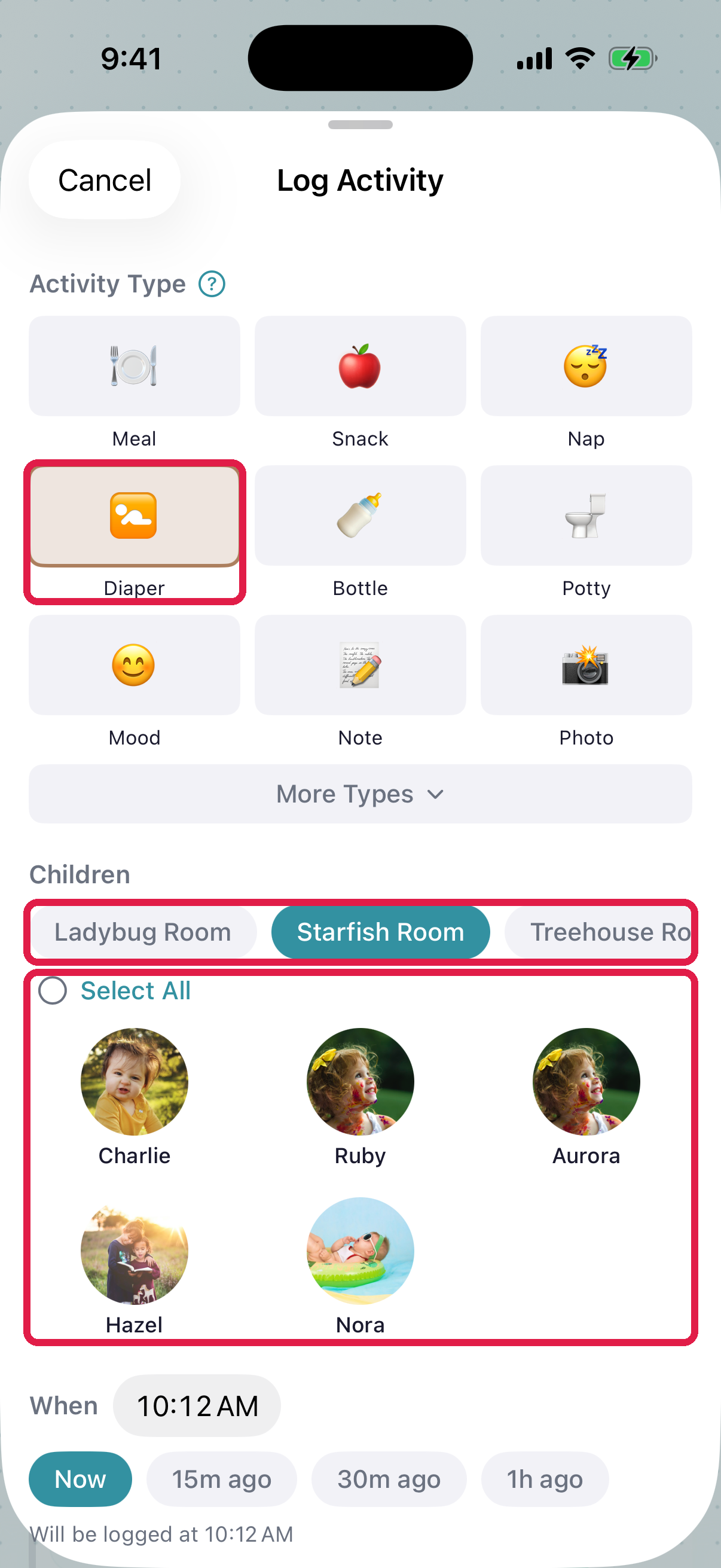
- 1Activity types. Tap Diaper. More Types shows the rest
- 2Room pills. Every room at your center is here
- 3Children. Tap one or more, or tap Select All
- Pick what you found: Wet, BM, Dry or Cream. Wet is already picked. You can pick more than one, for example Wet and BM.
- Add a note if you want.
- Tap Save Activity. If you picked several children, the button says Log for N Children.
The entry shows up on your Home tab and in the parents' app within a few seconds.
Add a photo
Add a photo only when parents need to see something, like a rash.
- On the Log Activity screen, tap Add photos (optional).
- Take a photo, or pick one from your phone. You can add up to 5.
If a photo shows a red warning, it didn't upload. Tap × to remove it, then add it again.
If you tap save while a photo is still uploading, only the photos that finished are posted.
What parents see
The change shows in the parent's feed with the time and your name. Parents who turned on Daily Activities notifications also get a push.
Fix a mistake
Picked the wrong child or the wrong type? See Edit or delete an activity.
Troubleshooting
The child isn't in the list. Check the room pill at the top. Tap the child's room.
The photo won't post. The child's family may not have given photo permission yet. The app shows a warning with their name. Save the change without the photo.
A parent says they can't see it. Check that Share with Parents was on. If it was off, edit the entry and turn Share with parents on.
Your post doesn't show for parents right away. Your daycare may ask an admin to approve your posts first. Parents see it once it's approved. Ask your director.