
Use the care board
See every child's last diaper, bottle and nap at a glance, log them with a tap, and track naps while children sleep.
The care board is the classroom whiteboard, in the app. For every child in your room it shows how long it has been since their last diaper change, bottle and nap, with the child who is most due at the top. If you walk into the room mid-shift, it tells you who needs what.
Open the care board
- On a classroom tablet in Room Mode: tap the Care board tab, next to Attendance and Log activity.
- On your phone: open Dashboard and tap the Care board card, next to Needs your attention.
- On the web: click the Care board card near the top of your dashboard. You can also search for "Care board" from the search box at the top of the menu.
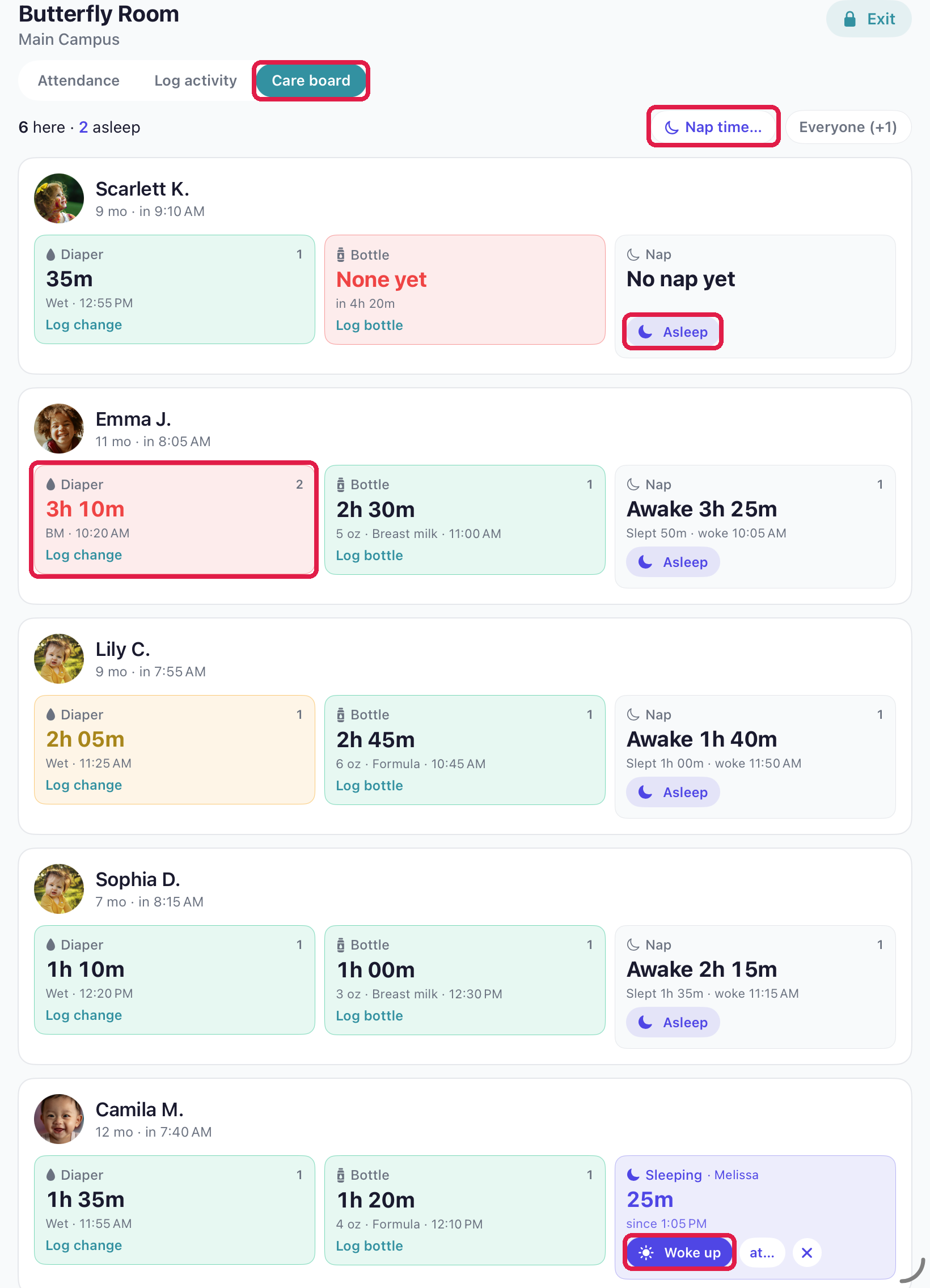
- 1The Care board tab in Room Mode
- 2Tap a Diaper box to log a change. Red means it's overdue
- 3Asleep starts a nap
- 4Woke up ends it; at… picks an earlier time
- 5Nap time… puts several children down at once
The board only appears for rooms that use it: infant and toddler rooms get the full board, preschool rooms get a nap-only version. If you don't see it for your room, ask your admin. See Set up the care board.
Read the board
Each child has a row with three boxes: Diaper, Bottle and Nap.
- The big number is how long ago it happened: "just now", "45m", "2h 05m".
- The line under it says what and when: "Wet + BM · 11:20 AM", "4 oz · Formula · 12:05 PM".
- "None yet" means nothing is logged today. The time under it counts from when the child checked in, because that's how long they've been with you.
- The small number in the corner is how many of that entry the child has had today.
- The Nap box shows how long the child has been awake since their last nap ("Awake 1h 40m"), or Sleeping with a timer while they nap.
- Colours, if your admin has turned them on: green is fine, amber is due soon, red is overdue.
Children who are awake come first, most due at the top. Sleeping children come next. Tap Everyone to also show children who aren't checked in; tap Who's here to hide them again.
The bottle column only shows in rooms that use bottles.
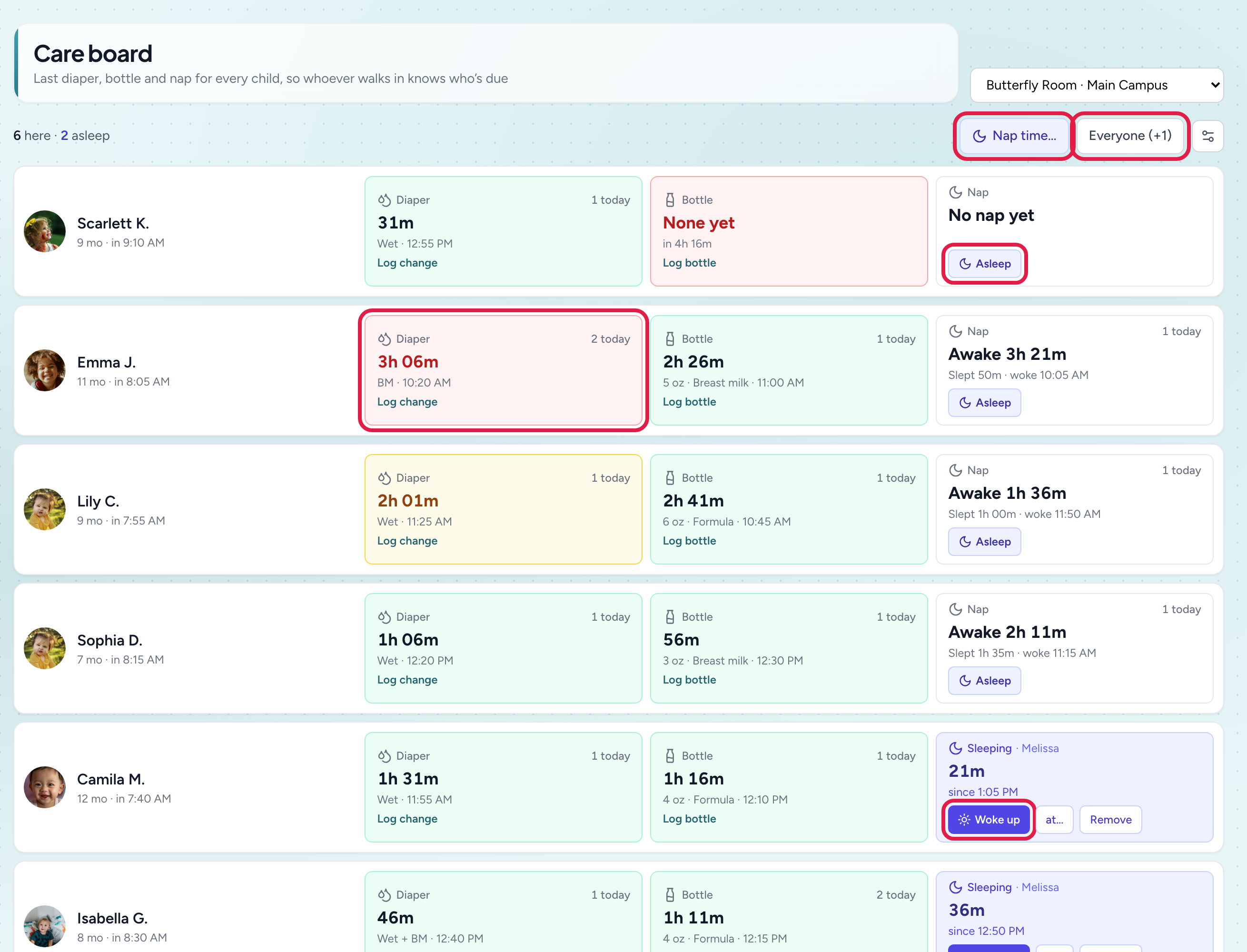
- 1Amber is due soon, red is overdue (if your admin set reminder colours)
- 2Asleep starts a nap
- 3Sleeping children show who put them down. Woke up saves the nap
- 4Nap time… for the whole room
- 5Everyone also shows children who aren't checked in
Log a diaper change
- Tap the child's Diaper box.
- Tap what it was: Wet, BM, Wet + BM or Dry.
That's it. The entry is saved and goes to the parents' feed like any diaper change, and the child's box resets to "just now".
Log a bottle
- Tap the child's Bottle box.
- Pick the milk: Formula, Breast milk or Milk. The one you logged last time is already picked.
- Tap the amount, for example 4 oz. The amount you logged last time is highlighted.
Track a nap
- When a child falls asleep, tap Asleep in their Nap box. The box turns purple and shows how long they've been sleeping, and who put them down.
- When they wake, tap Woke up.
The nap is saved with its start and end time, and parents get it then, just like a nap logged from Log Activity. Parents don't see anything while the child is still asleep.
Woke up a while ago? Tap at… next to Woke up and pick the time they actually woke. The time has to be after they fell asleep and can't be in the future.
Putting the whole room down? Tap Nap time… at the top, tap each child who's going down (or Select all), then tap Start nap.
Tapped Asleep by mistake? Tap Remove (the × on the phone and tablet apps). Nothing is saved and parents never see it.
You can also start a nap from Log Activity: pick Nap, turn on Still asleep, and tap Start nap. The child shows as sleeping on the care board until someone taps Woke up. See Log a nap.
On a shared tablet
In Room Mode, the first time you log something the tablet asks Who's using this tablet? Tap your own face. Everything you log after that is saved under your name, until the tablet sits idle for 10 minutes. A nap started by one teacher can be ended by another; the board shows who put the child down.
Troubleshooting
A child still shows as sleeping hours later. Someone forgot to tap Woke up. After a few hours the box turns amber and asks whether someone forgot. Tap at… and pick when they woke, or tap Remove if the nap didn't happen.
I logged a nap from Log Activity but the board still says sleeping. Make sure the nap's end time is after the time the child was marked asleep. A nap that ended earlier, such as a morning nap you're catching up on, doesn't clear a nap that's happening now.
The numbers didn't change after another teacher logged something. The board refreshes on its own every minute. To see it straight away, switch to another tab and back.
A child is missing. The board shows children who are checked in, plus anyone still marked asleep. Check them in on Attendance, or tap Everyone.